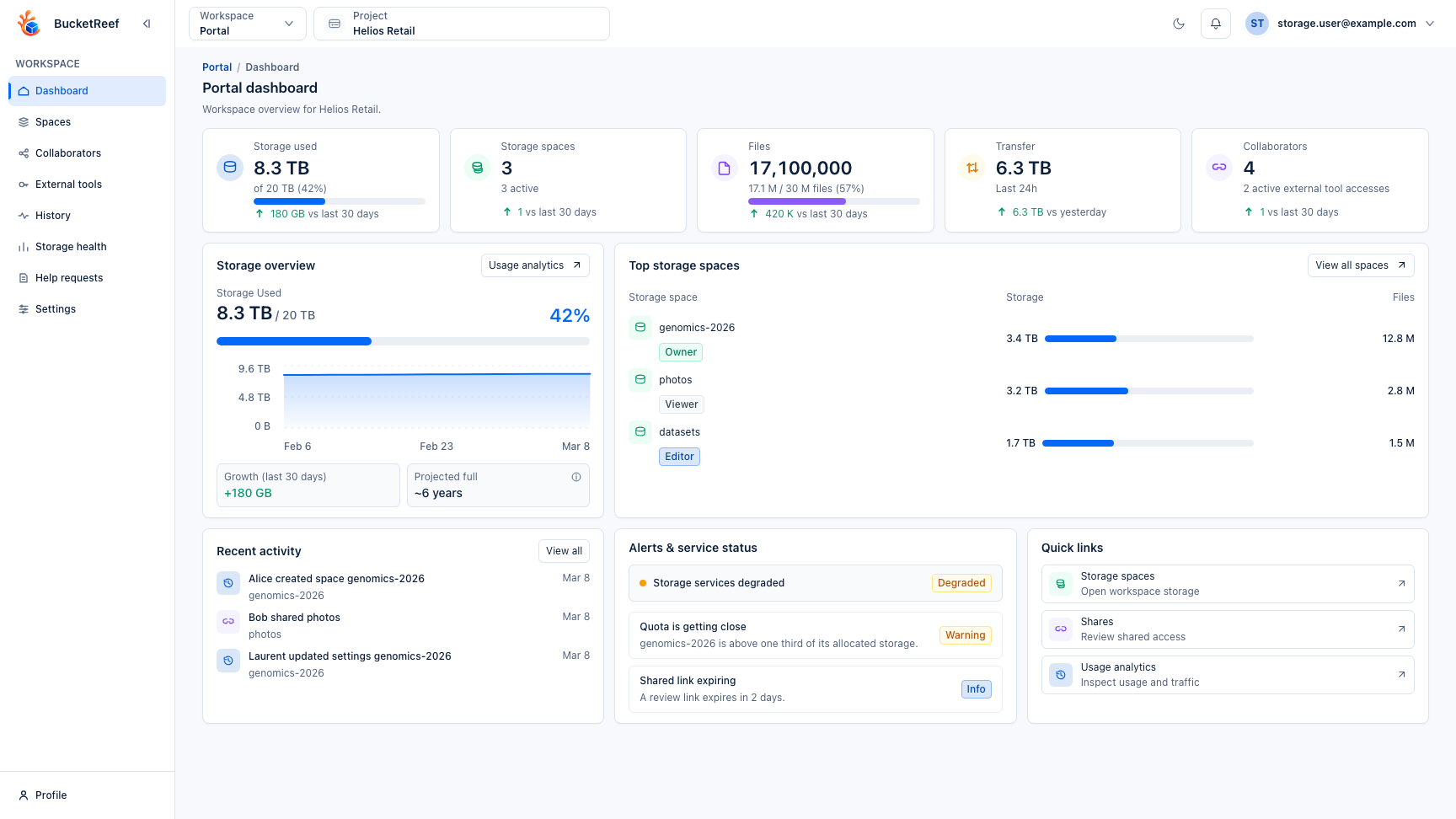
Workspace: Portal
When to use
Use Portal for an end-user workspace focused on spaces, files, collaborators, governance activity, usage, alerts, storage-admin requests, and simple preferences.
Dashboard
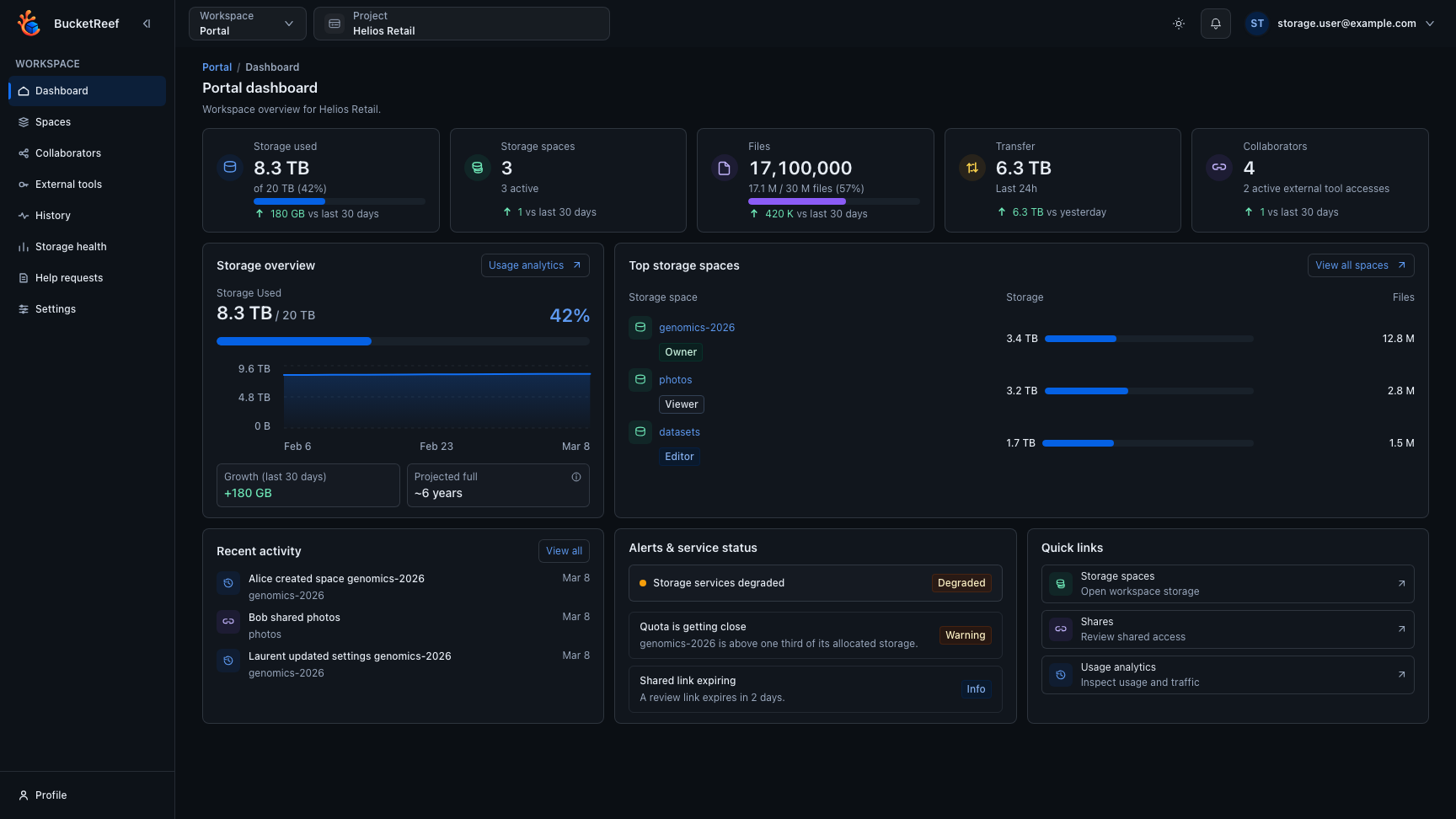
The dashboard keeps its five indicators, storage overview, top spaces, recent activity, alerts and quick links. The compact presentation retains quota details and trends; long names and translated descriptions wrap. Selecting a space still opens that space directly.
Prerequisites
- The global
portal_enabledsetting is enabled. - The global
browser_enabledandbrowser_portal_enabledsettings are enabled to browse files inside a space. - Your UI user is explicitly linked to a Portal project.
- The project is backed by a storage service configured by the platform team.
Steps
- Open
/portal. - Select the project in the top bar.
- The selected project is recorded in
?project=. Each open Portal tab uses the project shown in its own URL. - Use Home for the dashboard, quota, usage by space, collaborators, active external tool access, recent governance activity, shared spaces, and simple alerts.
- Use Spaces to create or open a space, browse files when content access
is available, upload, download, and invite collaborators.
When an administrator enables Browser workspace access for the project, you
can also open
/browserwith that project context; internal bucket names stay hidden. - Use External tools to generate S3 credentials for external tools. The Portal runtime key is not shown in this list.
- Use Collaborators to review workspace members, open a person's effective access review across active spaces, and manage public links when enabled. Managers can review every member; other members can review themselves.
- Use History and Storage health for governance activity, manager-only S3 access logs when enabled, storage health, and cost checks.
- Use Help requests to follow requests for missing collaborators, user removal, or storage-limit changes.
- Use Settings to review the selected project's access, storage service, Storage Spaces, and current usage.
Main workflows
| Workflow | Read next | What it covers |
|---|---|---|
| Open, create, import, or archive a space | Portal: Spaces | Access modes, active/archived states, creation, and imports. |
| Browse, upload, download, or inspect files | Portal: Files | Object list, folders, safe details, and Portal-specific limits. |
| Share with collaborators or understand roles | Portal: Collaborators | Viewer, Editor, Manager, public links, and archived-space behavior. |
| Create credentials for external S3 tools | Portal: External tools | One-time secrets, endpoint guidance, and hidden runtime keys. |
| Understand room left, growth, movement, and alerts | Portal: Storage Health | Storage used, per-space usage, trends, costs, and unavailable metrics. |
| Follow admin-help requests | Portal: Help Requests | Missing collaborators, user removal, storage-limit changes, statuses, and admin messages. |
| Review governance and S3 access | Portal: Activity and Access Logs | Portal-visible control changes and manager-only provider access logs. |
| Review project settings | Portal: Settings | Effective project settings are visible to every member; delegated Portal Managers can edit the shared project override. |
Portal model in one minute
- Spaces are the user-facing work areas registered in Portal. They may map to buckets internally, but buckets that are not registered as Portal spaces stay hidden from Portal lists.
- Private spaces are visible to their owner and Portal managers. Portal managers have full UI and file access and can explicitly take ownership.
- Team spaces are shared with current and future Portal members of the selected project. Selected people spaces are shared only with selected collaborators with Viewer or Editor grants. Team spaces have no owner.
- Both Portal roles can create private spaces when private Storage Space creation is enabled. Only Portal managers can create or import team spaces.
- Archived spaces stay registered but suspend file browsing, sharing, and public links until restored.
- Storage health can show the project total and quota. For regular Portal
users, space details and governance activity are limited to spaces
they can access; undisclosed usage can appear only as the anonymous
Otheraggregate. - File browsing inside a space uses a locked Portal profile of Browser. Opening a file keeps the current folder visible behind a drawer with Preview, History, Sharing, and Details. Advanced S3 editing remains in Browser or Manager.
/browsercan also run with a Portal project context when the effective project settingbrowser_access_enabledis enabled. It still uses the personal IAM identity and Portal permissions instead of management controls, and reuses the same Preview, History, Sharing, and Details drawer.- Portal roles come from a private owner, the manager project role, the team access mode, and collaborator grants managed in Portal. External S3 keys are synchronized from those records; IAM is not the source of Portal listings or roles.
- Portal file operations use a personal IAM identity. Provider S3 access logs, when enabled, are the data-plane audit source and can arrive after a delay.
- The dashboard Collaborators KPI counts active workspace members for the selected project and shows how many active external tool accesses exist for the storage spaces visible to you.
- Help requests let Portal users ask admins for project membership, user removal, or storage-limit changes. They do not change access or limits until an admin approves them.
Expected result
Portal actions stay user-oriented and use the Portal space registry and collaborator grants as their source of truth.
Limits / feature flags
Note
Portal roles are independent from Manager access. Portal access does not
grant /manager; /manager still requires the appropriate project
administration rights.
Note
Portal requires portal_enabled and an explicit project link. File browsing
inside spaces also requires browser_enabled and
browser_portal_enabled. Standalone /browser access additionally requires
the project's effective browser_access_enabled setting, which is disabled
by default and does not affect file browsing inside Portal.
Related pages
- Portal: Spaces
- Portal: Files
- Portal: Collaborators
- Portal: External tools
- Portal: Storage Health
- Portal: Help Requests
- Portal: Activity and Access Logs
- Portal: Settings
- Workspace: Browser
- Use cases for storage users
Visual example