Troubleshooting
When to use
Use this page when a user action fails or an expected menu/page is missing.
Prerequisites
- Access to your current workspace.
- Ability to report route, context, and error message.
Steps
- Verify workspace and context selectors (account/endpoint).
- Check whether feature is enabled globally (Admin settings).
- Confirm endpoint capability for the selected context (IAM, browser, sns, metrics).
- Retry and capture exact error text.
- If needed, ask ops/admin to check audit trail and backend logs.
Quick diagnosis
| Symptom | First checks | Good report |
|---|---|---|
| Workspace is missing | Role, account links, feature flag, entitlement | User email, expected workspace, current visible workspaces. |
| Bucket or Storage Space is missing | Selected context, account link, visibility, archive state | Workspace, context, missing name, whether other items are visible. |
| Action is disabled or hidden | Feature flag, Manager tool access, Portal role, endpoint capability | Page, selected target, expected action, role or entitlement expected. |
AccessDenied appears |
IAM/S3 policy, selected execution identity, object or bucket scope | Exact error, target bucket/key, context, time of action. |
| Metrics are unavailable | Collection jobs, endpoint usage/metrics capability, billing source | Account/context, metric card name, last known collection time if visible. |
| Object version is not visible | Bucket versioning status, deleted marker state, selected object | Bucket, object key, expected version, current Browser context. |
Expected result
You can identify whether the issue is permission, feature flag, endpoint capability, or operational failure.
Limits / feature flags
Note
AccessDenied from backend is expected behavior when IAM/S3 denies the action.
Related pages
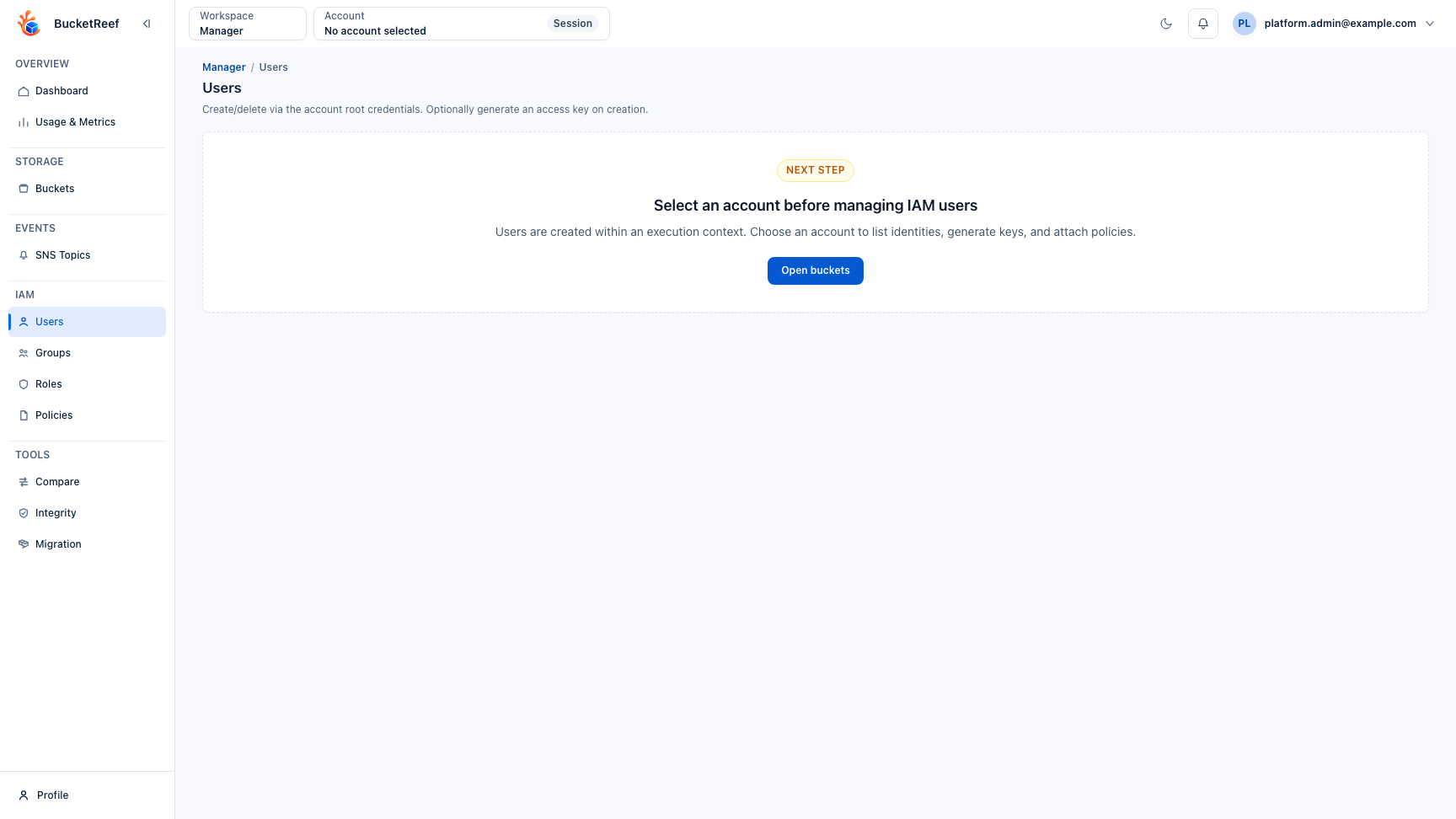
Visual example