Portal: External S3 Tools
Use this page when an app, script, desktop client, or external partner cannot work through the Portal directly.
When a collaborator can sign in to the Portal, share the space from the Portal instead. Create tool access only when a direct storage client is the right workflow.
Before you start
- The External tools page is enabled for the selected project.
- You know which space the tool needs to reach.
- You know whether the tool is for you or for an external user.
- For an external user, you own the target space.
- You are ready to copy the secret when it is shown.
Steps
- Open Portal > External tools. This page exposes the S3 endpoint, bucket name, access key, and other technical connection details required by S3 clients.
- Start New tool access. The creation page explains when Portal sharing is a better fit.
- Choose For myself or For an external user.
- For an external user, choose the space the tool should reach. Personal access uses your existing Portal grants.
- For external access, select Read only unless the tool must upload, replace, or delete files. Use Read/write only for tools that need those changes. The shared form keeps these settings together and asks before discarding edited values. During creation, wait for the request to finish before leaving or switching projects. A failed creation keeps the draft for retry.
- Copy the secret immediately from the panel above the access list. It is shown only once; opening and closing the configurator keeps that panel available.
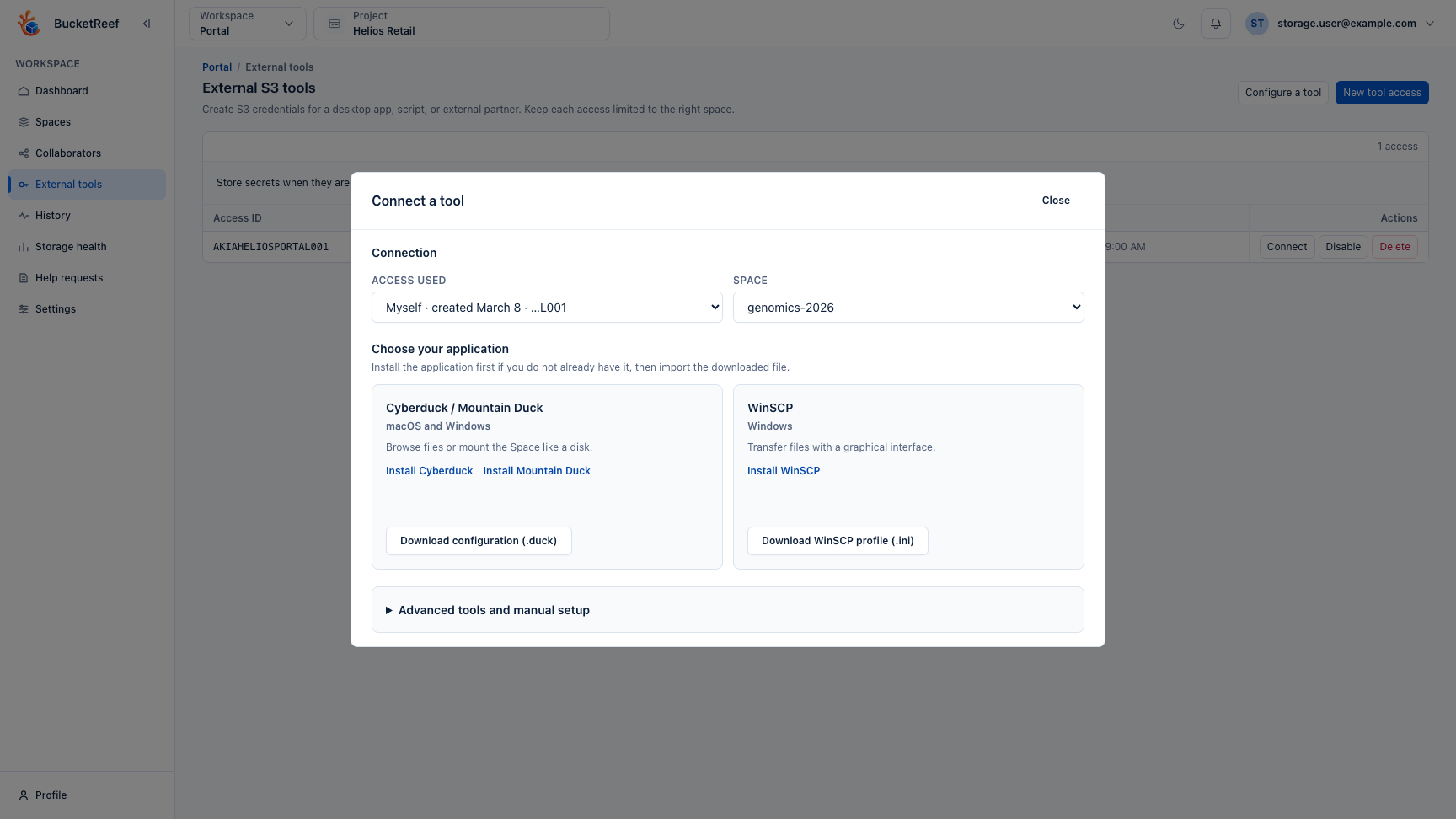
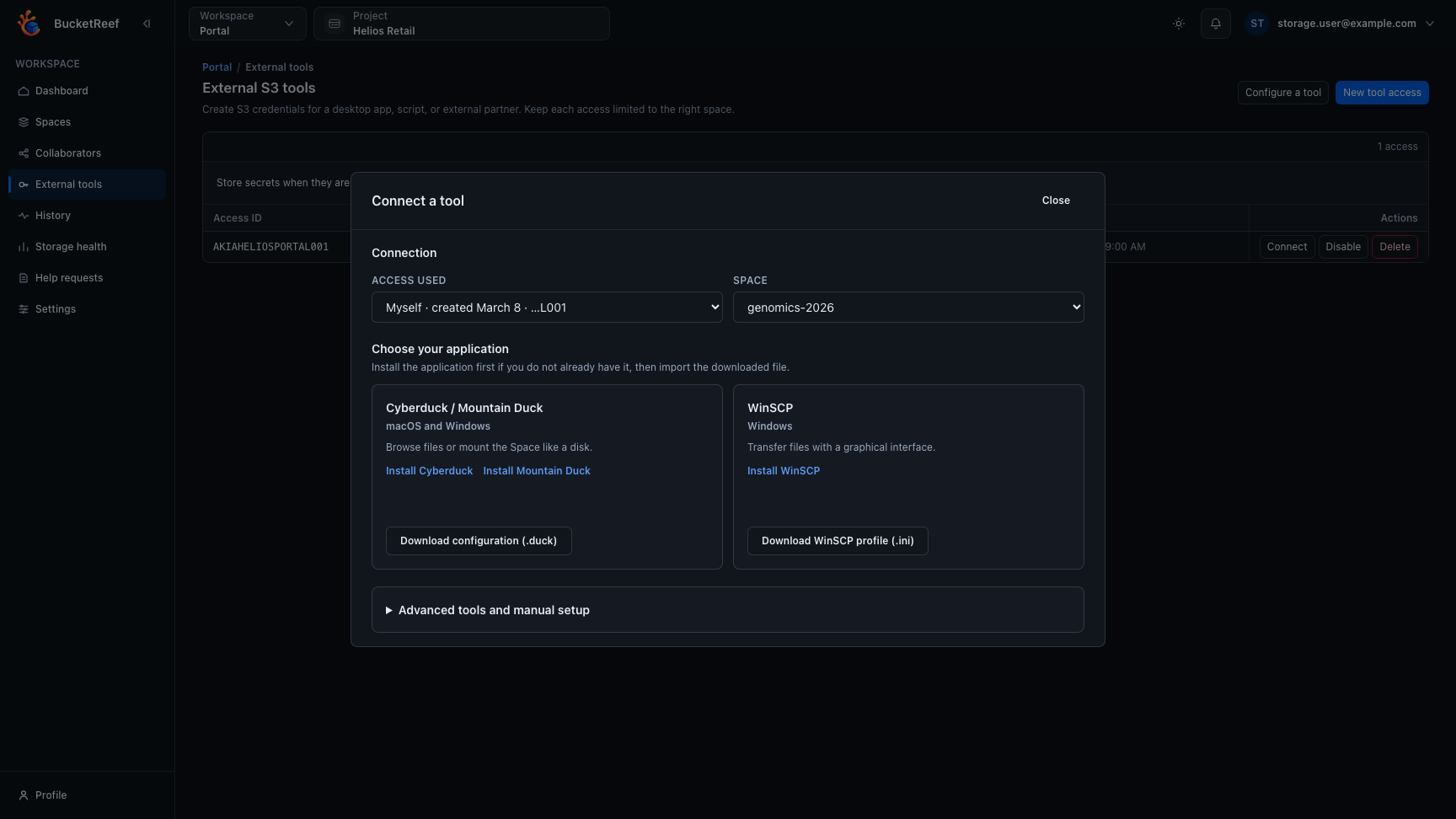
- Select Configure a tool in the page header to open the configurator directly with the identity that was just created. For an existing access, select Connect on its row to preselect it. The list is shown immediately, without an intermediate tab.
- Choose the target space when the access is personal. An external access is already fixed to the space selected when it was created.
- Choose the application and import its downloaded configuration:
- Cyberduck / Mountain Duck uses a
.duckbookmark on macOS and Windows; - WinSCP uses an S3 session
.inion Windows; - rclone is available under Advanced tools and manual setup and uses
a
.confremote for command-line work and automation; - another S3-compatible application can use the endpoint, bucket, Access ID, and addressing mode displayed in the same advanced section.
- Disable or delete unused access when it is no longer needed.
Important limits
- The Portal runtime access used by the application is intentionally hidden.
- The configured key limit applies to each IAM user. When your personal IAM user reaches it, For myself is unavailable, but an external access can still be created because it receives a separate IAM user.
- Personal tool access follows your current Portal space grants.
- Every tool identity must remain assigned to one person. Multiple personal keys are allowed during rotation, but never share a key between people.
- Portal itself already uses your personal IAM identity, so provider access logs can attribute Portal S3 requests to you. External access must preserve the same one-person attribution contract.
- External tool access is limited to one space and to the selected permission level.
- Tool access does not grant access outside the underlying storage policies.
- The bucket name is shown only because some S3-compatible tools ask for it. Use the space name everywhere else in Portal.
- The
.duck, WinSCP.ini, rclone.conf, and manual.txtfiles downloaded from Connect a tool never include the secret. The application asks for it when connecting. - Cyberduck / Mountain Duck bookmarks, WinSCP sessions, and rclone remotes automatically use path-style S3 addressing when the selected storage endpoint requires it.
- rclone reads the secret from the environment variable shown beside the
generated remote. Keep that value out of the
.conffile. - If no active access or no space is available, Connect a tool provides the next action instead of showing an unusable form.
- Space-loading failures offer Retry. Copy and download feedback appears inside the configurator; reopening it retains the selected access and space.
You are done when
The external tool can connect with the downloaded details and access only the intended space with the selected permission level.
If tool access creation is unavailable
Ask an admin whether External tools is enabled. If only For myself is unavailable, delete an unused personal S3 access key before creating another.
Related pages
Visual example