Portal: Collaborators
Use this page when you need to review project members, audit one person's effective access across active spaces, or review links that send a file outside the project. Invitations and role changes are managed from the relevant space so the affected files and permissions always remain clear.
Before you start
- The space is active.
- Every member can review their own access. You must be a Portal manager to review another member or change direct access.
- The person you want to add appears in the people list, or you know their name and email so you can request that they be added to the project.
- Public links are enabled when you need to share one file by link.
Portal roles
| Role | Can do |
|---|---|
| Viewer | List, read, and download. |
| Editor | Viewer actions plus upload, folder creation, and file deletion. |
| Manager | Full project Storage Space access plus team-space sharing management. |
Private spaces have one owner. Team spaces have no owner: Portal uses their access mode and collaborator list to decide which Portal users can browse files. Portal managers can browse and manage every project space.
Access modes
| Mode | How sharing works |
|---|---|
| Private | No collaborator grants. File access stays with the owner and project managers. |
| Team | Every current and future Portal member of the selected project receives the default role, usually Editor. |
| Selected people | Project managers choose specific people and assign Viewer or Editor. |
Main tasks
- Open Portal > Collaborators.
- Project members opens by default. Use it to search every active member of the selected project.
- Use Request member to ask a storage admin to add someone to the project.
- Choose Review access for a member. Portal managers can review every member; other members can open only their own review.
- The review lists every active Storage Space the person can access, their effective role, and why they have it: direct access, project team, ownership, or project-manager role. Archived spaces are excluded.
- Only a direct Viewer or Editor grant on a Selected people space can be removed from this page. Choose Remove access, review the confirmation, then confirm. Team, owner, and manager access is inherited and cannot be removed individually.
- For a direct project member, choose Request project removal in their access review to ask a storage admin to remove their project membership. Follow this and member-addition requests in Portal > Help requests.
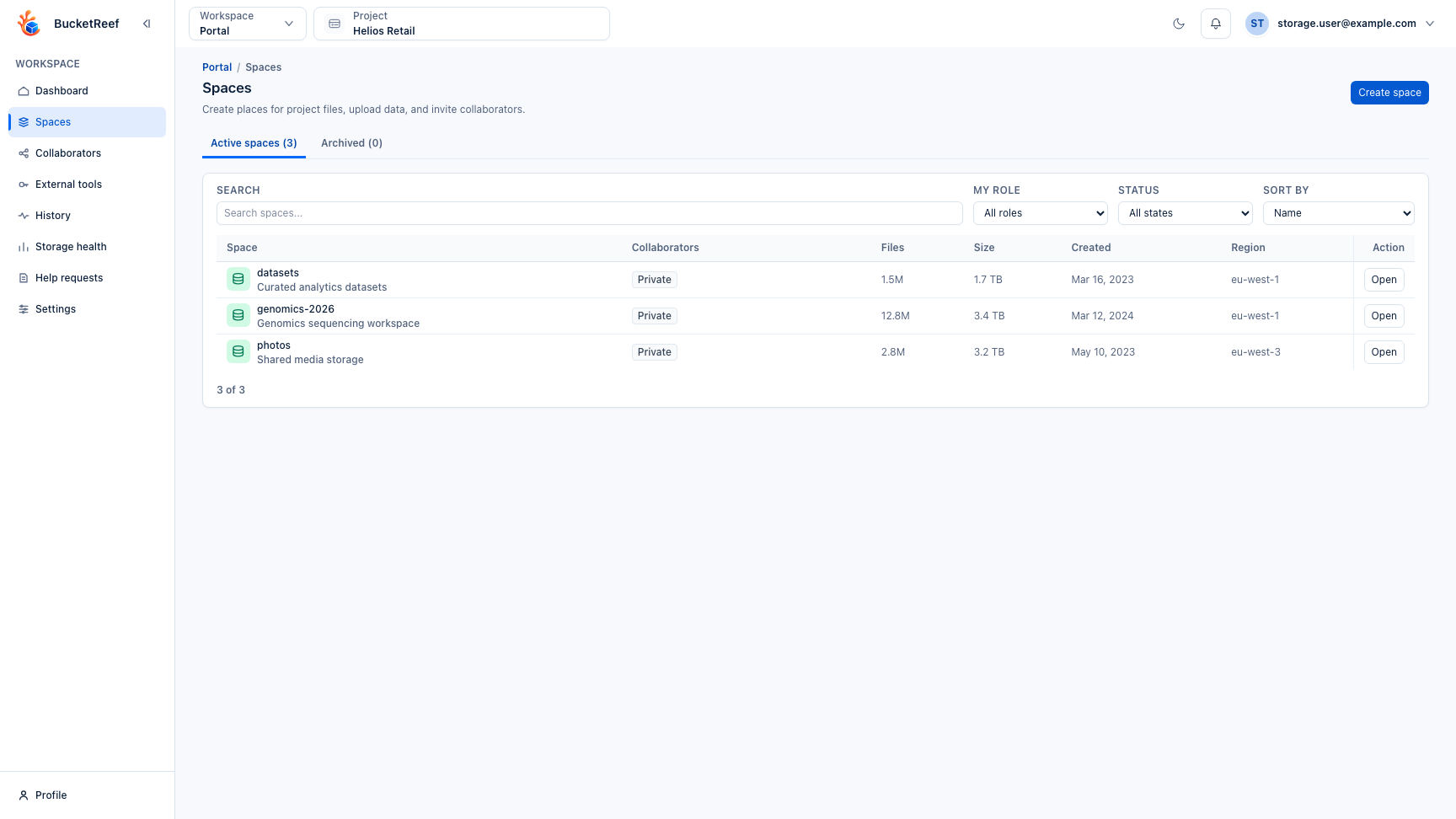
- To invite someone, open Portal > Spaces, choose the space, then open its Collaborators tab. You can also use Invite people from the space header or file area to open the same contextual workflow.
- Choose Add people, search by name or email, select the least-powerful role that fits the work, then confirm Add people. Searching preserves the people and roles already selected. Existing invitations remain visible with their current role. If the people list cannot load, use Retry; a failed invitation keeps the selection for another attempt. Leaving with unsaved selections asks for confirmation. While an invitation or membership request is being sent, wait for it to finish before leaving.
- If no person matches, choose Request collaborator access, add their name and email, then send the request. An admin must add them to the project before you can invite them to a space. Follow the status in Portal > Help requests, then return to the same space to finish the invitation.
- Change a direct collaborator's role from the space's Collaborators tab. Review the person, current role, new role, and space in the confirmation dialog before applying the change.
- To review links for the current Storage Space, open its External links tab. Owners and managers can copy any listed link or revoke an active one. Use External links in the global Collaborators page for a multi-space inventory. New links are always created from the actions of the file being shared.
You are done when
The member's access review explains every active space and effective role, the intended direct access is present or removed, or the external link appears with the expected status and expiry.
If sharing is unavailable
Private spaces cannot be converted into team spaces. Create a team space when collaboration is required. If the person is missing from the people list, send a collaborator access request from the picker, then follow it from Portal > Help requests. Archived spaces keep saved collaborators and links for future restoration, but those entries are inactive while archived.
Related pages
Visual example