Feature: Object Operations in Browser
When to use
Use this guide for object-level actions in Browser surfaces.
Prerequisites
- Access to
/browser,/manager/browser, or/ceph-admin/browser. - Effective permissions for target bucket/prefix.
Before you start
Select the execution context before choosing a bucket. The same bucket name may exist in another account or connection, and object actions always use the current context credentials.
Steps
- Open a browser surface and choose context/account.
- Navigate to the target bucket and prefix.
- On
/browser, use the left buckets panel to switch bucket directly and inspect folders for the active bucket. - Non-active buckets stay collapsed; inaccessible buckets are dimmed until selected.
- Use actions as needed:
- Use the context menu for the full action set on the current path, object, or selection.
- Click anywhere on a row or mobile card, outside its interactive controls,
to open the primary destination. A folder navigates, a file opens on
Preview, and a deleted object opensVersionsor PortalHistory. - Use the checkbox only for selection. On desktop, selection actions replace
the right side of the stable context bar so the list does not move. The
mobile bottom bar exposes the essential actions without horizontal
scrolling. Use
Morefor every secondary action. - With Technical S3 tools, use
More > Columnsto choose which object columns are visible. The default column set stays unchanged until you customize it. - Drag a column separator in the objects table header to resize
Nameand visible object columns. Double-click a separator to restore that column default width. - On
/browser, useMore > Panelsto enable Folders. Object details open in one contextual drawer that is independent from row selection. - With Technical S3 tools, Details on a folder and Path details for the current context open the same drawer shell with the effective bucket and S3 prefix. An on-demand recursive count reports the current objects and, when relevant, versions and delete markers without changing the listing. Standard and Portal do not expose this technical path view.
- In a Portal project context, that shared drawer exposes
Preview,History,Sharing, andDetails, just as it does inside the Storage Space page. - Upload files
- Download objects
- Preview supported files
- Delete objects or delete markers
- Manage versions, restores, metadata, tags, ACL, retention, signed URLs, and archive restore workflows from the unified details drawer for files
- Use bulk actions when handling many objects.
- You can copy or cut items and paste into the target bucket or prefix.
- Same-context paste keeps the existing storage-side copy path.
- Cross-context paste is available only in the Advanced profile. It is frontend-driven and transfers items one by one.
- Cross-context move deletes the source only after the destination copy is verified.
Action access
- Path actions include upload, folder creation, paste, versions, restore, cleanup, copy path, and Advanced path details.
- The desktop selection bar exposes primary selection shortcuts only while a selection exists. Mobile uses a safe-area bottom bar and bottom sheet.
- Selection actions include download, open, copy URL, copy, cut, bulk attributes, advanced actions, restore, and delete when the current selection allows them.
- File entry points such as
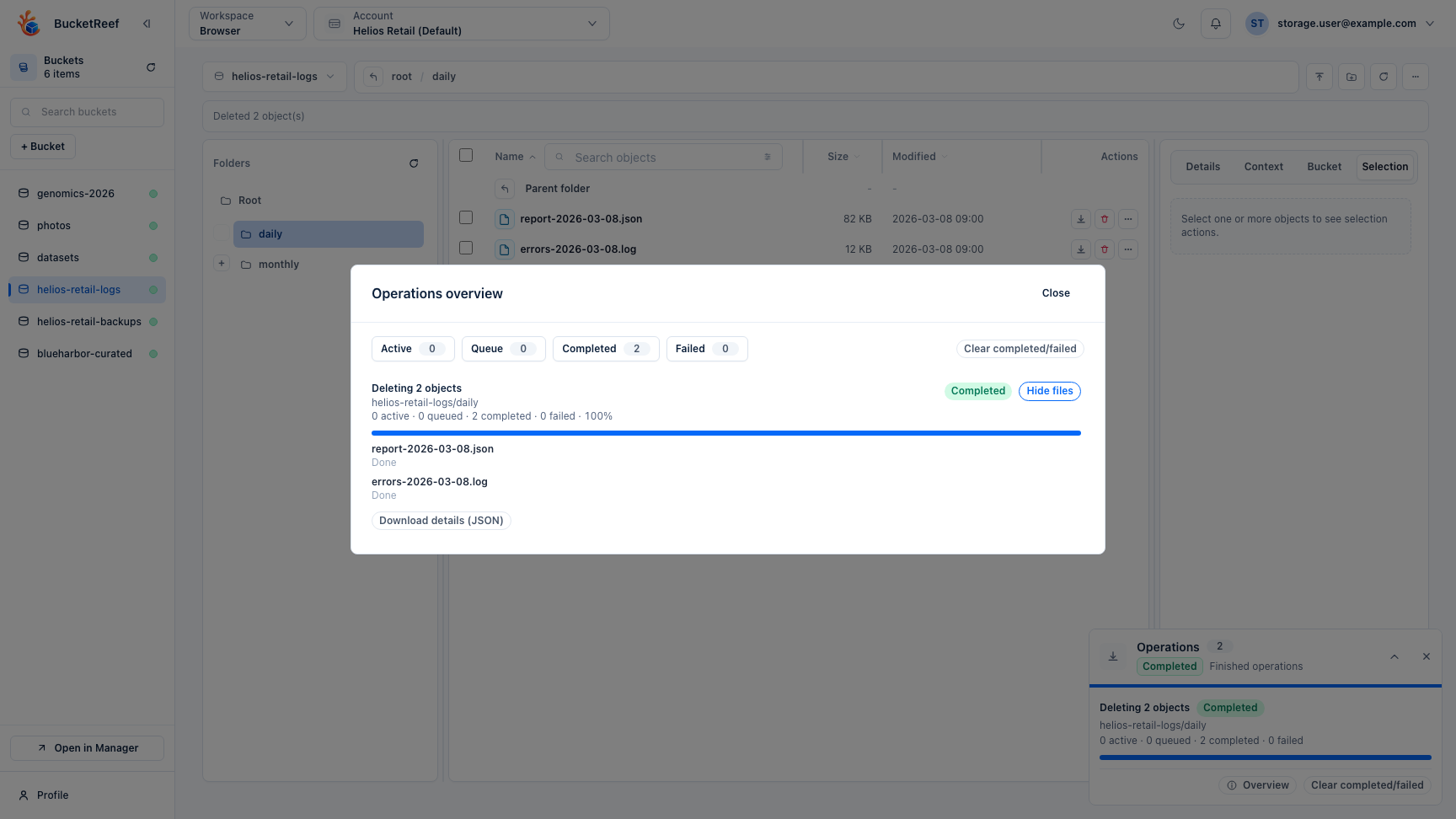
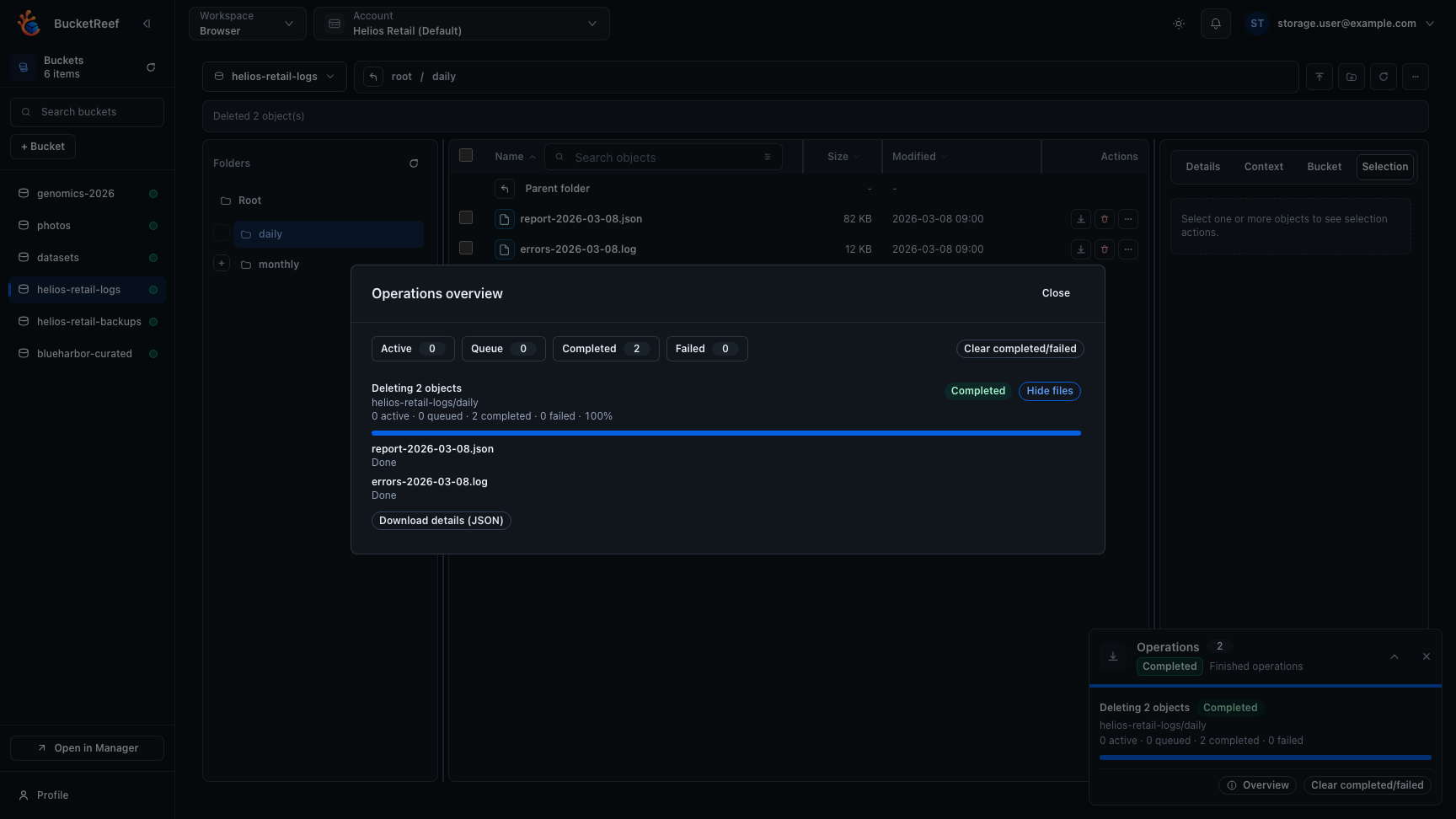
Preview,Versions, and advanced object actions converge into the same details drawer, each opening the most relevant tab first. - Long-running bulk actions surface in Operations overview, where queued, active, completed, and failed work stays visible without leaving Browser.
Moreremains available in embedded Manager, Ceph Admin, and Portal Browser surfaces, where profile and resolved capability facts decide the visible set.- On the main
/browserpage,More > Viewlets every user choose Comfortable or Compact andMore > Panelscontrols Folders. Compact keeps the path and icon actions on one row; Comfortable keeps labeled actions on that row when the window is wide and moves them to a second row when space is tighter. These choices are stored for the root Browser only. The default is a compact view with Folders hidden, suitable for small windows and dense object lists. - With Technical S3 tools, object columns available from
More > Columnsinclude base listing columns such asSize,Modified,Storage class, andETag, plus lazy detail columns such asContent-Type,Tags,Metadata,Cache-Control,Expires, andRestore status. - Custom column widths are stored locally in the current browser and stay separate between the main
/browserpage and embedded browser surfaces. Reset columnsrestores both the default visible columns and the default widths.- Only base listing columns are sortable. Lazy detail columns are display-only and load on demand for visible rows.
- Actions can be disabled for the current state. For example,
Copy URLis disabled when SSE-C is active, and deleted items must be restored from versions before direct download or delete operations. - Standard includes normal file operations and read-only properties. Advanced adds technical S3 tools, editable properties, bulk and cross-context operations, multipart supervision, path details, and bucket configuration. On the dedicated Browser, Bucket details is a read-only summary. Manager and Ceph Admin embeds expose Bucket settings with the supported editors in the same guarded drawer. Portal exposes only end-user actions authorized by the Portal-provided capabilities.
- A row click always opens its primary destination. Selection is explicit via the checkbox, including Shift-click for a range, so clicking another column no longer changes selection unexpectedly.
Expected result
Object-level operations are executed with current context credentials and reflected immediately.
Names are exact: "report.txt" and " report.txt " identify different objects.
Metadata/tag columns and object history keep these distinctions, including
names composed only of spaces. Opening an object's history does not substitute
the history of a trimmed name or a neighboring prefix.
Folder navigation also preserves spaces and leading or repeated / characters.
For example, docs/, /docs/, and docs// are distinct prefixes. The URL,
editable path, suggestions, recent paths, parent navigation, and path details
keep these distinctions. An empty path (or the root button) selects the
bucket root; entering / selects the literal / prefix. A missing final /
is added when entering a folder path. Existing objects are never renamed.
An error does not mean that every requested change was rolled back. After a failed deletion, copy, move, or upload, refresh the list before retrying. For writes handled by the backend, affected object listings and metadata/tag columns are expired from its cache even when the write reports an error.
You are done when
The object list, details drawer, or Operations overview shows the expected completed state for the selected object or prefix.
If you do not see this action
Check the selected object state, current surface, Browser feature flags, and IAM/S3 permissions. Some actions appear only for a file, only for a folder, or only when versioning is available.
Limits / feature flags
Note
Browser availability and operation sets depend on workspace browser flags and endpoint capabilities.
Direct transfers also require bucket CORS rules for the Browser origin. Multipart
uploads require those rules to expose ETag; when BucketReef can read an
incompatible configuration, it offers the existing CORS repair action and uses
proxy transfers when they are enabled.
Related pages
Visual example