Portal: History — Activity and Access Logs
Use this page to review governance changes and, as a project manager, S3 provider access logs.
When to use
Use Portal > History > Activity to answer who changed access, sharing, settings, keys, spaces, or a global workflow. Use Access logs to investigate object requests when Server Access Logging is enabled.
Prerequisites
- Portal is enabled.
- You are linked to the selected project.
- You have access to at least one active Storage Space.
Steps
- Open Portal > History and keep the Activity tab selected.
- Use the summary to see how many recent changes, people, and spaces are involved.
- Filter the timeline by action or space when you need a narrower view.
- Scan the Change column to understand who acted and what changed.
- Use Open space on a row when you need to inspect the related settings or collaborators.
- Open a row's details only when you need its exact resource, action, or technical IP address for support.
- As a Portal Manager, select Access logs to filter S3 requests by date, action, space, path, identity, or result, or export the raw provider logs.
Expected result
You can explain recent Portal governance changes and, when provider logging is enabled, attribute object access to a storage identity.
You are done when
You know who acted, what changed, which space was affected, and whether you need to open the space for more context.
If you do not see this action
If Activity is empty, create a space, change a setting, manage a collaborator, link, or key, then check that you can access the related space. Object actions never appear in Activity.
Limits / feature flags
Note
Portal Activity is scoped to visible spaces and contains governance events only. Admin Audit is the platform-wide control-plane source.
Warning
Access logs come from the S3 provider. They can be delayed and depend on activation and retention. If provider logging is disabled, BucketReef has no exhaustive audit history for object operations.
Related pages
Visual example
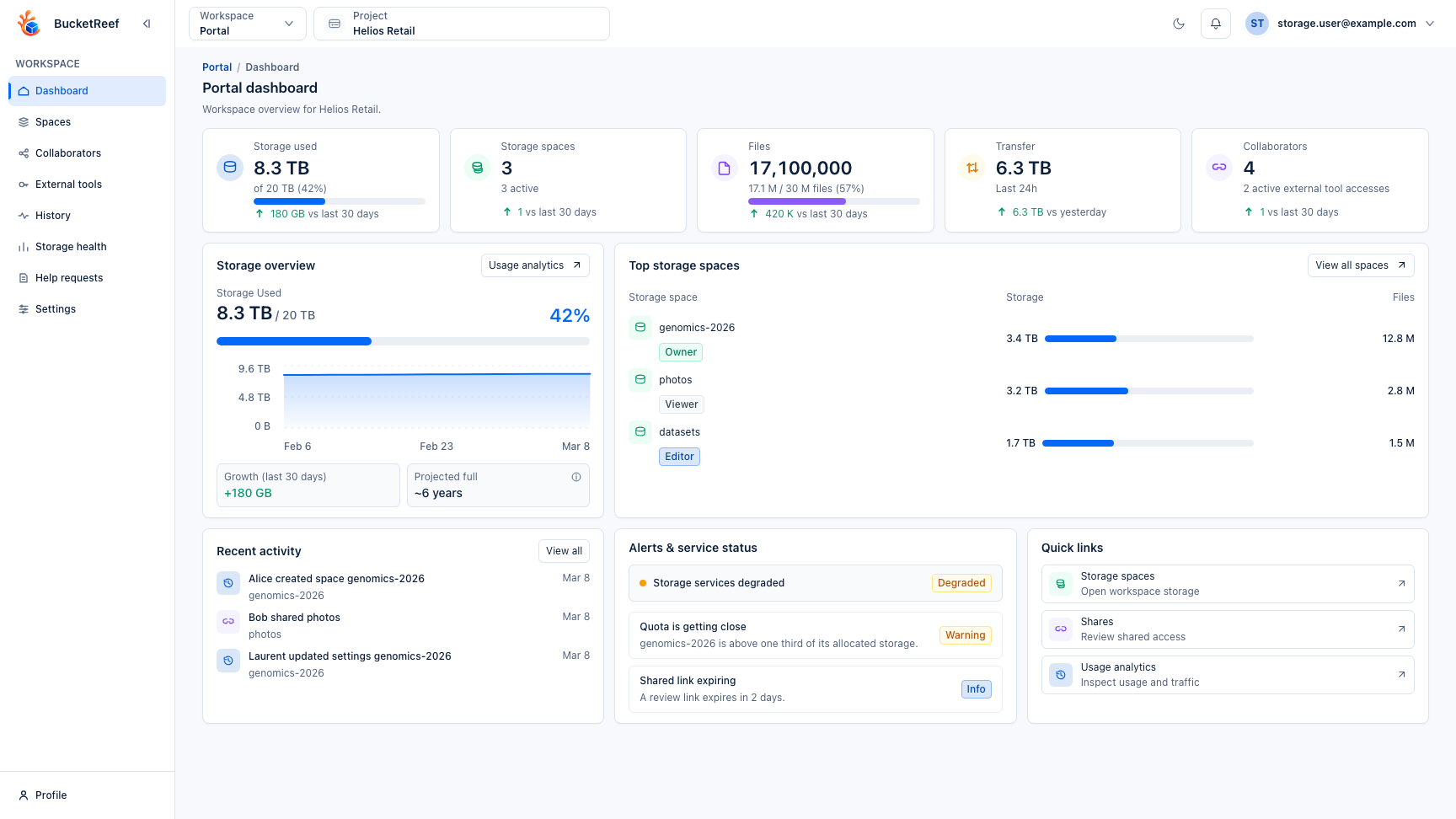
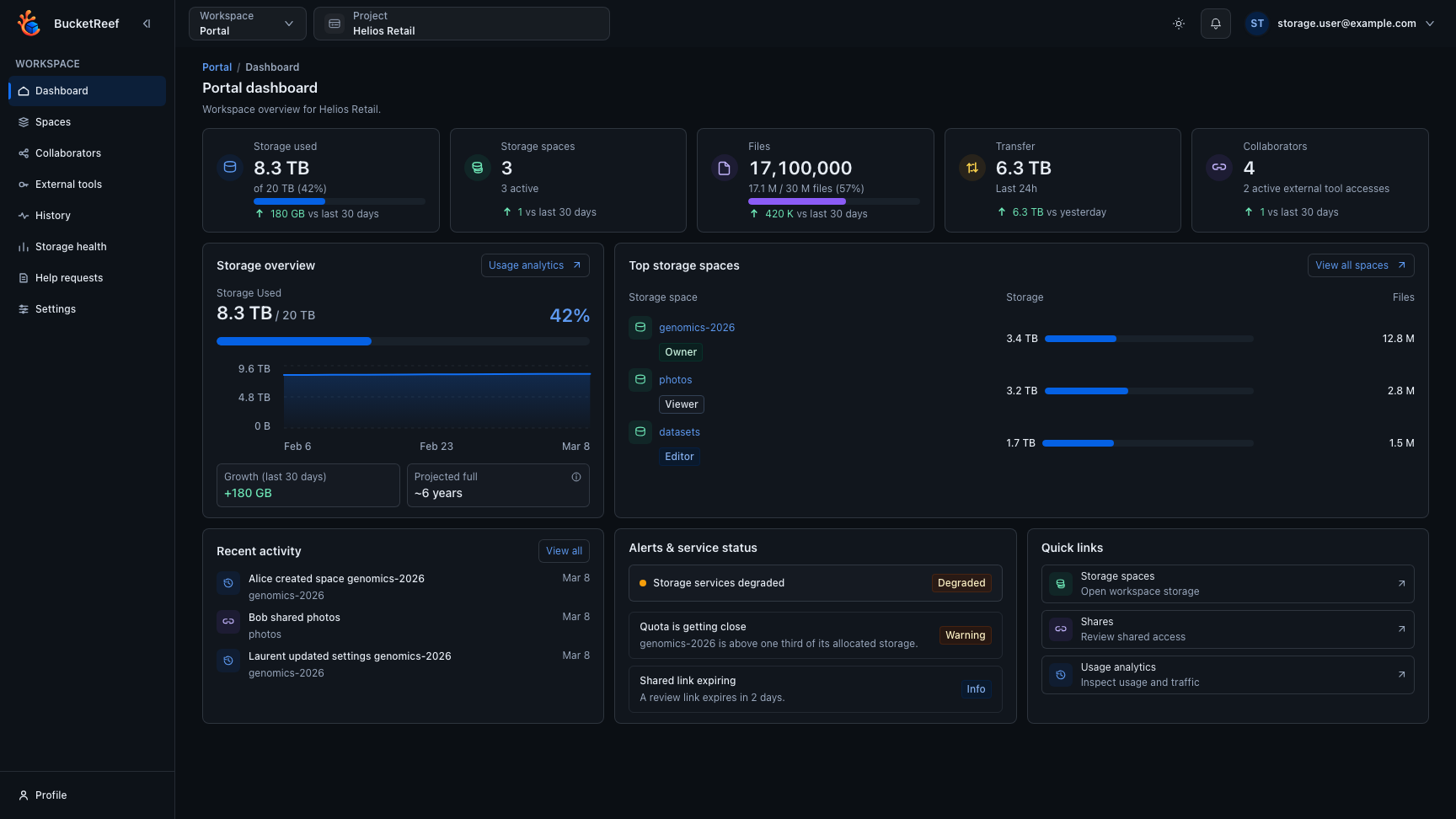
This page reuses the Portal dashboard screenshot because it shows the activity card and the surrounding Portal context.