Portal: Spaces
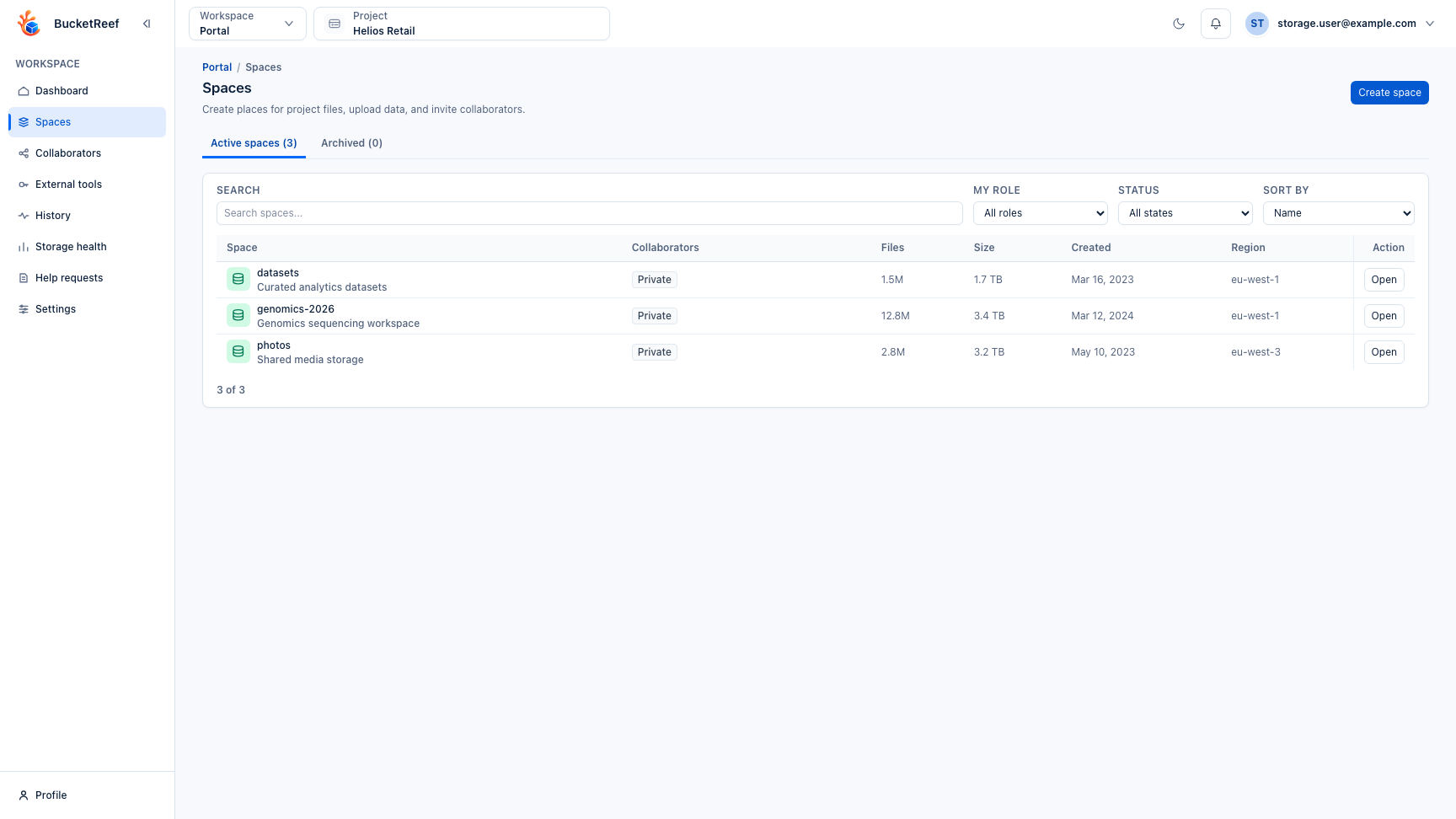
Use this page when you need to create, open, organize, or archive a Portal space.
Before you start
- Portal is enabled for your project.
- Your UI user is linked to the selected project.
- File browsing inside a space requires Portal Browser access.
Main tasks
The top Start here strip shows the recommended order for a new workspace: set up a space, upload files, invite people, then share a file externally only when needed.
| Task | Where | Notes |
|---|---|---|
| Open an assigned space | Portal > Spaces | Select a space to browse files, manage collaborators, and view its statistics. |
| Create a new space | Spaces > Create space | Any Portal user can create a private space when private creation is enabled. Portal managers can also create Team or Selected people spaces. The new space opens with the next steps to add files and invite people. |
| Add existing storage | Spaces > Add existing space | Portal managers can expose existing buckets as spaces and choose the initial access mode. Selected people imports can include collaborators immediately. The added space opens with the same file and collaborator next steps. |
| Choose a space icon | Spaces > Icon | Portal managers can choose a pictogram or upload a PNG/JPEG image up to 1 MiB. The icon is shared by the Portal and Browser space lists. |
| Archive a space | Space actions | Archived spaces keep their bucket and metadata but suspend browsing, sharing, and public links. This is reversible. |
| Configure version history | Space details > Settings | Owners can review file-version retention, automatic cleanup, and the retention period. A project Portal Manager can modify these values on an active space. |
| Review space statistics | Space details > Statistics | See current storage, remaining room, files, average size, file composition, and upload/download activity for this space only. |
| Review external links | Space details > External links | Owners and managers can list active and revoked links for this space, copy their URLs, and revoke active links. Use the global Collaborators > External links view for an inventory across multiple spaces. |
| Delete a space | Space settings > Delete space | Private owners and Portal managers can permanently delete active, archived, and imported spaces only after current files and file history have been removed. |
| Understand collaborators | Portal > Spaces or Space details > Collaborators | The Spaces list shows up to five collaborator avatars; hover an avatar to see the full name, and use the +N indicator for the remaining count. The detail panel shows the current mode, the private owner or project managers, covered member count, direct collaborators, and public-link count. |
| Connect an external S3 tool | Space details > Connect external tools | Copy the space-to-bucket mapping, then open External tools with the space preselected. |
Starting a new space
After you create or add a space, the space detail page opens on the file area and shows a start guide. Use it to keep the setup order simple:
- Add the files or folders people need for the project.
- Invite collaborators when the file structure is ready for them.
The same guide remains visible when an active space has no files yet, so you can come back later and still see the next step.
Storage Space statistics
Open the Statistics tab on a space to review its latest known summary. A zero value is shown as zero; a dash means the value is not currently known.
When you can read the space content, the page also shows the latest stored file composition snapshot (types, sizes, ages, storage classes, and current versus older versions) and its upload/download activity for the last 24 hours, 7 days, or 30 days. These sections are loaded only when you open the tab. Portal does not recalculate the composition from this page.
An archived space, or a space whose content you cannot read, keeps its known summary but does not expose detailed statistics. Per-space storage growth is not shown because no reliable historical series is currently collected at this scope; use Storage health > Trends for the project-wide history.
Access modes
| Mode | Meaning |
|---|---|
| Private | The owner and Portal managers can browse and manage files. A Portal manager can explicitly take ownership. |
| Team | Current and future Portal members of the selected project receive the chosen default access automatically. |
| Selected people | Only selected people receive Viewer or Editor access. Users outside the project must be added by an admin before they can be selected. |
Private and team modes cannot be changed after creation. Team spaces never have an owner; Portal managers administer them for the project.
When a Portal manager creates or imports a Selected people space, selected collaborators are saved with the space. If a searched person is not already available in the current project, ask an admin to add that external collaborator first.
Creation, import and Add people use the same people selector. Its count includes your current selection across searches. The default team role is shown only for Team access; Selected people spaces use each person's chosen role.
Version history settings
Open the Space Settings tab. Identity shows its name, description and icon. Edit details and Change icon open independent save dialogs; changes stay local until you save. Closing a changed dialog asks for confirmation.
File history contains three settings:
- Keep file versions shows whether new file versions are being created. Turning it off suspends Versioning; it does not delete existing versions.
- Automatic history cleanup enables or removes only the two Portal-managed history rules.
- Version history retention is the number of days older versions are kept by the Portal lifecycle rule.
Owners see these values in read-only mode. Only a project Portal Manager can save them, and an archived space remains read-only.
Use Save history settings or Cancel after editing. Invalid retention values are reported next to the field. If another editor changed a setting you edited, your draft remains available and the conflicting setting is identified; cancel to load the current values. Turning off automatic cleanup does not store a new retention period. Identity and icon saves leave the history draft intact.
External tools opens connection details on request. The technical storage name appears there, while the rest of Portal uses the space name. Space management contains archive/restore, manual cleanup and deletion, subject to your existing rights. Save or cancel history edits before running these operations. Current files are retained by history cleanup; permanent space deletion keeps its existing empty-space requirement and confirmation.
Manual history cleanup keeps its progress and result visible on a dedicated page. While the scan is still discovering candidates, the total is provisional and no percentage is shown. Wait for completion or choose Stop cleanup before navigating away. Stopping does not restore history already removed; a failed or interrupted operation requires an explicit restart. Partial results remain visible and are not reported as a successful cleanup.
On an imported bucket, Portal preserves every lifecycle rule it does not own.
Disabling automatic cleanup removes only ExpireDeleteMarkers and ExpireOldVersions.
Archiving and permanent deletion
Archiving keeps the Storage Space and its bucket. It suspends file access and public links until a private owner or Portal manager restores the space.
Permanent deletion removes both the Storage Space and its underlying bucket, including for a space added from an existing bucket. Portal never empties a bucket automatically during deletion. Before deleting a space:
- Remove every current file from the Files tab.
- Run History cleanup, review the impact in the confirmation dialog, and confirm Start cleanup to remove older versions and remaining delete markers. No confirmation phrase is required.
- Return to Space settings and confirm Delete space after usage shows zero files and zero storage.
If the space is archived but still contains data, restore it before completing these steps. Deletion also revokes collaborator access, external credentials, and public links. Audit and activity history remain available to authorized administrators.
You are done when
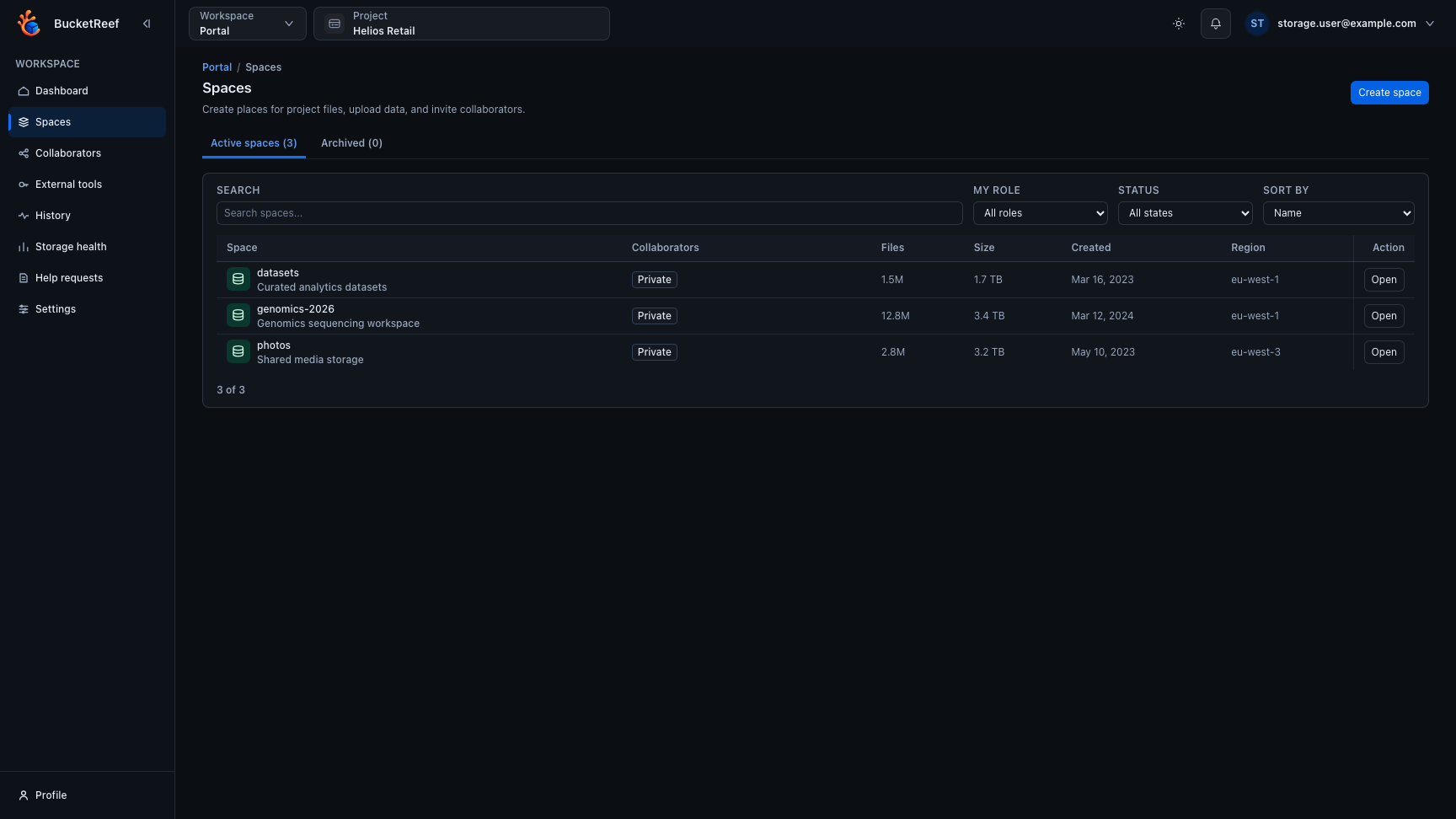
The space opens on its file area, and the list shows the expected collaborator avatars, access mode, role, usage, and open action.
For an external S3 tool, the space detail page shows the exact bucket name to use. Keep using the space name inside Portal; use the bucket name only when the external tool asks for it.
If you do not see a space
Check the selected project first. If it is still missing, ask an admin or Portal manager to verify your project link, space access mode, grants, and archive status.
Related pages
Visual example