Feature: Key Rotation in Admin
Use this page when you need to rotate managed storage credentials from Admin.
When to use
Use Admin > Settings > Key Rotation for planned credential rotation, incident response, or validation of endpoint credential hygiene.
Prerequisites
ui_superadminaccess.- At least one eligible storage endpoint.
- A maintenance window or rollout plan when rotated keys are used by automation.
- A fallback credential or recovery path is known.
Steps
- Open Admin > Settings > Key Rotation.
- Select the endpoint or endpoints to rotate.
- Select only the key types required by the maintenance plan.
- Choose whether previous keys should be disabled or permanently deleted after replacement. Click Run rotation, review the endpoints, categories and old-key handling, then Confirm rotation.
- Wait for the actual result. Review rotated, failed and skipped entries; key identifiers are available in each result's details.
- Validate endpoint health, Manager context access, Browser access, and any scheduled collection job that uses the rotated credential.
- Review audit logs for the actor, endpoint, and key type.
Expected result
Managed credentials are rotated and dependent storage workflows still pass health, usage, and Browser checks.
You are done when
The rotation result is successful, audit evidence exists, and a post-rotation smoke test passes for every selected endpoint.
If you do not see this action
Only superadmins can access key rotation. Check role assignment before checking storage endpoint settings.
Limits / feature flags
Warning
Key rotation can interrupt automation that still depends on an old credential. Validate schedulers, CronJobs, external integrations, and backup access after rotation.
A failed or timed-out request can have a partial outcome. Keep the displayed results and verify existing keys before starting another rotation. The page never automatically repeats an uncertain operation.
Endpoints managed by the environment
When an endpoint is configured through ENV_STORAGE_ENDPOINTS, the environment
remains the source of truth for its Admin Ops, supervision, and Ceph Admin
credentials. The Admin key rotation page skips those three key types rather
than creating a key that would be lost or overwritten on the next backend
restart. Account and standalone S3 user keys remain eligible because they are
stored in the database.
Rotate environment-managed endpoint credentials without interruption:
- Create a second key for the same RGW identity and keep the old key active.
- Replace the access key and secret together in the deployment secret or
configuration that supplies
ENV_STORAGE_ENDPOINTS. - Redeploy every backend replica, then validate Admin Ops, Ceph Admin, and supervision or metrics access as applicable.
- Disable or delete the old key only after every replica is using the new environment values and the validation checks pass.
Do not retire the old key before the deployment configuration has been updated. In a multi-replica deployment, do not retire it while any replica may still use the previous environment.
Related pages
Visual example
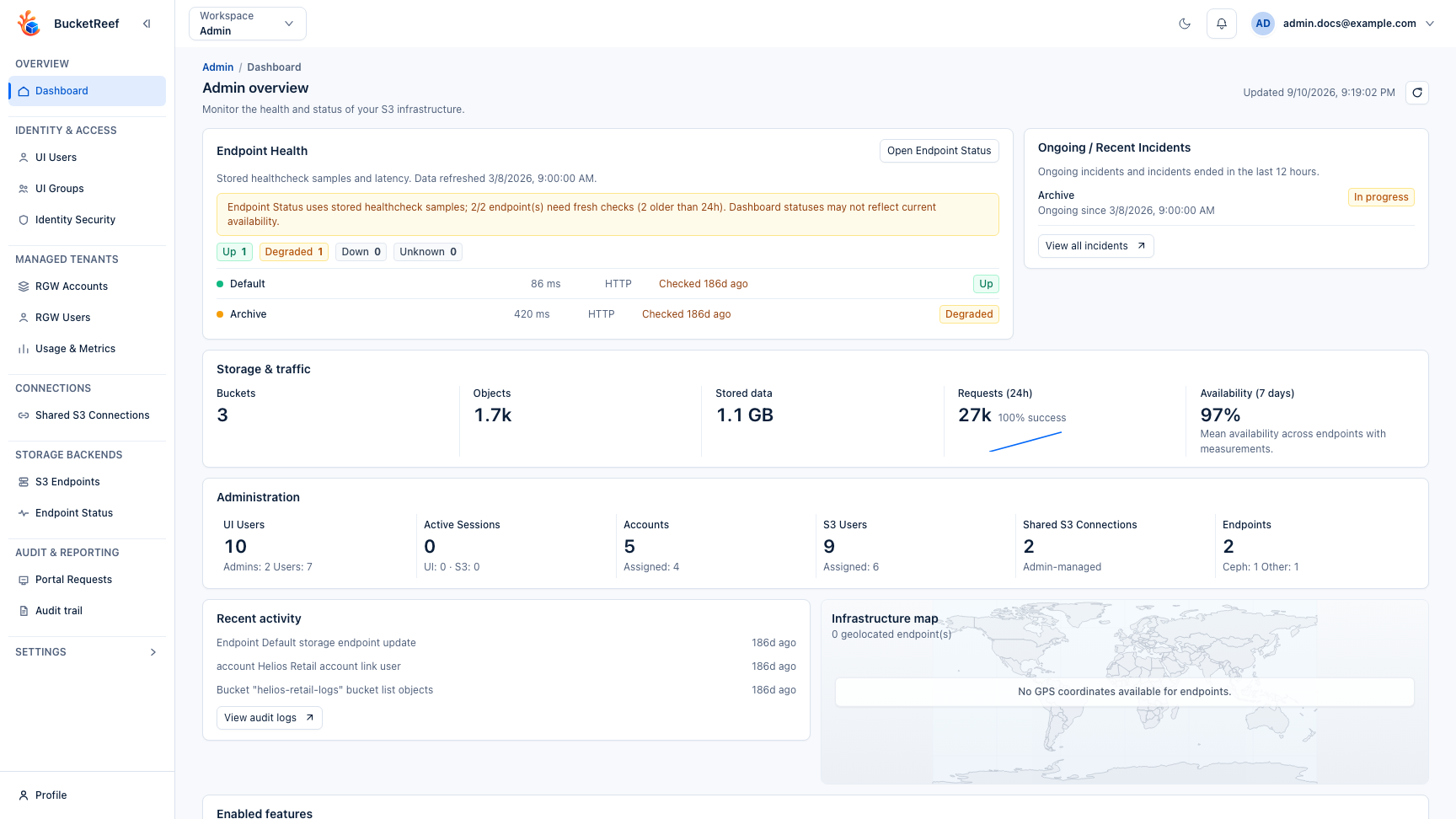
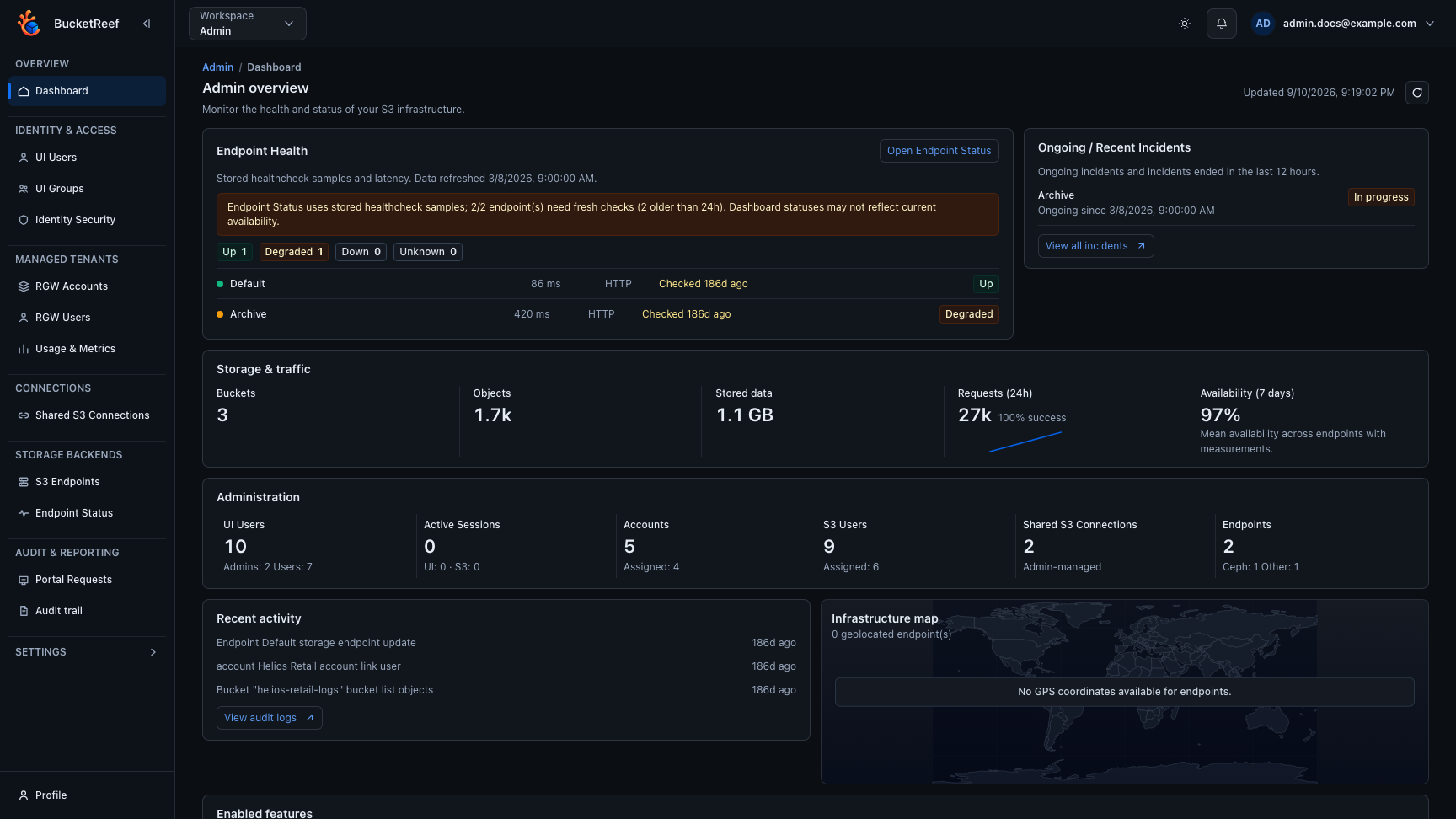
This page reuses the Admin workspace screenshot because key rotation is a superadmin settings workflow inside Admin.