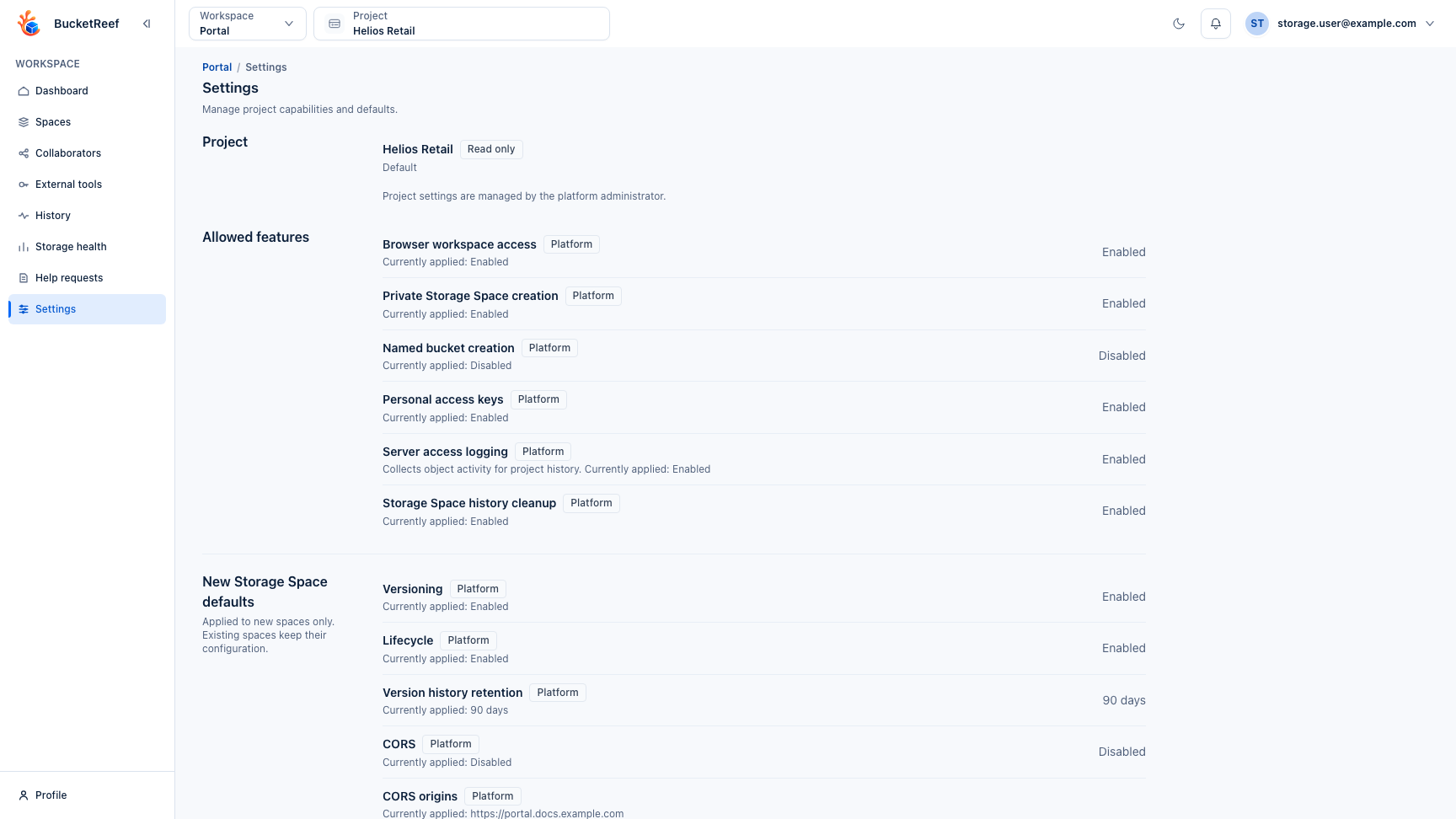
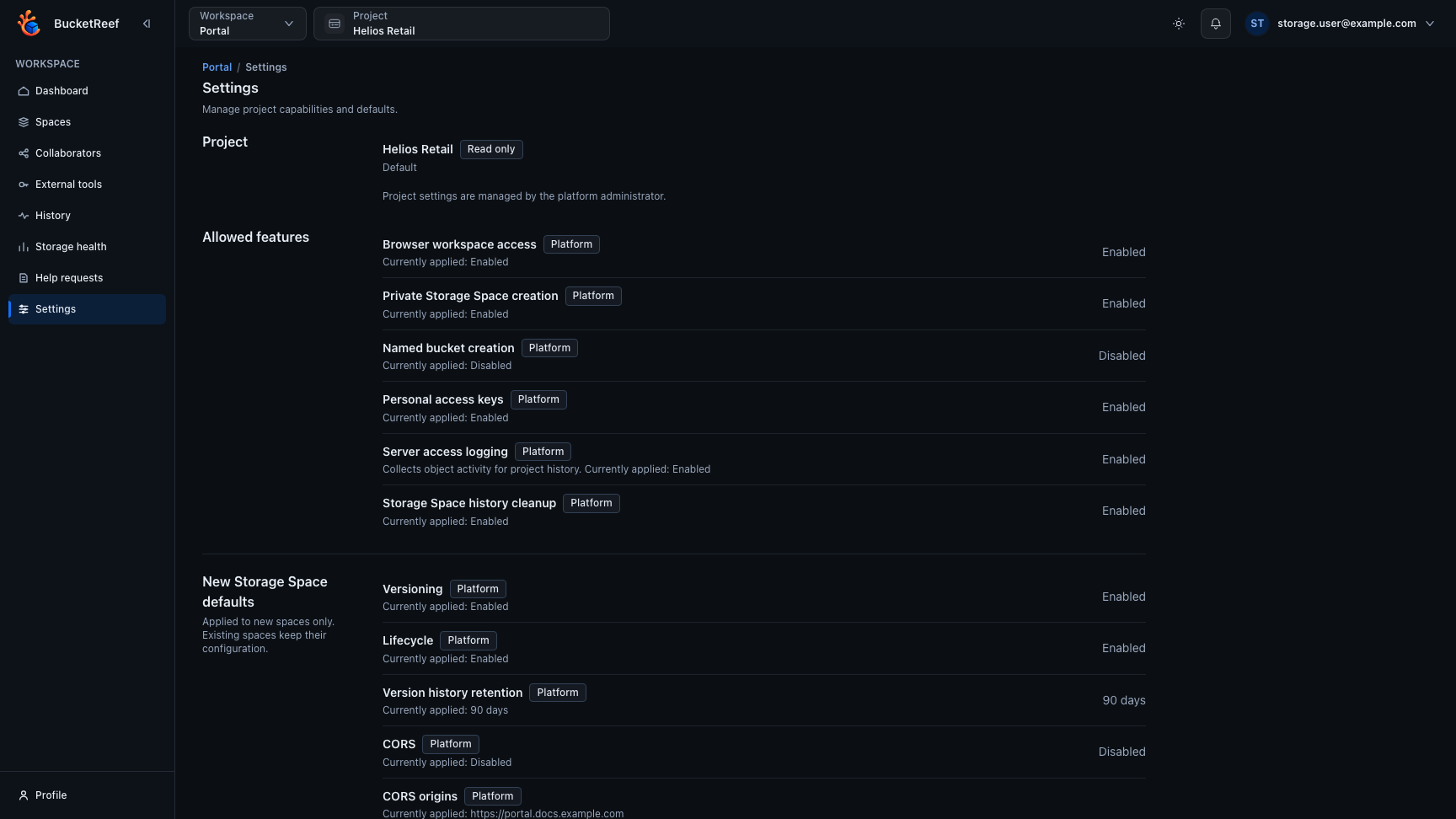
Portal: Settings
Use this page to review the effective configuration of the project currently selected in the Portal. A Portal Manager can also edit the project override when an administrator has delegated this responsibility.
When to use
Use Portal > Settings to confirm the selected project, your access level, the storage service, and the effective Portal capabilities and Storage Space defaults. Personal identity, display preferences, alerts, and password settings are managed from User profile.
Prerequisites
- Portal is enabled.
- You have an explicit Portal user or Portal manager role in the selected project, directly or through a UI group.
- The selected project is available in the Portal.
Steps
- Open Portal > Settings.
- Confirm the selected project.
- Review your workspace access and the associated storage service.
- Review Currently applied values and their Platform or Project origin. Storage usage and space counts remain on the dashboard.
- If you can edit, choose Platform value, Enabled, or Disabled. Turn on Customize for retention days or CORS origins. Configure opens a CORS draft; Apply copies it into the page without saving to the server.
- Save changes applies the complete page draft. Cancel discards it after confirmation. Restore platform values prepares a reset in the draft; review it and save to apply it. New-space defaults do not change existing Storage Spaces.
Expected result
Every Portal project member sees the effective values. Portal Users and non-delegated Portal Managers cannot change the controls. A delegated Portal Manager can update the single shared project override also shown in Admin.
Account administrator is a separate Manager role: it grants neither Portal membership nor permission to edit Portal settings. A person with both roles uses their Portal role here, regardless of their Manager rights.
You are done when
The project context and effective settings match the workspace you intended to review. If you are delegated, saving the draft updates the page with the resulting effective values.
Administrators use the same editor in Admin > RGW Accounts > Portal settings, with an additional delegation switch. Restoring platform values does not change delegation. Portal and other account changes are saved independently.
Changes remain in the form if saving fails. If another editor changed a value you also edited, the page reports a conflict instead of overwriting it. Cancel to load the current values. Changing project or leaving a modified form asks for confirmation before switching the active project.
The page and its dialogs follow your profile language (English, French, German or Simplified Chinese), including automatic language selection. Currently applied inherited values are refreshed after saving; an overridden platform default is not available for preview through the project API.
If you do not see this action
If settings are read-only, either your project role is not Portal Manager or an administrator has not enabled delegation for this project. Existing overrides remain effective when delegation is disabled. Use User profile for personal settings or ask an administrator to review the project configuration.
Limits / feature flags
Note
Delegation never creates a second settings layer: Admin and delegated Portal Managers edit the same project override. Project defaults affect newly created Storage Spaces only; use the Settings tab of an existing Space to change its file-version retention, automatic history cleanup, or retention period.
Related pages
Visual example