How-to: Use UI tags in Storage Ops
When to use
Use UI tags in Storage Ops > Buckets to build reusable operational selections across multiple contexts.
Prerequisites
- Access to
/storage-ops/buckets. storage_ops_enabledfeature enabled.
Before you start
Use Storage Ops UI tags for cross-context campaigns. They are persisted by BucketReef, are always private to the signed-in user, and do not change S3 tags. Their identity is the physical bucket (endpoint, tenant, and bucket name), so two authorized contexts targeting the same bucket reuse its UI tags while homonymous buckets on different endpoints remain separate.
Steps
- Open Storage Ops > Buckets.
- Select one or more buckets.
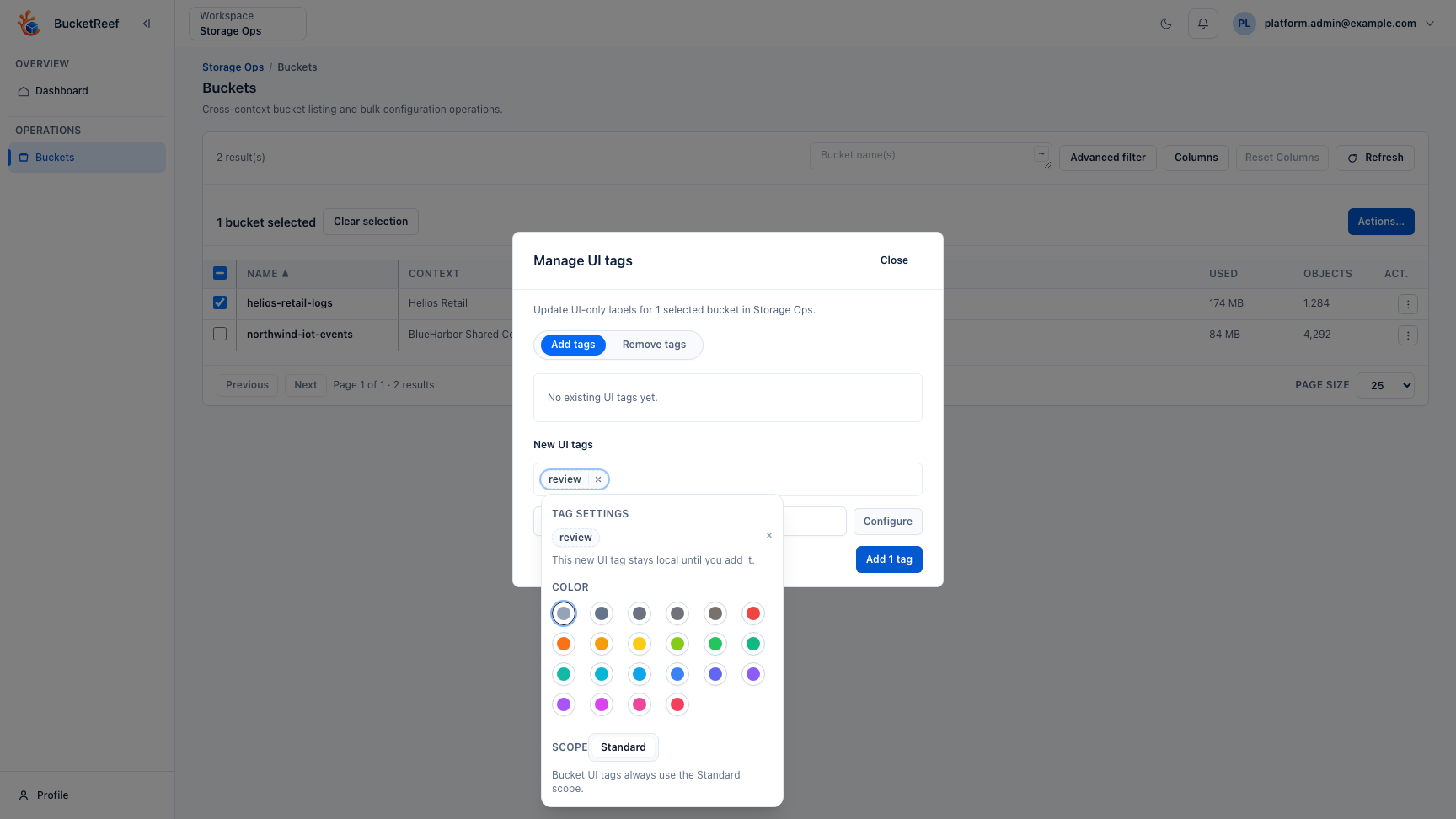
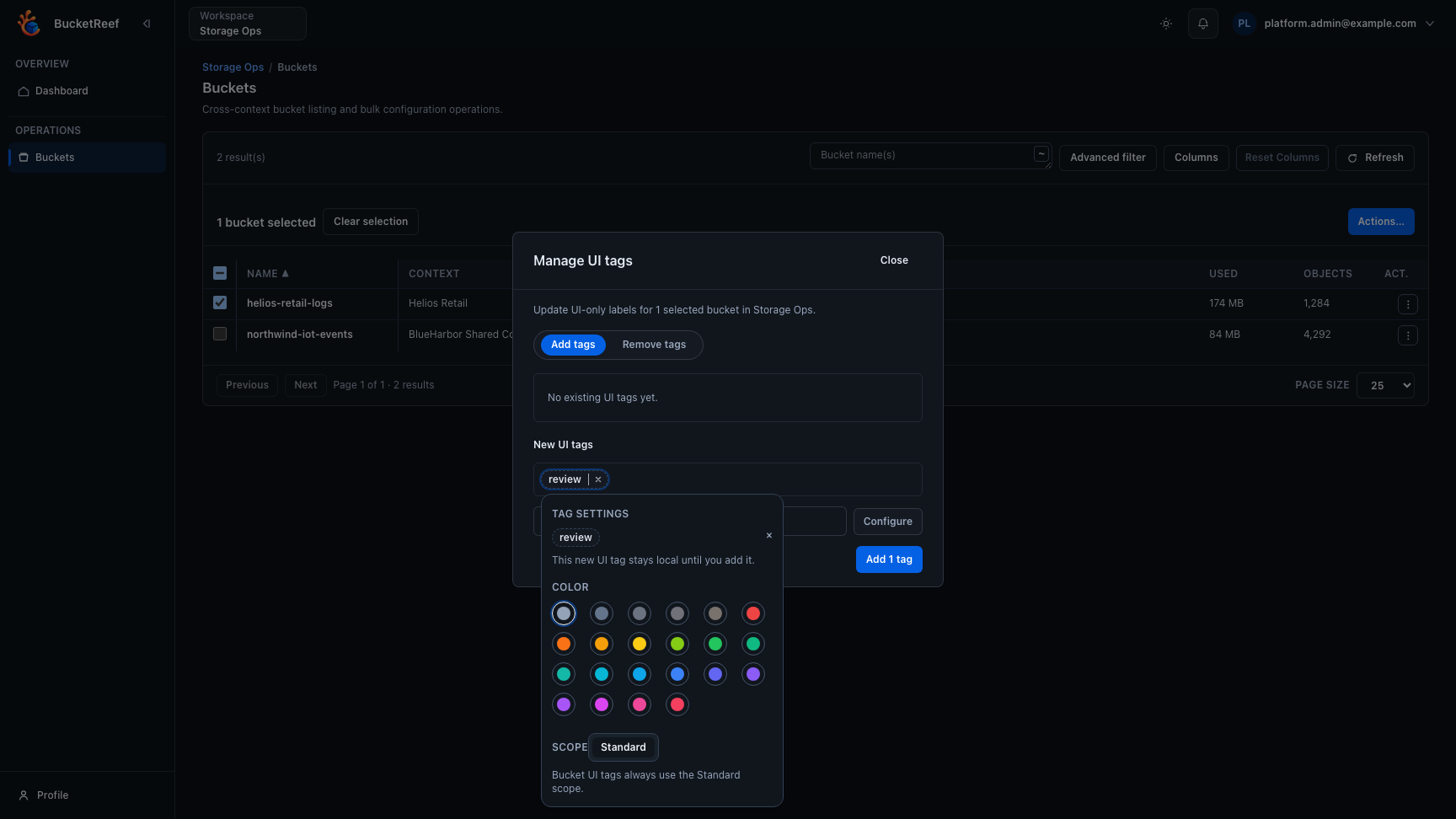
- Open Actions… > Selection > Manage UI tags…, then choose Add tags:
- choose an existing tag, or
- enter one or more comma-separated names in the
new-taginput and select Configure. Each new tag starts with the neutral color. - Select a tag badge to open Tag settings, then choose its color from the shared UI tag palette. Storage Ops keeps the scope at Standard and does not expose a Shared choice.
- In the same dialog, choose Remove tags to remove tags from the selected rows.
- Use tag filters to quickly restore the same selection scope later.
Expected result
Your selected buckets are grouped with UI tags so repeated operational campaigns are faster to run.
You are done when
The selected rows show the intended UI tags and the same tag filter can be reused across authorized contexts. Private tags use a dashed outline; their full visibility is also available in the tooltip, panel, and accessible label.
If you do not see this action
Check Storage Ops access, the global feature flag, and whether rows are selected in the bucket workbench.
Limits / feature flags
Note
Storage Ops and Ceph Admin use separate UI-tag namespaces. Storage Ops does not expose a Shared choice and rejects shared or unauthorized context references at the API boundary. UI tags never call or modify the S3 Tags API.
Changing the color of a persisted tag updates its definition immediately. The color remains private to the signed-in user together with the tag definition and its assignments.
At workbench load, a dedicated backend check compares persistent assignments with the cached inventories of authorized contexts without transferring every assignment to the browser. If an inventory cannot be verified, no bucket is reported as missing. The warning action revalidates that a bucket is absent before removing its assignments.
Related pages
Visual example