Workspace: Admin
When to use
Use Admin for platform governance and global configuration.
Prerequisites
ui_adminorui_superadminrole.
Steps
- Open
/admin. - Use Identity & Access to manage UI users.
- Use Managed Tenants to manage RGW accounts and users.
- Use Connections for S3 connections.
- Use Storage Backends for endpoints and endpoint status.
- Use Usage & Metrics to review endpoint-scoped storage, usage composition, usage history, and traffic from tabbed categories.
- Use Audit & Reporting for billing, stored usage-history snapshots, and the control-plane/security audit trail. Object operations are investigated in S3 provider access logs, not Admin Audit.
- If superadmin, use Settings pages for global behavior, authentication options, UI-managed OIDC/LDAP providers, and key rotation.
The RGW Accounts page uses /admin/s3-accounts. The former frontend alias
/admin/accounts is no longer supported; update bookmarks to the canonical
URL. Backend account endpoints under /api/admin/accounts are unchanged.
Expected result
Platform and tenant-entry resources are configured and auditable.
Reading the overview
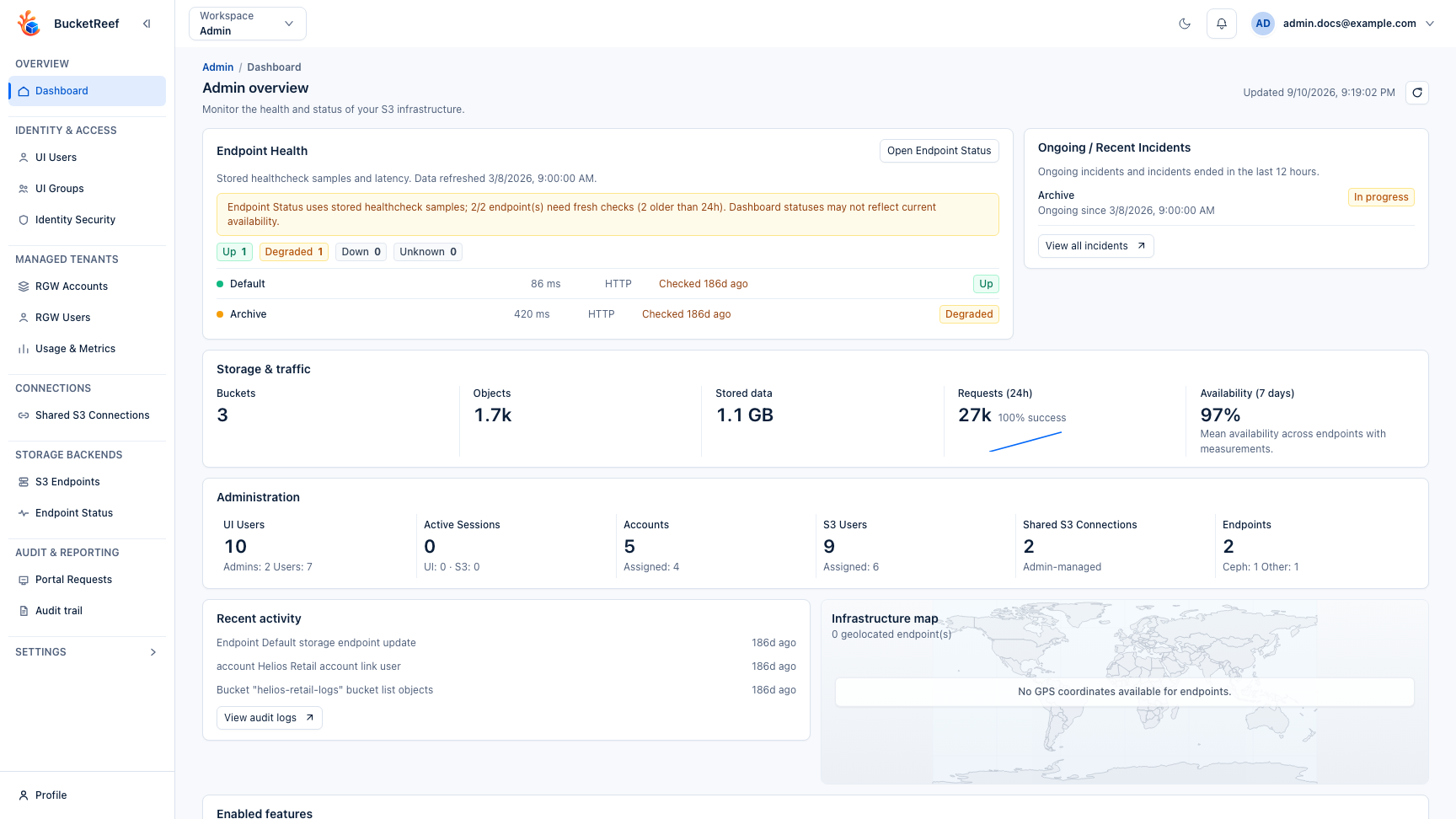
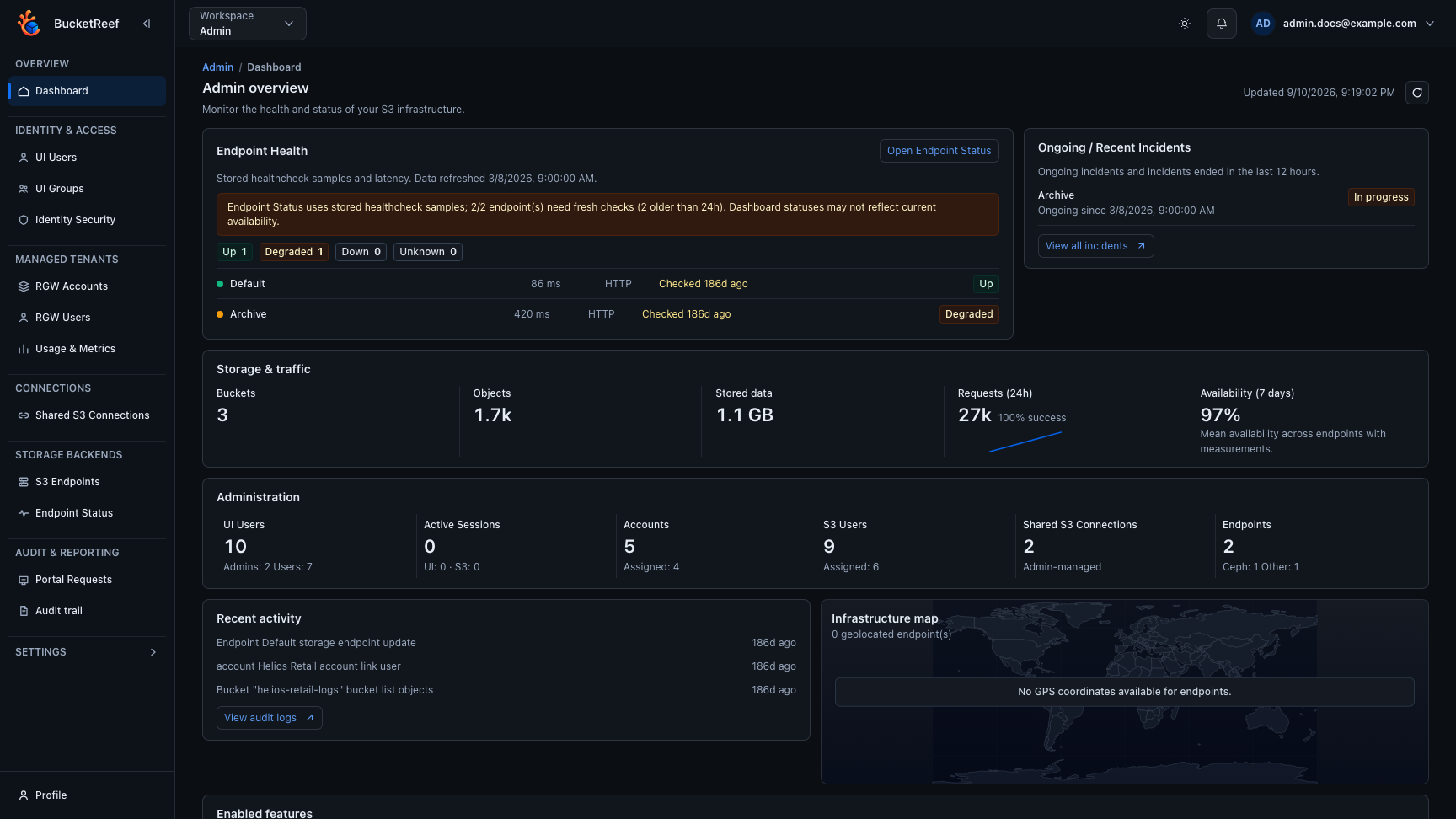
Start with Endpoint Health and Ongoing / Recent Incidents. Endpoint rows show the name, latency, check mode, time of the last check and stored status. The first eight endpoints are shown; Open Endpoint Status and View all incidents lead to the detailed monitoring page. Warnings describe missing or old healthcheck samples: refreshing the dashboard retrieves stored data and does not run a new healthcheck.
Storage & traffic groups bucket and object counts, stored data, requests for the last 24 hours and average endpoint availability over seven days. Availability is the mean across endpoints with measurements; it is not a live health score. Only requests have a trend line, and only when samples exist. Storage, traffic and health load independently. A dash means no measurement is available, while a real zero remains zero. Failures are explained in the relevant section; use the header refresh button to retry after loading ends.
The Administration band keeps six shortcuts and their aggregate counts, including the UI/S3 session split. Recent activity and the infrastructure map follow, with enabled core and extra features at the bottom. The map stays visible when Endpoint Status is enabled; endpoints without coordinates do not produce invented locations. Long names and event descriptions wrap.
When setup has not been dismissed, its checklist remains above the overview. A completed checklist starts collapsed; Review, Collapse checklist and Dismiss retain control over its display.
S3 endpoint inventory
Open Storage Backends > S3 Endpoints to compare names and URLs, providers
and regions, connection settings, and enabled services. Search matches names,
S3 URLs, providers, regions and tags across the complete inventory. Use ~ for
contains, = for exact matching, or select a provider. Clear all resets the
filters; they remain in place when returning from an endpoint or refreshing its
listing after an action.
Click a row or Edit/View for the existing Connection, Credentials
and Capabilities & health tabs. The table shows at most two tags and three
enabled services; +N indicates additional values available on that page.
Service badges describe configuration; use Endpoint Status for measured
health. Disabling TLS verification is explicitly highlighted.
Set as default, Edit/View and Delete stay visible where applicable. Protected endpoints allow consultation and may still be selected as default; environment-managed configuration and ordinary Admin users remain read-only. Superadmins retain the existing ability to edit tags on protected or environment-managed endpoints. If the management mode cannot be loaded, changes remain unavailable until Retry succeeds. Deletion requires confirmation and a failed operation is not retried automatically.
Compact identity associations
The Managed Tenants RGW Accounts and RGW Users lists, together with Shared S3 Connections, display linked UI users and UI groups as one compact avatar stack. User avatars are circular; group pictograms use a rounded-square shape so the two principal types remain distinguishable. Hover the stack, or focus one of its links with the keyboard, to open a readable panel containing each user email, group name, and role as compact badges. To keep very large tooltips readable, the list is limited to 20 entries and reports how many additional principals remain. Click a user or group pictogram to open that principal directly in its edit page. Emails remain searchable even though they are no longer printed in each row.
The UI Users and UI Groups lists summarize storage associations with
three count badges: RGW accounts, RGW users, and shared S3 connections. Their
hover/focus panel exposes the complete bounded list and its roles. UI Groups
also shows up to five member avatars before a +N indicator; the same panel
still exposes up to 20 members.
The UI User editor uses Profile and preferences and Security, matching the personal profile. Profile and preferences includes identity, avatar, language and quota email preferences. Global quota watch is available only for administrator accounts. Language and alerts are saved with the user form; the avatar has an independent Edit dialog and Save action. Saving an avatar preserves pending changes to identity, preferences and access. Browser-local preferences remain in the personal profile. Admin profile operations follow the same target-role restrictions as other UI User edits.
UI User and UI Group editors group operational workspace access, Manager permissions and Browser options in the Workspaces tab. The three sections share the principal's existing draft and Save action. UI User controls describe direct access; UI Group controls describe permissions inherited by eligible members.
In the UI user and UI group editors, association tabs first list the currently linked resources. Use Add… to open a searchable picker, confirm the pending selection with Add selected, and use Remove on an existing row to unlink it before saving. Each RGW account association has two independent access controls, also available when linking users or groups from RGW Accounts:
- Manager: No Manager access or Account administrator.
- Portal: No Portal access, Portal user, or Portal manager.
Choose at least one role before saving. Both can be granted on the same link: for example, Account administrator together with Portal user grants Manager administration and ordinary Portal membership, not Portal management. Use Remove to unlink the account instead of saving two absent roles. Direct and group grants combine independently for each workspace; removing a direct grant does not revoke an equivalent right inherited from a UI group.
New links initially select Portal user with no Manager access when Portal is enabled, or Account administrator with no Portal access when it is off. Review this choice before adding the link. Disabling Portal makes its controls unavailable or read-only, but preserves stored Portal roles; it never converts them into Manager roles.
Manager's embedded Browser additionally requires Allow Manager Browser data access on the same account association as Account administrator. That advanced opt-in does not grant standalone Browser or Portal access.
Shared S3 Connections are Admin-managed, shared, and Manager-only. Their normal
forms do not expose sharing, Manager, or Browser flags. A connection migrated
without Manager access is shown as Remediation required and must be enabled
with the explicit remediation action. Admin routes return 404 for private
connection IDs; private connections remain owned and managed only from the
owner's profile.
The Portal requests requester badge uses the same avatar and role panel and opens the requester's UI user edit page when that user still exists.
The Created by column of Shared S3 Connections uses the creator's user avatar and exposes the creator identity on hover.
UI group pictograms are managed from Platform > UI Groups > General. A group can use initials, one of the predefined pictograms, or a custom PNG/JPEG image up to 1 MiB. Group images never use Gravatar or an OIDC profile image.
Limits / feature flags
Note
Billing, Endpoint Status, Portal, and some browser settings are visible only when corresponding features are enabled.
Note
UI User role and entitlement rules:
ui_none: no workspace access (profile remains accessible).ui_user: non-admin workspaces only.ui_admin: user-level workspace access plus/admin.ui_superadmin: admin access plus/admin/*-settings.ui_superadminrole assignment/promotion is restricted to superadmin users.can_access_ceph_admincan be granted only by superadmin users, and only forui_adminorui_superadmin.can_access_storage_opscan be granted byui_adminorui_superadminforui_user,ui_admin, orui_superadmin.- Manager access can be configured by
ui_adminorui_superadminfrom the Manager tab. Each tool also requires its matching global Manager setting to be enabled. - Manual private S3 connection creation is configured from the Connections tab. Managed IAM/RGW provisioning is configured from the Manager tab. Both rights are direct or inherited from UI groups.
- Entitlements are automatically disabled when the target role does not support them.
Note
Admin Settings > Authentication manages access-key login options and UI-defined OIDC/LDAP providers. OIDC and LDAP providers defined by backend environment variables are visible there but remain locked/read-only.
Related pages
- Feature: Endpoint Status in Admin
- Feature: Billing in Admin
- Feature: Admin Usage and Metrics
- Feature: Usage History in Admin
- Feature: Key Rotation in Admin
- Admin: Audit
- Storage admin runbook
- Workspace: Manager
- Ops / Configuration
- Ops / Security
Visual example
Editing platform settings
General, Authentication, Browser, Manager and Portal settings use compact sections with one Save changes / Cancel area that appears after an edit. Reset to defaults loads defaults for the current page into its draft; review them and save to apply them. Other settings pages are preserved. Concurrent edits to the same field are reported instead of overwritten.
General contains workspace availability, services, quota alerts and branding. Configure SMTP opens an internal draft with an explicit test-email action; testing does not save that draft. Apply copies dialog values to the page. The branding preview is local until a successful save updates the interface. Manager migration limits and Portal CORS origins use the same dialog pattern.
Authentication lists external providers separately from the global login and security policy. Add, Edit and View open dedicated OIDC/LDAP pages, with a return to Authentication. Provider saves are independent of policy saves. Environment-managed values stay locked. Existing secrets are not shown; leave them blank to keep the stored secret, following the field's explicit removal controls. Sensitive updates retain passkey verification.
These administration pages remain in English. The user Portal project settings and shared profile support English, French, German and Simplified Chinese.