How-to: Standardize Bucket Lifecycle Policies at Scale
Use this workflow when a Ceph RGW storage team needs to identify a family of buckets, group them for an operational campaign, and apply the same lifecycle policy without overwriting unrelated lifecycle rules.
The example below standardizes temporary ETL data under tmp/: every selected
development bucket should expire those objects after 30 days.
Scenario
Assume one Ceph Admin endpoint contains these buckets:
| Buckets | Count | Initial lifecycle state |
|---|---|---|
etl-dev-ingest-* |
3 | No lifecycle rules |
etl-dev-transform-* |
3 | tmp-cleanup expires tmp/ after 60 days |
etl-dev-archive-01 |
1 | Unrelated archive-retention rule only |
etl-dev-quality-01 |
1 | tmp-cleanup already expires tmp/ after 30 days |
Keep unrelated buckets such as etl-prod-critical-01 and
backup-immutable-01 in the same endpoint so the selection step demonstrates
why filtering and preview matter.
This is a useful storage-operations pattern because lifecycle drift tends to appear over time: newly created development buckets may have no retention rule, older buckets may still use a previous retention period, and production data must remain outside the campaign. The objective is therefore to standardize short-lived development data without touching unrelated buckets or unrelated lifecycle rules.
The target rule is:
{
  "ID": "tmp-cleanup",
  "Status": "Enabled",
  "Filter": {
    "Prefix": "tmp/"
  },
  "Expiration": {
    "Days": 30
  }
}
BucketReef merges lifecycle rules by rule identifier. A bucket without
tmp-cleanup receives the rule, a bucket with a different tmp-cleanup rule
gets that rule replaced, and lifecycle rules with other identifiers remain in
place.
The campaign is idempotent. Once all eight target buckets contain the exact rule above, previewing the same change again should report zero changes and eight unchanged buckets.
Prerequisites
- Access to Ceph Admin > Buckets.
- A Ceph Admin endpoint that allows S3 bucket configuration.
- Test or non-production buckets for rehearsing the workflow.
- A maintenance plan for any bucket where existing objects may already be older than the new 30-day expiration threshold.
Warning
Enabling an expiration rule can make existing objects immediately eligible for asynchronous lifecycle processing when they already exceed the configured age. Review the exact target list and preview before applying the change.
1. Find the target bucket family
- Open Ceph Admin > Buckets and select the intended endpoint.
- In Quick filter, enter
etl-dev-and keep the match mode on Contains. - Confirm that only the eight development buckets remain.
- Open Advanced filter when you need to narrow a larger estate further. Useful lifecycle criteria include rule name, status, rule type, expiration days, noncurrent expiration days, transition days, and incomplete multipart upload cleanup.
Do not initially filter out buckets that already have lifecycle rules: the
campaign must also detect outdated or already-compliant tmp-cleanup rules.
2. Mark the campaign with a UI tag
- Select all filtered buckets.
- Open Actions… > Selection > Manage UI tags….
- Add the shared UI tag
retention-audit-2026to the selection. If the tag does not exist yet, create it first and set its visibility to Shared so other Ceph Admin operators can reuse it. - Optionally add a second UI tag such as
temporary-datawhen that classification is useful beyond this one campaign.
UI tags are BucketReef control-plane metadata. They do not change S3 Bucket Tags and do not alter the bucket configuration itself.
3. Back up the current configuration
Before the mutation, keep the same selection and use Actions… > S3 API > Back up bucket configurations…. Include Lifecycle in the exported configuration set and retain the JSON file with the change record for the maintenance window.
This provides a reviewable record of the starting state even though the bulk lifecycle operation preserves unrelated lifecycle rules automatically.
The backup is a record of each bucket's original configuration, not a one-click rollback. If a rollback is required, restore the previous lifecycle rules only on the buckets that were changed, using the exported configuration as the reference for the individual bucket configuration or S3 API operation.
4. Prepare the lifecycle update
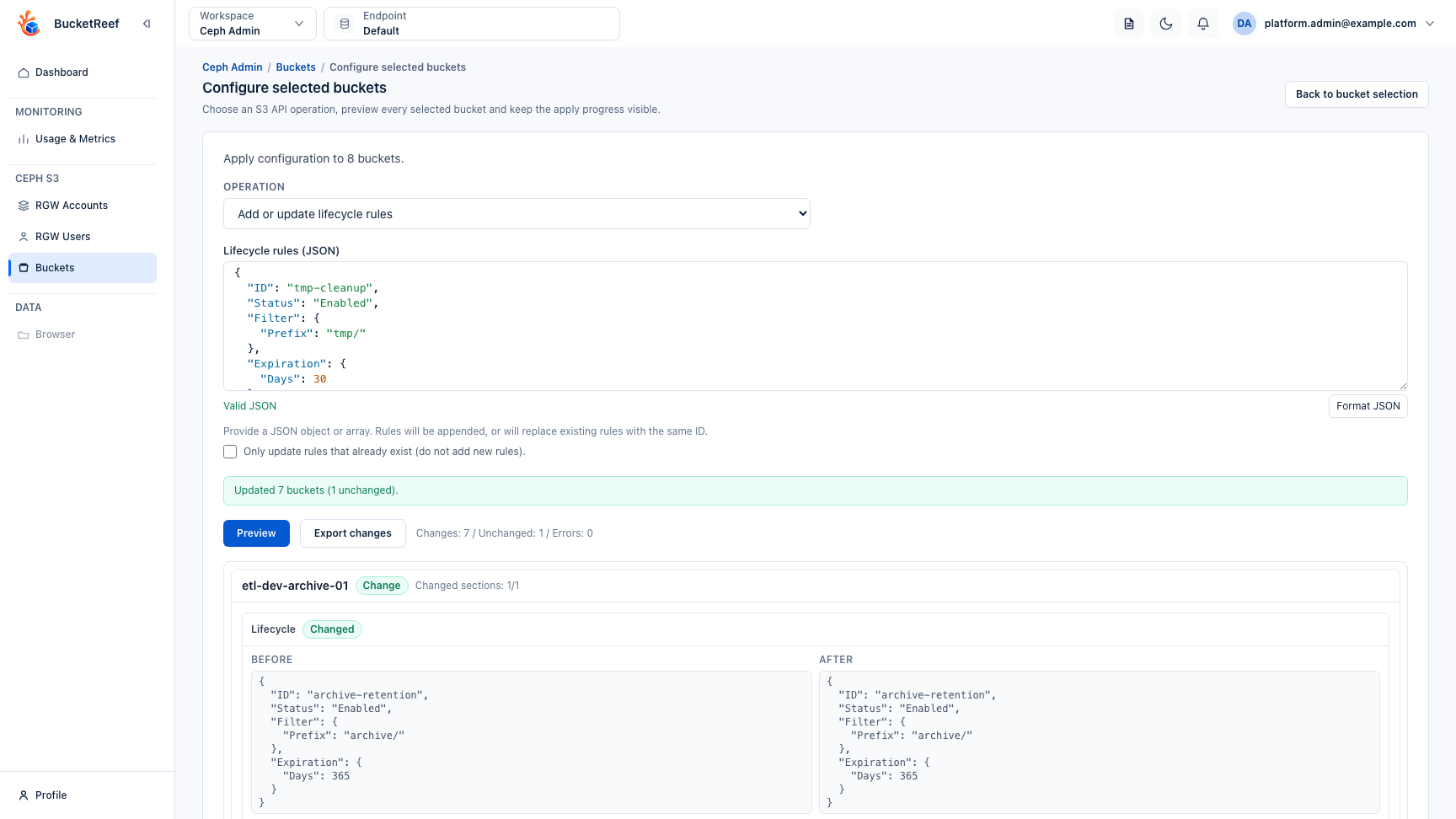
- With the eight buckets selected, open Actions… > S3 API > Configure selected buckets….
- Choose Add or update lifecycle rules.
- Paste the
tmp-cleanupJSON rule shown above into Lifecycle rules (JSON). - Leave Only update rules that already exist (do not add new rules)
disabled. The goal is to update existing
tmp-cleanuprules and add the missing rule where necessary.
5. Preview every bucket
Click Preview before applying the operation.
For the example inventory, the expected result is:
| Result | Buckets |
|---|---|
New tmp-cleanup rule added |
4 |
Existing tmp-cleanup changed from 60 to 30 days |
3 |
| Already compliant | 1 |
| Total selected | 8 |
Do not apply the campaign unless the summary also shows Errors: 0. For this scenario the expected preview banner is Changes: 7 / Unchanged: 1 / Errors: 0.
Review Before / After for representative buckets. In particular, verify
that etl-dev-archive-01 keeps its unrelated archive-retention rule while
receiving the new tmp-cleanup rule.
Use Export changes when the change ticket or maintenance record needs an explicit copy of the preview.
6. Apply and monitor
Click Apply changes only after the preview matches the maintenance plan.
Keep the workflow open until the progress reaches completion. Review the updated, unchanged, and failed counts. A failure on one bucket does not make a successful update on another bucket roll back automatically, so investigate failed targets individually before retrying them.
If the apply result differs from the preview, treat the successful buckets and failed buckets separately. Re-run preview against the failed targets before any retry so the next operation is based on their current state.
7. Verify the resulting policy
- Return to Ceph Admin > Buckets and refresh the inventory.
- Open Advanced filter.
- Filter for lifecycle rule name
tmp-cleanupand expiration days30. - Confirm that the eight campaign buckets are returned.
- Open at least one bucket that previously had no lifecycle rule, one that had
the 60-day rule, and
etl-dev-archive-01to verify the final configuration. - Optionally preview the same bulk lifecycle operation again. A fully standardized campaign should now show Changes: 0 / Unchanged: 8 / Errors: 0.
You can keep retention-audit-2026 as the campaign record, or replace it with
a durable tag such as retention-30d-applied after the verification step.
Video walkthrough
The maintained silent capture below demonstrates the core campaign in Ceph
Admin: filtering the ETL development buckets, selecting them in bulk,
associating the campaign UI tag, configuring tmp-cleanup, reviewing the
per-bucket preview, and applying the lifecycle change. The backup and
post-change verification remain explicit in the numbered runbook above.
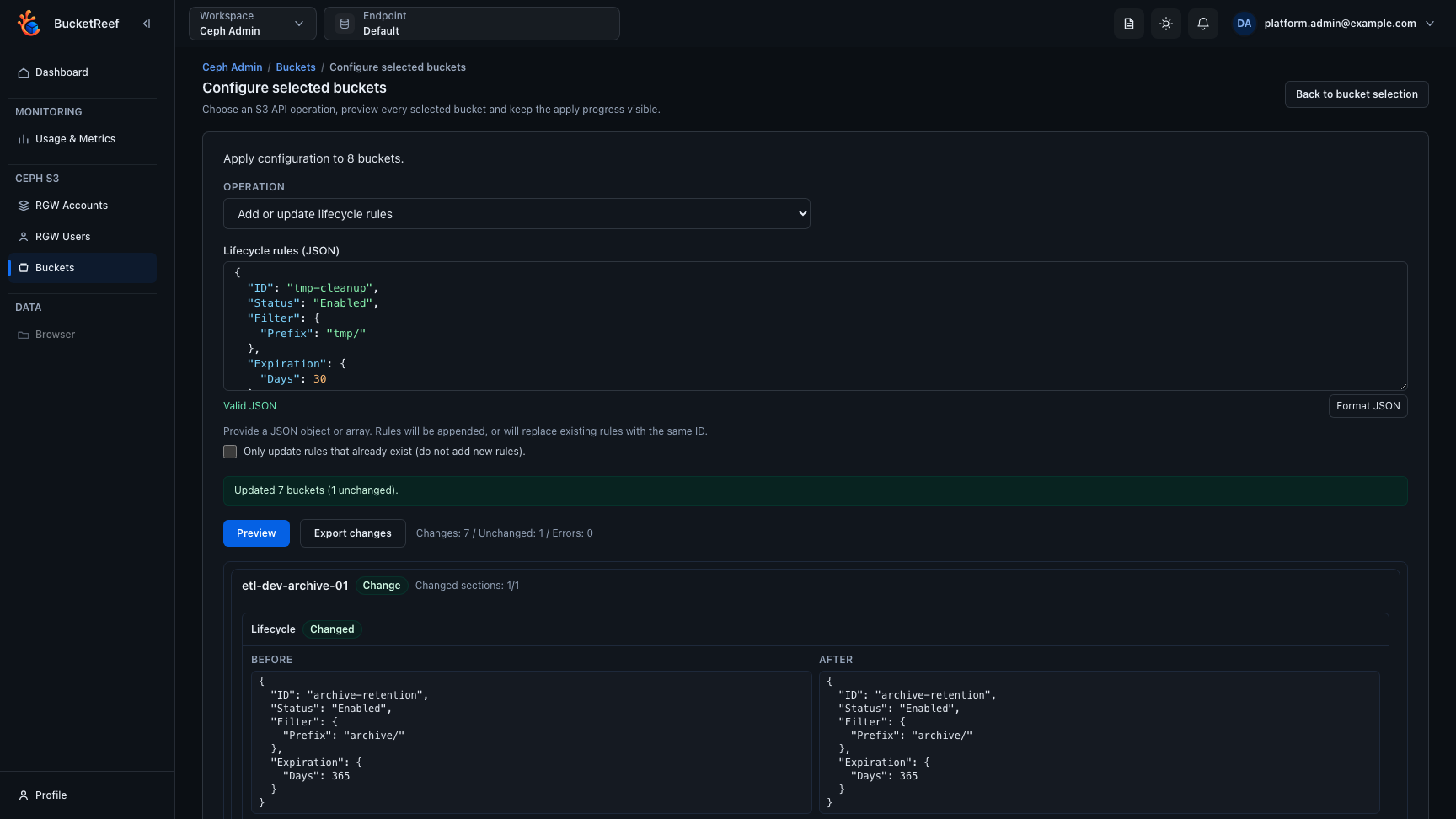
The final workflow state is also captured below for quick reference.