Administrator Profile and Sign-in Security
The profile route stays inside the Administration workspace so you can manage your personal settings without losing the current administrative context.
Profile and preferences
Use Profile from the sidebar or the account menu to:
- choose your avatar source and upload or remove your own image;
- choose language and theme;
- choose the default workspace after sign-in;
- enable selector tags for account and endpoint selectors on this browser;
- choose whether quota-alert emails are sent to you.
Changes remain in draft until you save them. Leaving with unsaved changes asks for confirmation.
Security
The Security tab lets you manage the sign-in methods available to your own account: local password when applicable, passkeys, recovery codes, open sessions, and linked external identities.
Recovery-code renewal invalidates previous recovery codes and signs out existing sessions. Store newly displayed recovery codes outside the browser; they are shown only during the delivery flow.
Administrators handle other users' platform sessions and manual identity-link requests from Platform > Identity security. Superadmins manage scoped automation tokens from the API tokens tab in their own profile.
Notifications
The topbar notification menu can include quota alerts, endpoint health changes, and identity-security requests that fall inside your administrator role. Mark items as read or clear read entries from the menu.
Private S3 connections
If your account is allowed to own private S3 connections, the profile can also show that inventory. Those connections remain personal and their credentials are never displayed after creation. This inventory is relevant when you also use Manager or standalone Browser; it does not replace shared endpoint configuration in Admin.
Related pages
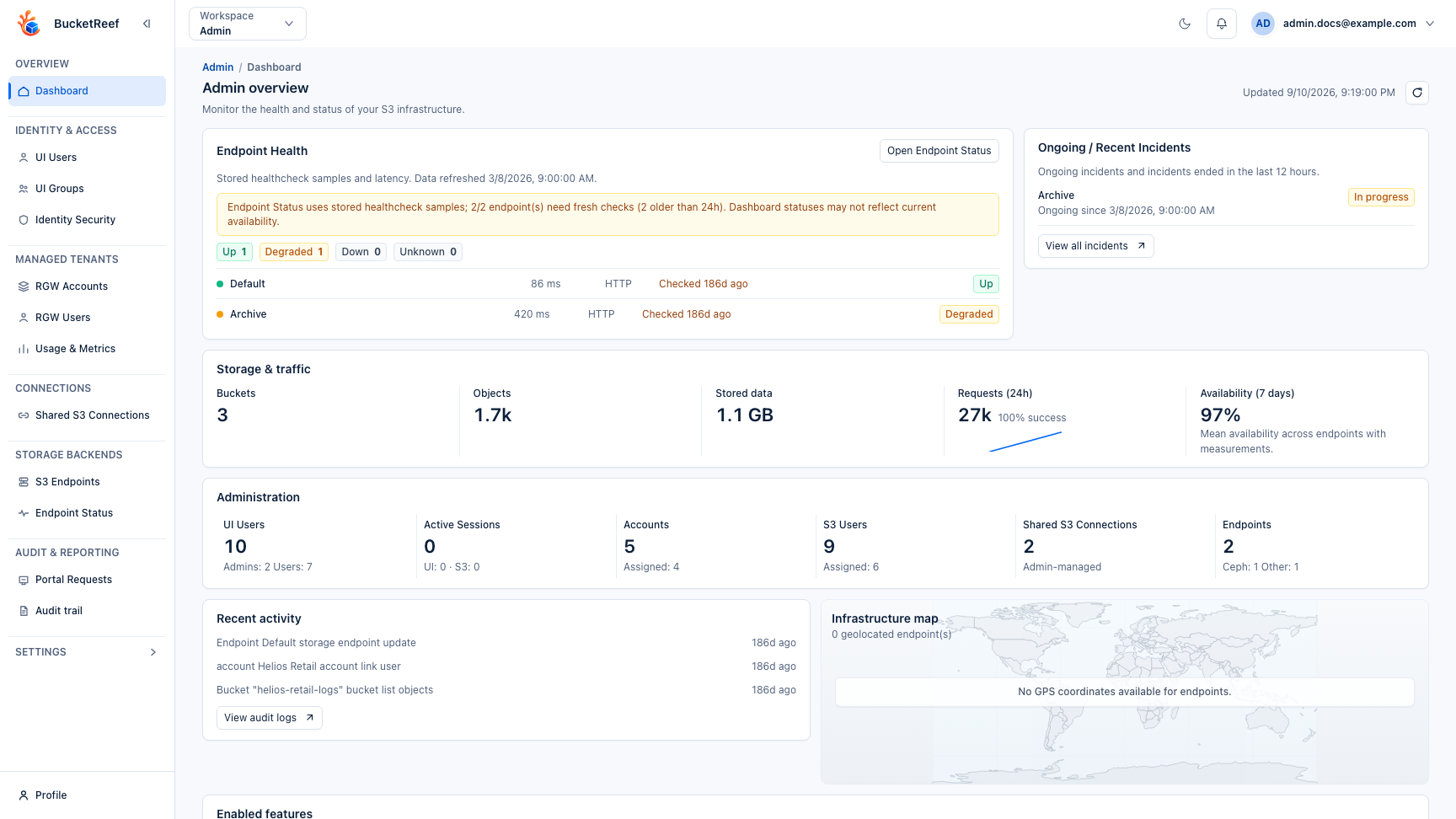
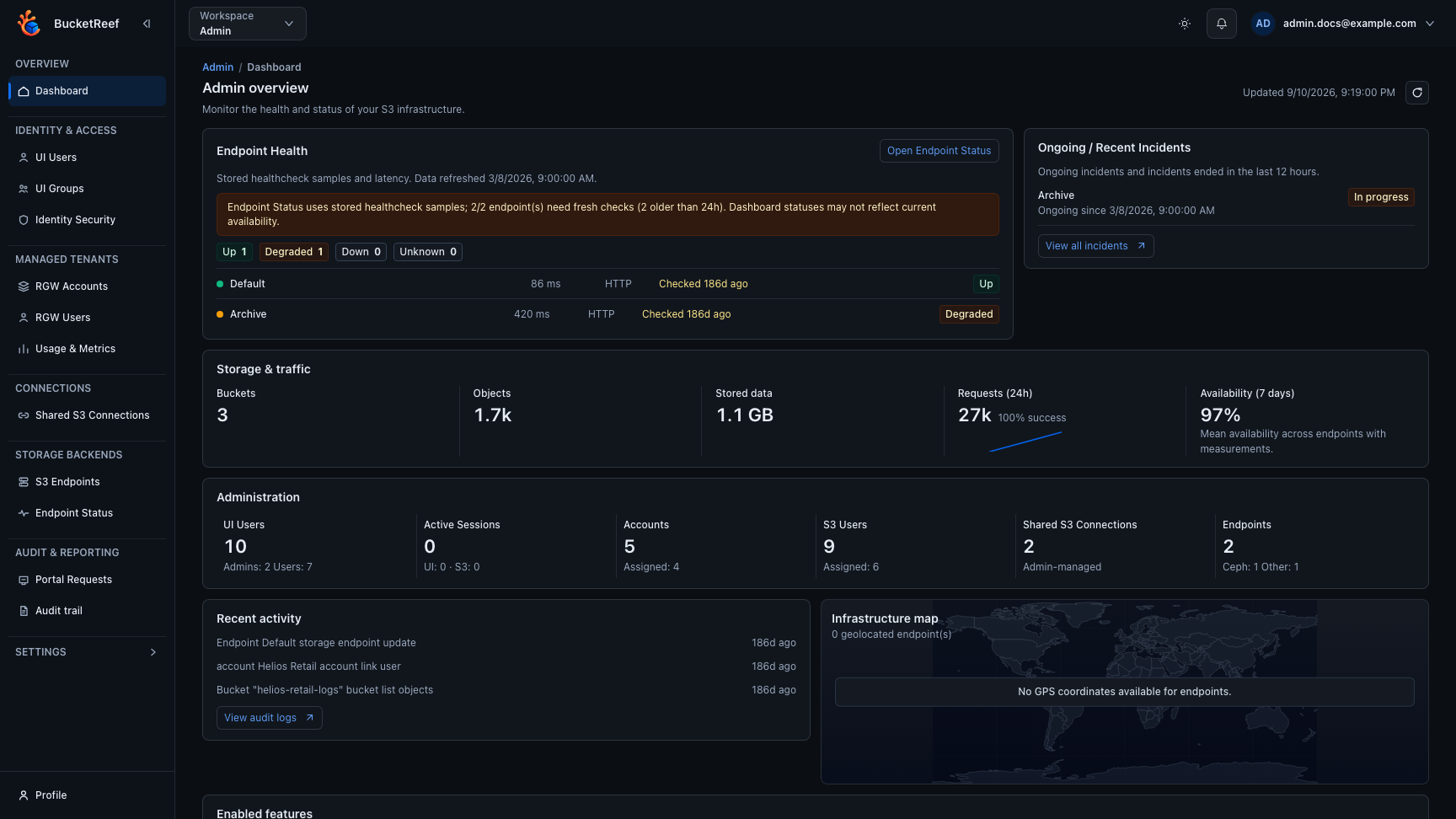
Visual example