Storage Spaces
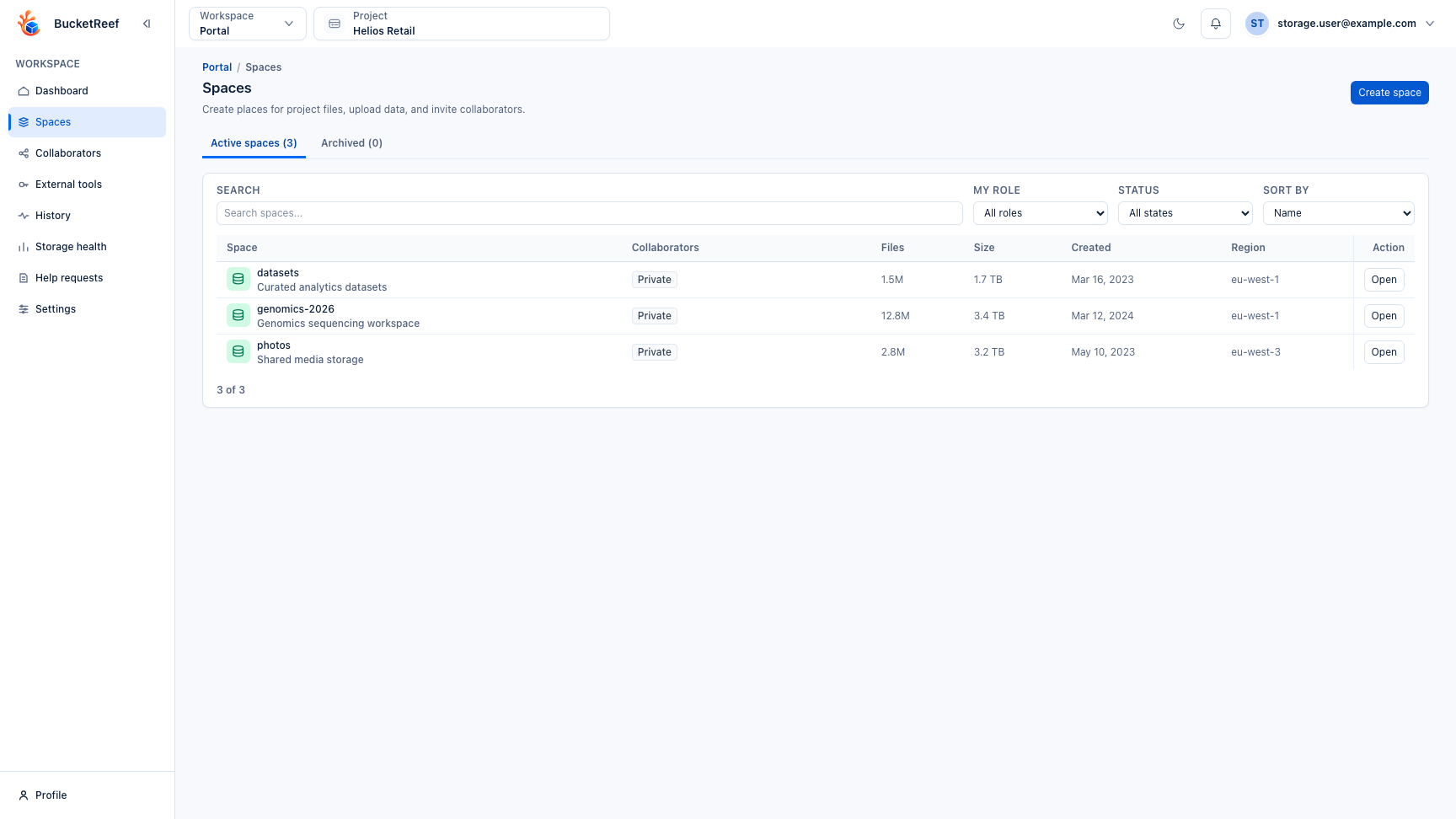
A Storage Space is the place where Portal presents the files for a project. Use Portal > Spaces to open existing spaces and, when your role allows it, create, share, archive, restore, or delete them.
Common tasks
| Task | What to do |
|---|---|
| Open a space | Select it from Portal > Spaces to open its files and details. |
| Create a private space | Choose Create space when private-space creation is available to you. |
| Create a team space | Portal Managers can choose the collaboration mode and initial members when the project allows it. |
| Add existing storage | Portal Managers can choose Add existing space when an existing storage area should appear in Portal. |
| Change the icon or description | Open the space settings and edit its identity. |
| Invite people | Open the space Collaborators tab. |
| Review usage | Open Statistics for the space. |
| Review external links | Open External links for that space. |
| Configure file history | Open the space Settings tab. |
| Archive or restore | Use the space management actions. |
| Delete permanently | Empty the space and its history first, then use Delete space. |
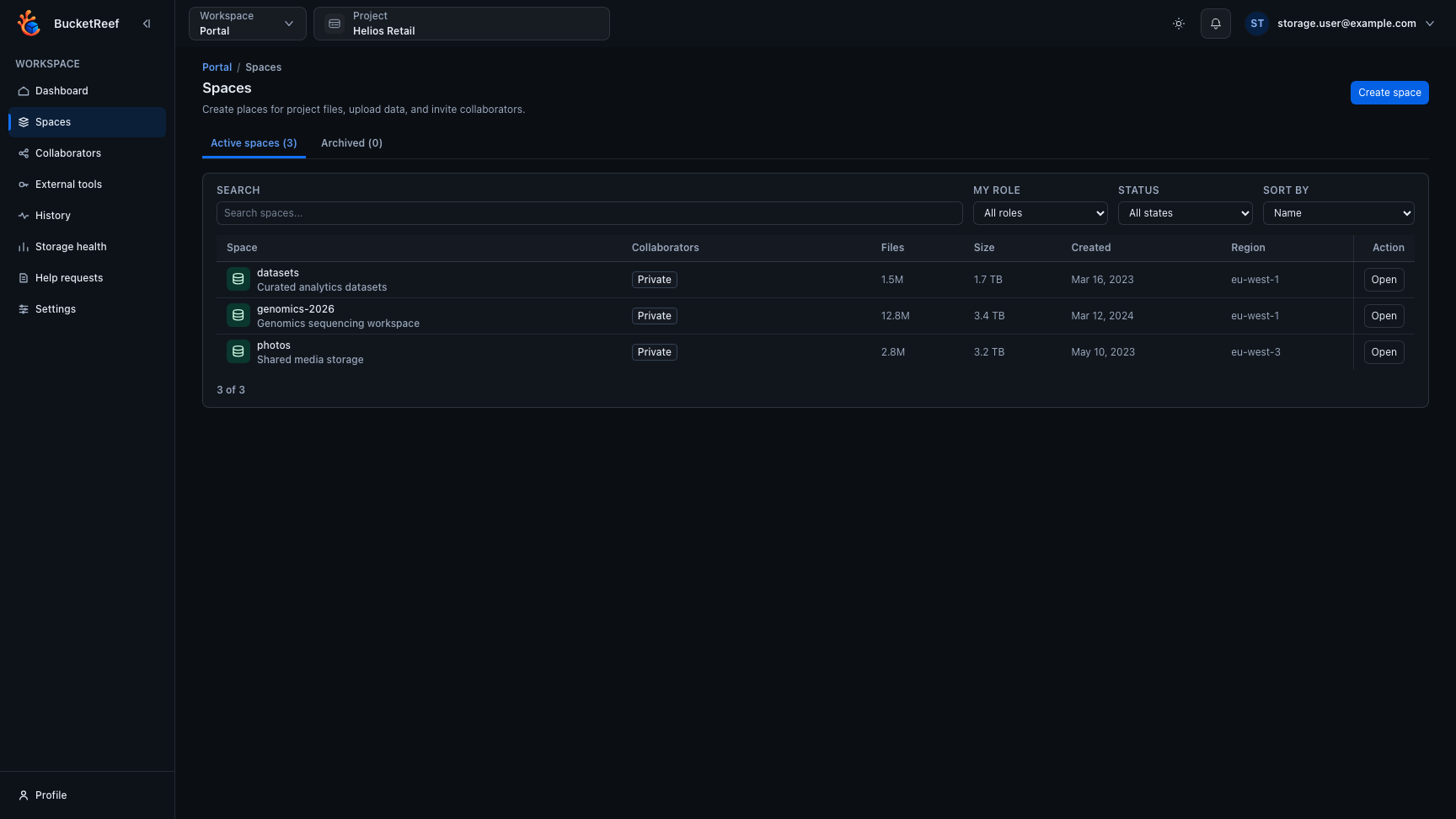
The Spaces list is the main place to compare space identity, access mode and the actions available before opening a space.
Choose the right access mode
| Mode | Meaning |
|---|---|
| Private | The owner and Portal Managers can work with the space. |
| Team | Project members receive the default access chosen for the space. |
| Selected people | Only the selected project members receive Viewer or Editor access. |
Choose the collaboration model before creating the space. Portal shows which choices can still be changed afterward. When a person is not available in the project, use the collaboration/help workflow to request their addition first.
Start a new space
When Space setup offers Use a custom tool ID, the space name is also the bucket name. Enter 3–63 lowercase letters, digits, dots, or hyphens in a DNS-compatible name. Portal shows invalid names in red and blocks creation until they are corrected. The name is used exactly as entered; an existing name causes a conflict instead of receiving an automatic suffix.
With Let Portal choose the ID, the space name remains a display label and Portal generates the technical identifier.
After creating or adding a space:
- add the files or folders the project needs;
- invite collaborators when the content is ready;
- configure file history when the project requires a specific retention;
- create an external link or external-tool access only when normal Portal collaboration is not sufficient.
File history
The space Settings page can show whether previous file versions are kept, whether old history is cleaned automatically, and how long older versions are retained. Owners can review these settings; Portal Managers can change them when the project allows it.
Turning off new version creation does not delete history that already exists. A manual history cleanup can remove older versions and delete markers; review its result before leaving the cleanup page because removed history is not restored by stopping the operation.
Archive or delete a space
Archive is reversible. It keeps the Storage Space but suspends normal file work and sharing until the space is restored.
Delete space is permanent. Portal requires the space to be empty before it can be deleted:
- remove current files;
- remove remaining file history when necessary;
- confirm that the space reports no remaining content;
- use Delete space and review the confirmation.
If the space still contains data, Portal blocks the deletion instead of emptying it automatically. Deleting a space also ends its collaborator access, external credentials, and public links.
Statistics
The Statistics tab can show storage used, remaining room, file counts, file composition, and upload/download activity when those measurements are available. A dash means the value is not currently known; zero is shown as zero.
Archived spaces and spaces you cannot read do not expose detailed file statistics. Project-wide trends remain available from Storage health.
If you cannot see a space
Confirm the selected project first. If the space is still missing, ask its owner or a Portal Manager to check whether you should have access and whether the space is archived.