Use an External S3 Tool
Use Portal > External tools when you need to work with a Storage Space from an S3-compatible application such as Cyberduck, Mountain Duck, WinSCP, or a script.
If the other person can sign in to Portal, prefer normal Portal collaboration. Create external-tool access only when a direct S3 client is actually required.
Before you start
- Select the correct Portal project.
- Know which Storage Space the tool needs to access.
- Decide whether the access is for you or for an external user.
- Be ready to store the secret when Portal shows it; it is displayed only once.
Create tool access
- Open Portal > External tools and choose New tool access.
- Choose For myself or For an external user.
- For external access, choose the Storage Space and prefer Read only unless the tool must upload, replace, or delete files.
- Create the access and copy the secret immediately to a secure location.
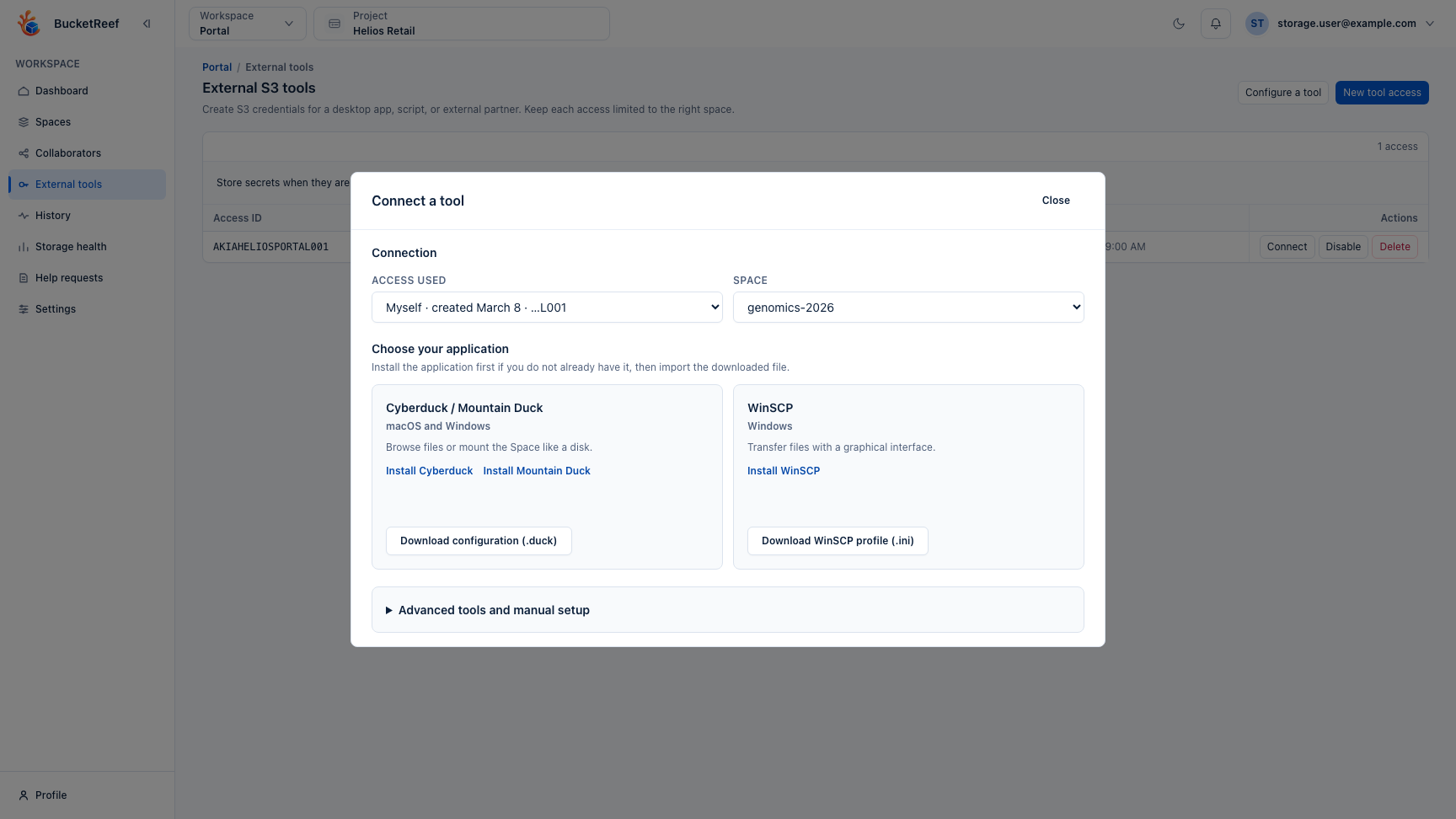
- Choose Configure a tool for the new access, or Connect beside an existing access.
- Select the Storage Space when Portal asks for it.
- Choose the application:
- Cyberduck / Mountain Duck downloads a bookmark;
- WinSCP downloads an S3 session configuration;
- another S3 application can use the endpoint, bucket name, access ID, and addressing information shown by Portal.
- Import the downloaded configuration and enter the secret when the client asks for it.
- Disable or delete access that is no longer needed.
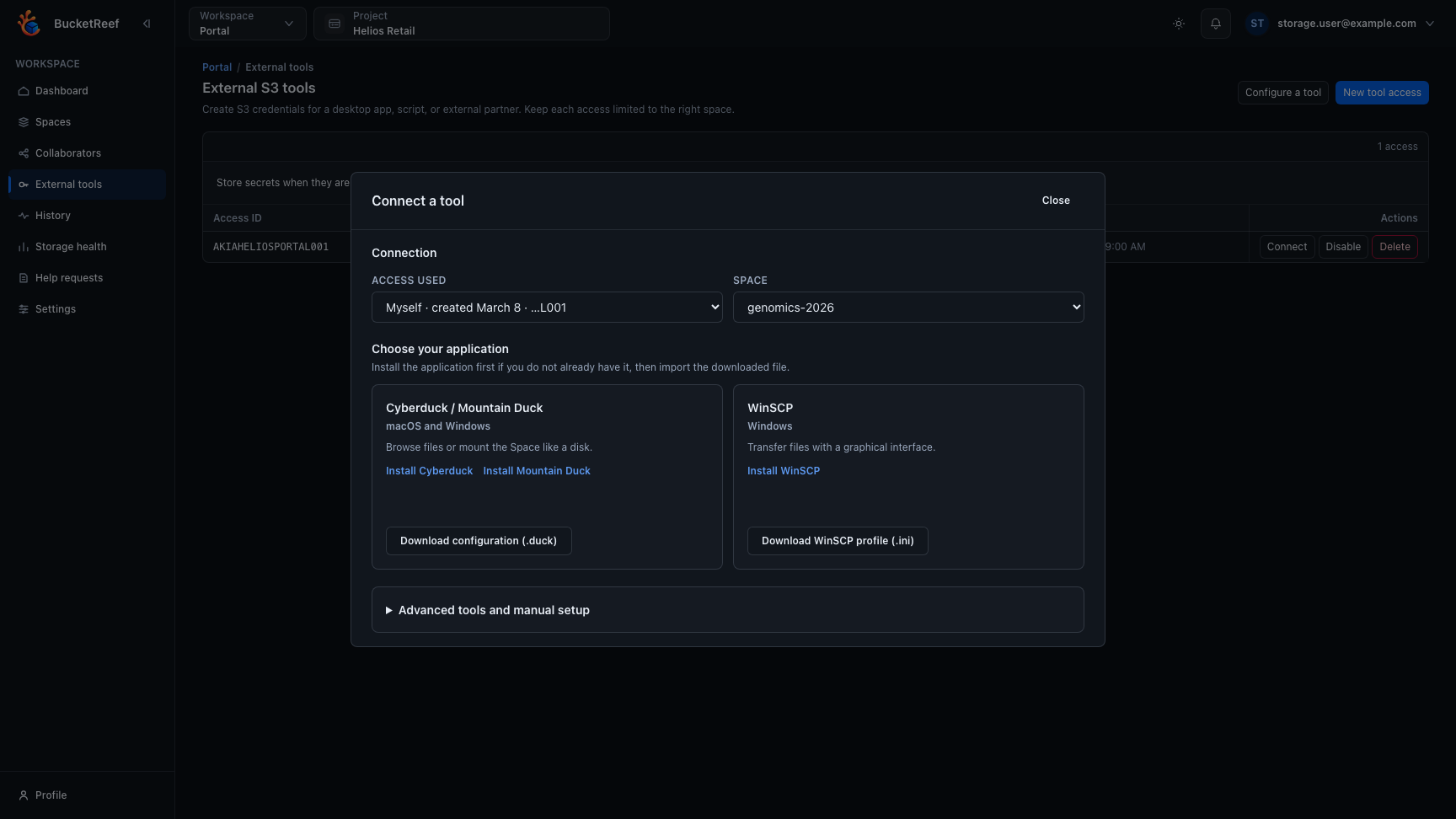
The Connect a tool dialog keeps the selected Storage Space, endpoint and client-specific setup options together before you download or copy anything.
Downloaded configuration files do not contain the secret. Keep the secret out of tickets, shared documents, screenshots, shell history, and source code.
Access boundaries
- Personal tool access follows your current Portal access to Storage Spaces.
- External-user access is limited to the selected Storage Space and permission level.
- A Portal User can create external-user access only when the project allows it and the user owns the target space.
- Portal Managers can use the external-access options made available by their project.
- Creating tool access never grants storage rights beyond the access Portal assigned to that credential.
- The technical bucket name is shown because S3 clients may require it. Continue using the Storage Space name inside Portal.
If access creation is unavailable
The project may not allow that type of external access, you may not have the required role on the Storage Space, or you may already have the maximum active credentials allowed for your personal access. Check Feature availability or contact your administrator with the project and Storage Space name.