Your Portal Profile
Open Profile from Portal to change your personal appearance, language, notifications, and sign-in security while keeping the current Portal project available in the navigation.
Personal preferences
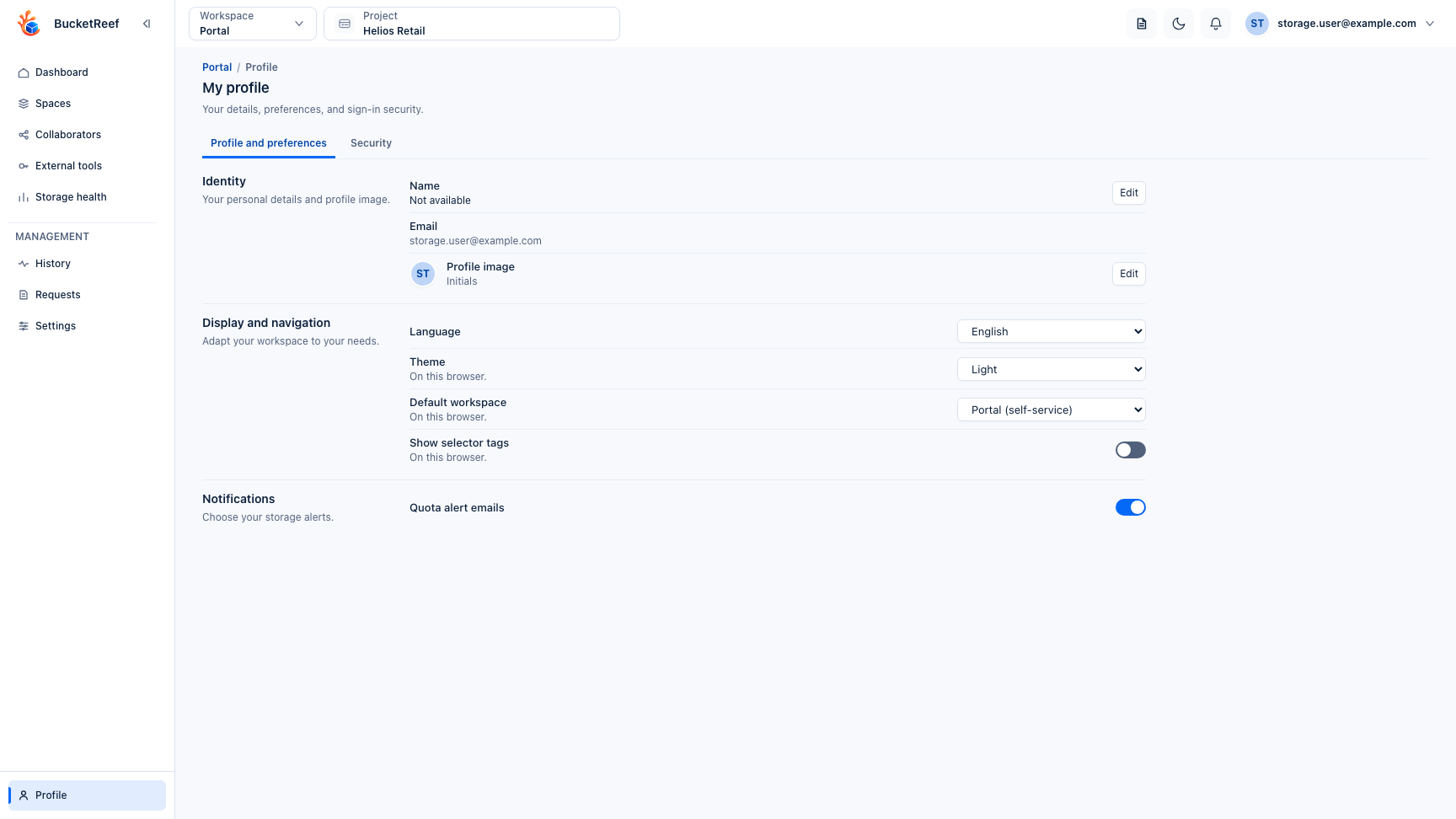
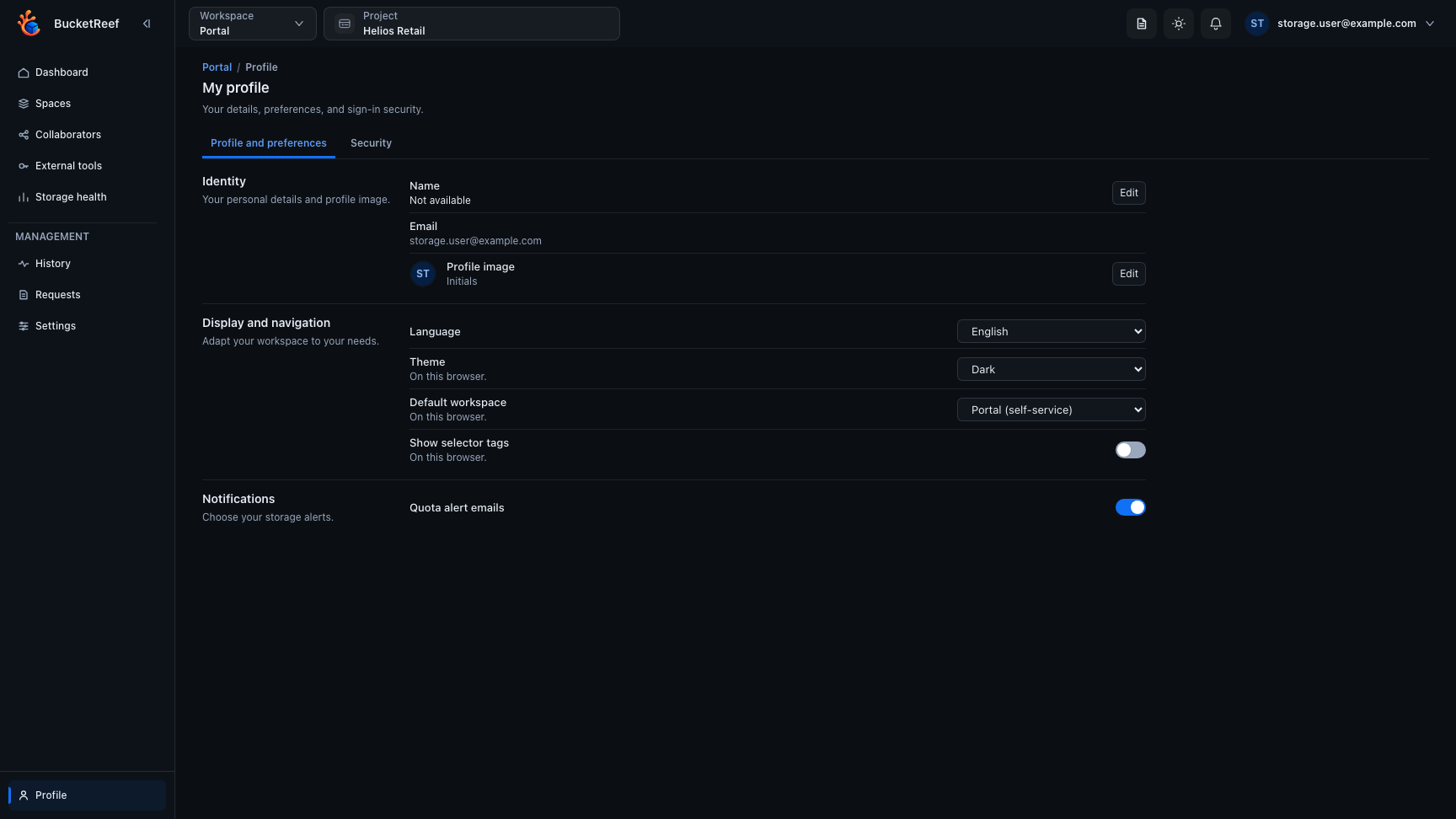
You can change your avatar, language, theme, and default workspace. If quota email notifications are available for your account, you can also choose whether to receive them.
Profile images can come from your uploaded image, your linked identity, or Gravatar depending on your preference. Choose initials if you do not want an external profile image to be loaded.
Sign-in security
Use Security to manage the sign-in methods available to your own account, including password when applicable, passkeys, recovery codes, open sessions, and linked external identities.
If you renew recovery codes, previous codes stop working and existing sessions are signed out. Save the new codes before leaving the delivery screen.
What the profile does not change
Your profile does not change your Portal project role or your permissions on a Storage Space. If a project or space is missing, use Troubleshooting or Help requests.
A Portal Manager role remains a Portal responsibility and does not grant access to the Manager workspace.