Collaborators and Sharing
Use this page to understand who can work in a Storage Space, invite people when your Portal role allows it, and review external file links.
Space access
| Role | Typical access |
|---|---|
| Viewer | List, read, preview, and download content. |
| Editor | Viewer actions plus normal file changes such as upload, folder creation, and deletion. |
| Portal Manager | Project role with access to project spaces and additional Portal collaboration responsibilities. |
A private space has one owner and stays limited to that owner and Portal Managers. Team/selected-people spaces use their collaboration settings to decide who can access content.
Invite or change a collaborator
- Open Spaces, choose the Storage Space, then open Collaborators.
- Choose Add people and search by name or email.
- Select the least-powerful role that fits the work.
- Review the person, role, and Storage Space before confirming.
Depending on your project configuration, Portal can apply the change directly or create a Help request for administrator approval. You do not need to know the underlying delegation setting; Portal shows the available workflow.
Project-membership changes can also require a Help request. Group-managed memberships remain administrator-controlled.
Review access
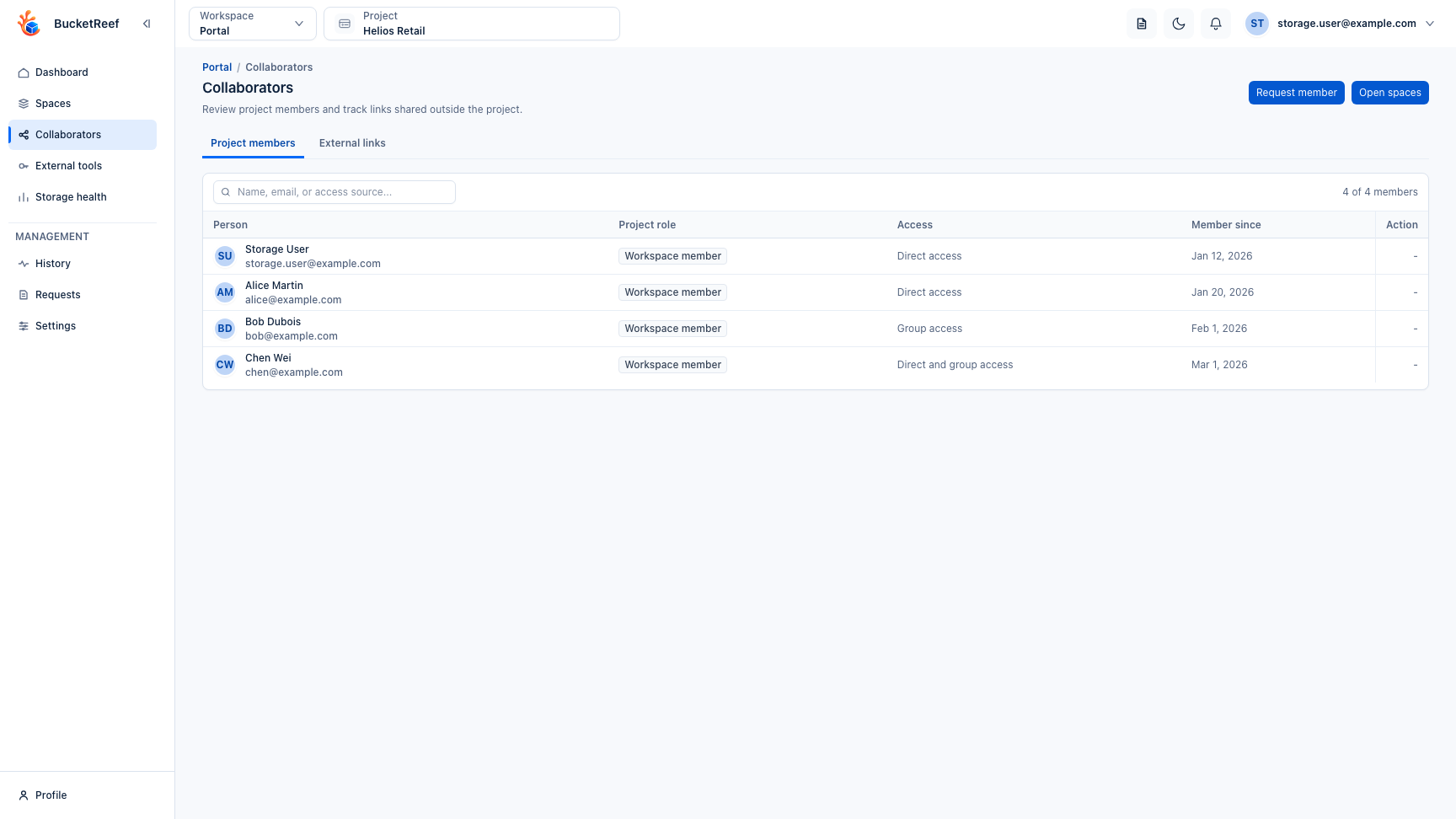
From Portal > Collaborators, open a person's access review. Portal explains the active spaces they can access and whether that access comes from ownership, a direct grant, project membership, or the Portal Manager role.
The project-members list also shows whether each member's project access is direct, group-based, or a combination of both.
External links
When external sharing is enabled, create a new link from the file being shared. Authorized owners and Portal Managers can review and revoke existing links from the Storage Space or the project-level external-links view.
Disabling new external sharing does not silently remove links that already exist; review and revoke those links explicitly when required.