Portal Settings
Use Portal > Settings to review the settings that apply to the selected project. Portal Managers can edit project settings only when that responsibility has been delegated to them.
Review project settings
- Open Portal > Settings.
- Confirm the selected project.
- Review the values currently applied to the project and whether each value comes from the platform default or a project-specific choice.
- If the page is editable for you, change only the project options you are responsible for and choose Save changes.
- Use Cancel to discard a draft or Restore platform values when you intentionally want the project to follow its platform defaults again.
The settings view shows the effective value and its origin together, which is useful before deciding whether a project-level override is needed.
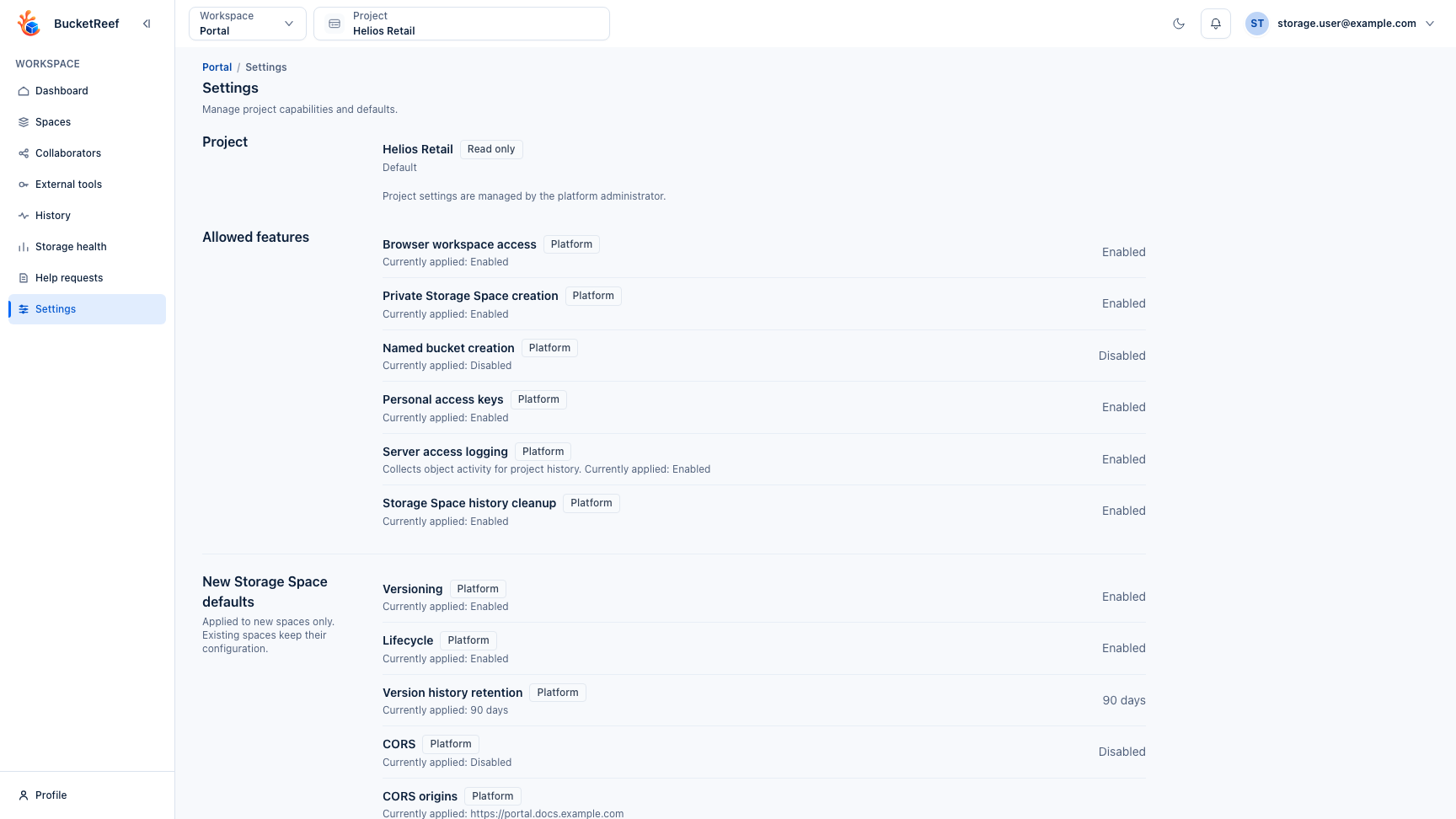
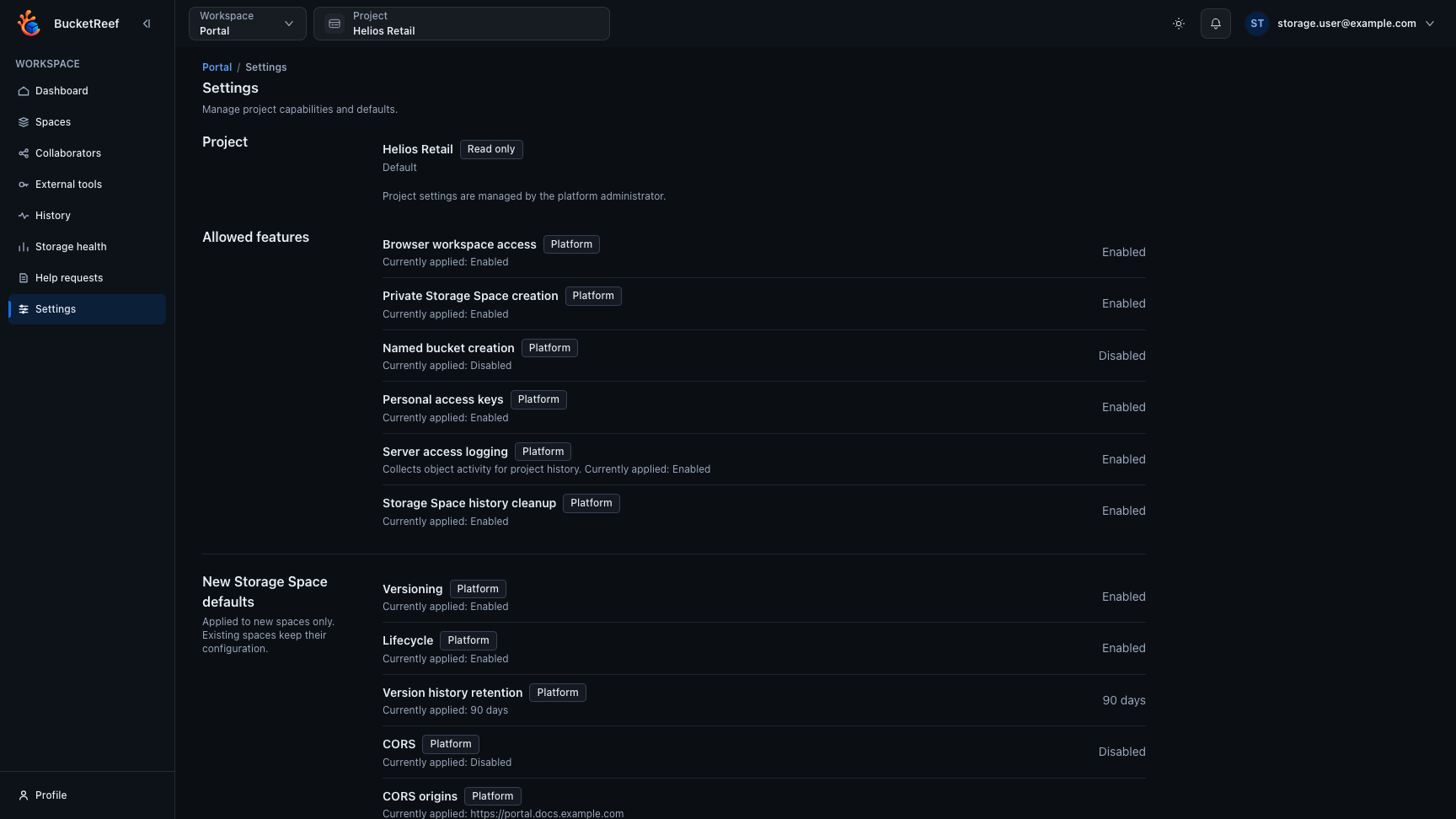
Changes stay in the form until they are saved. Leaving the page, switching projects, or closing a changed dialog asks for confirmation so an unfinished draft is not lost accidentally.
Settings you may encounter
Depending on the project, settings can control areas such as:
- whether Portal Users may create external links or external-tool access;
- default behavior for newly created Storage Spaces;
- file-history retention choices;
- allowed browser origins needed by project file workflows.
Changing a default for new spaces does not silently rewrite existing spaces. Use the individual Storage Space settings when an existing space needs a change.
Roles and approvals
Every project member can review the effective settings. A Portal Manager can edit them only when the administrator has delegated project settings. Otherwise, the Portal Manager can request an eligible change through Help requests.
Portal project roles are independent from the separate Manager workspace. Having Manager access does not change what you may edit on this Portal page.
If the page is read-only
Read-only settings normally mean the project administrator owns that choice. Use Help requests when Portal offers one for the setting, or contact the administrator with the project and requested change.