Previous File Versions
Use this page when you need an earlier copy of a file or want to recover a file that was deleted from a Portal Storage Space.
View history
- Open the project and Storage Space.
- Find the file and open History or Versions from its details.
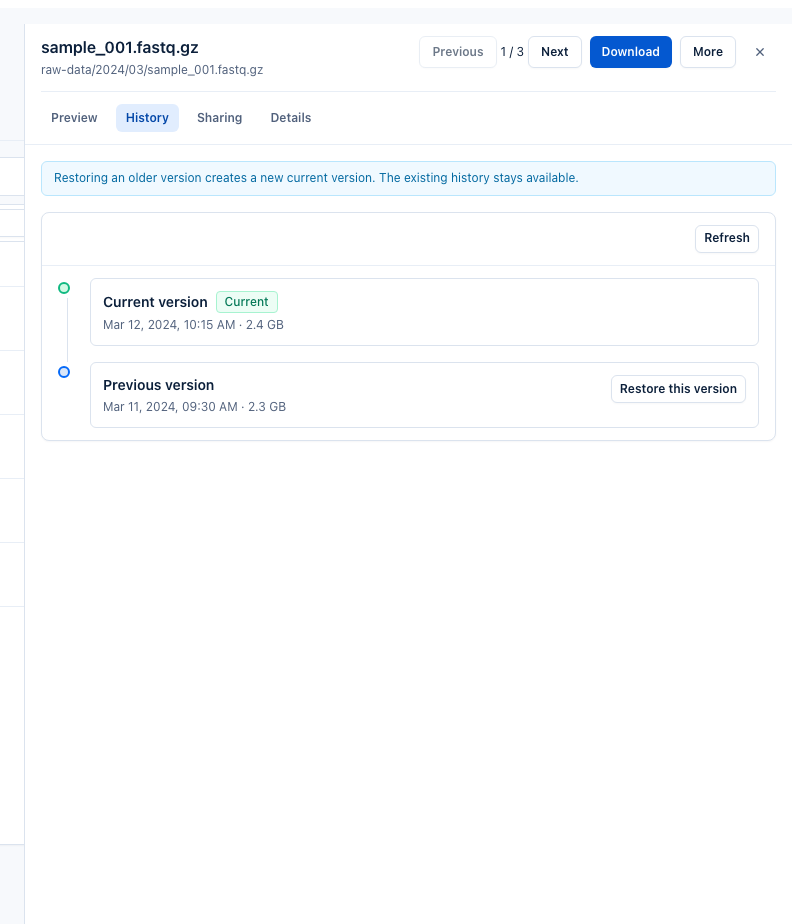
- Review the dates and available versions. A deleted file can show a delete marker while older content is still retained.
- Download an older version if you only need a copy, or choose Restore to make the selected content current again.
- Return to the Files view and confirm the expected file is visible.
When available, Show deleted files helps you locate files whose current state is deleted but whose history can still be restored.
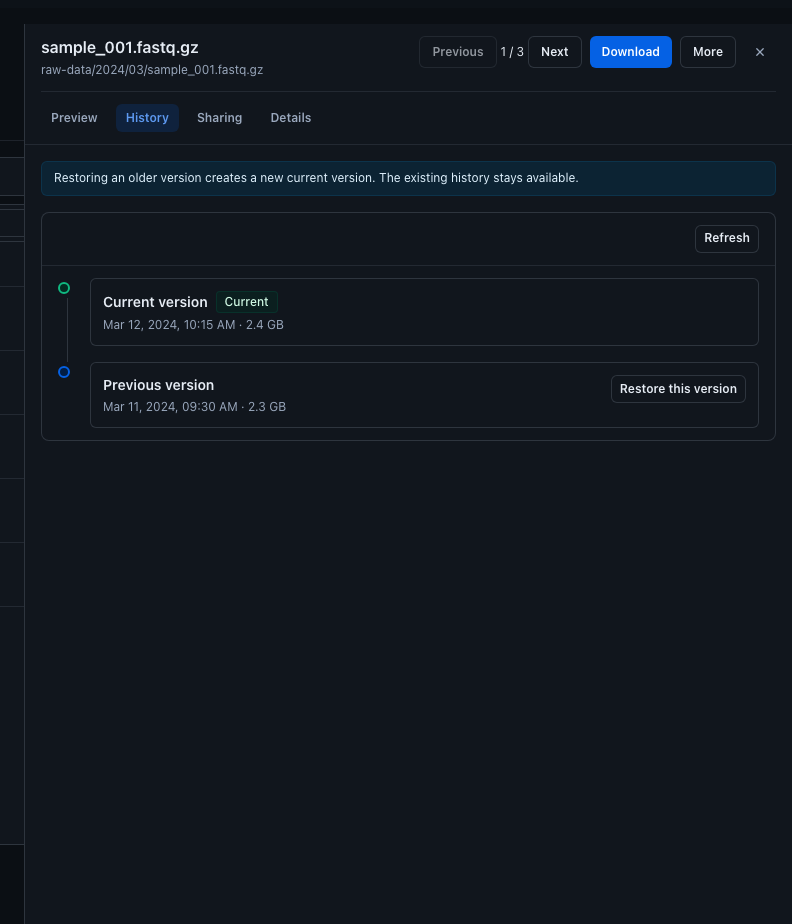
The History tab keeps the current and previous versions together and exposes the restore action directly on the version you select.
When history is unavailable
A Storage Space can only show versions that the underlying storage keeps and that your Portal access is allowed to read. If no history action is available, contact the project administrator when you expected the file to be recoverable.
Restoring a version does not erase older history. Deleting a historical version is destructive and should only be used when you are sure that exact version is no longer needed.