Feature: Ceph Access Keys in Manager
Use this page when a storage administrator needs to create, disable, enable, or delete Ceph RGW access keys for a managed S3 User context from Manager.
When to use
Use Manager > Ceph > Access keys for a managed or imported RGW S3 user whose keys are intentionally delegated to Manager operators.
This is different from:
- Portal > Access keys, which creates user-managed external keys for Portal users.
- Admin > Settings > Key Rotation, which rotates backend-managed platform credentials.
- Manager IAM user key pages, which manage IAM access keys for IAM users.
Prerequisites
- Access to
/manager. - The selected Manager context is a managed S3 User context, not an RGW account or S3 connection.
- The Manager feature policy
ceph_s3_user_keysis notdisabled. - The UI user has effective direct or group access to the selected S3 User context.
- The S3 User record has
allow_access_key_management=true. - The endpoint is a Ceph-compatible endpoint with Admin Ops credentials available.
- Optional names and notes additionally require the Manager feature policy
access_key_metadatato be available and the selected S3 User record to haveallow_access_key_metadata=true. - Optional expiration additionally requires the Manager feature policy
access_key_expirationto be available, scheduled jobs to be enabled, and the selected S3 User record to haveallow_access_key_expiration=true.
Steps
- Open
/managerand select the intended S3 User context. - Open Ceph > Access keys.
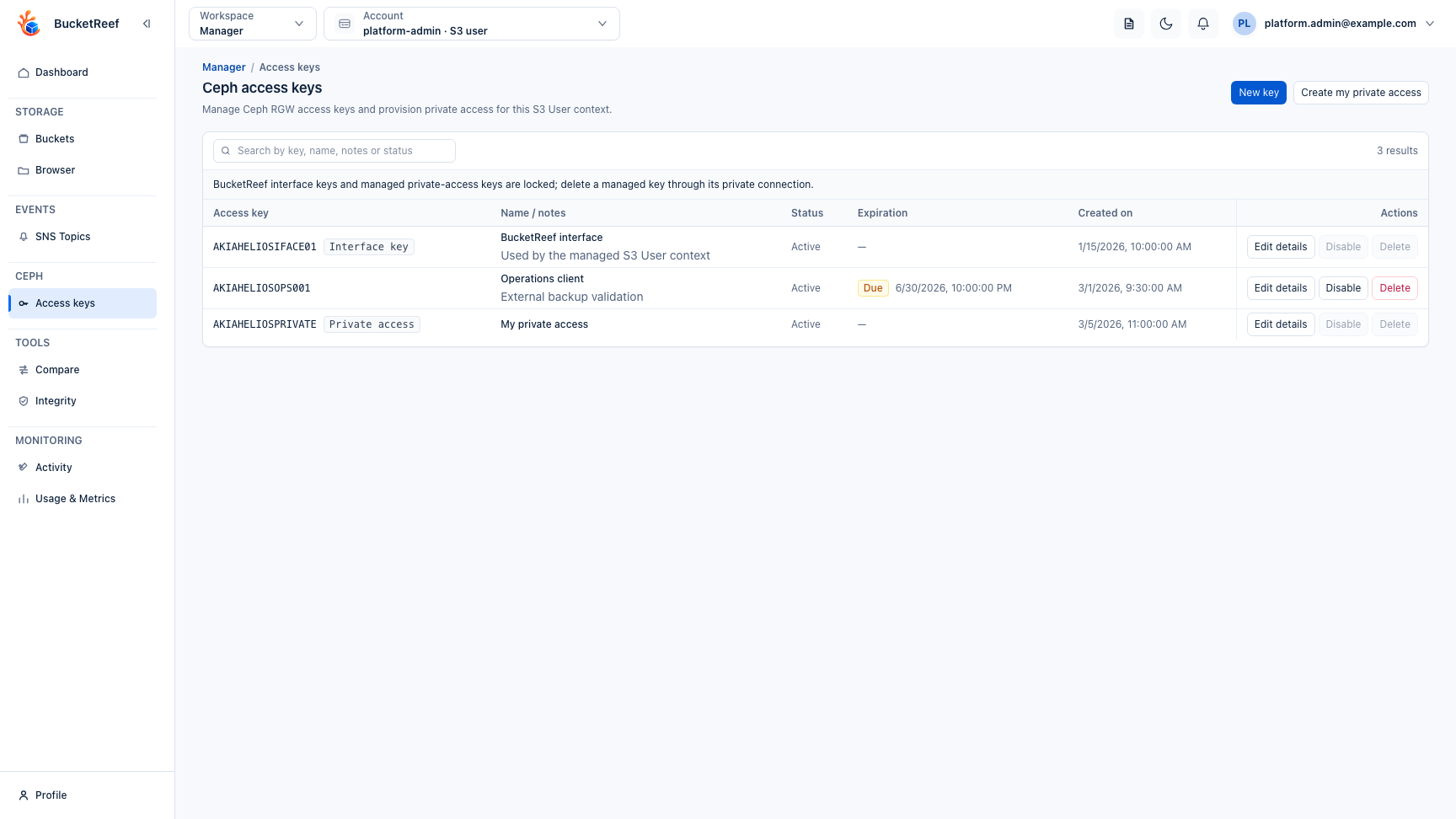
- Review the current key list. When access-key metadata is enabled, the list also shows the BucketReef name and notes and search includes those fields.
- Select New key only when the caller is ready to store the generated secret. When access-key metadata is enabled, optionally enter a short name and notes before creation. When access-key expiration is enabled, optionally choose an expiration date and time. The secret is shown once. Use Edit details to add, change, or clear these optional values on an existing key.
- Select Create my private access to have BucketReef create a distinct RGW
User key and private connection without transmitting the secret to the
browser. This separate workflow requires the UI right
can_provision_managed_private_connectionsand the S3 User opt-inallow_managed_private_connection_provisioning; it does not useallow_access_key_management. The resulting private connection is available in Browser by default. Open Advanced configuration only when you need to change its Browser/Manager availability. - Disable a key before deleting it when you need a reversible validation step.
- Delete unused keys only after confirming no external workflow still depends on them.
- Review the audit trail for create, status-change, provisioning, cleanup, or delete actions.
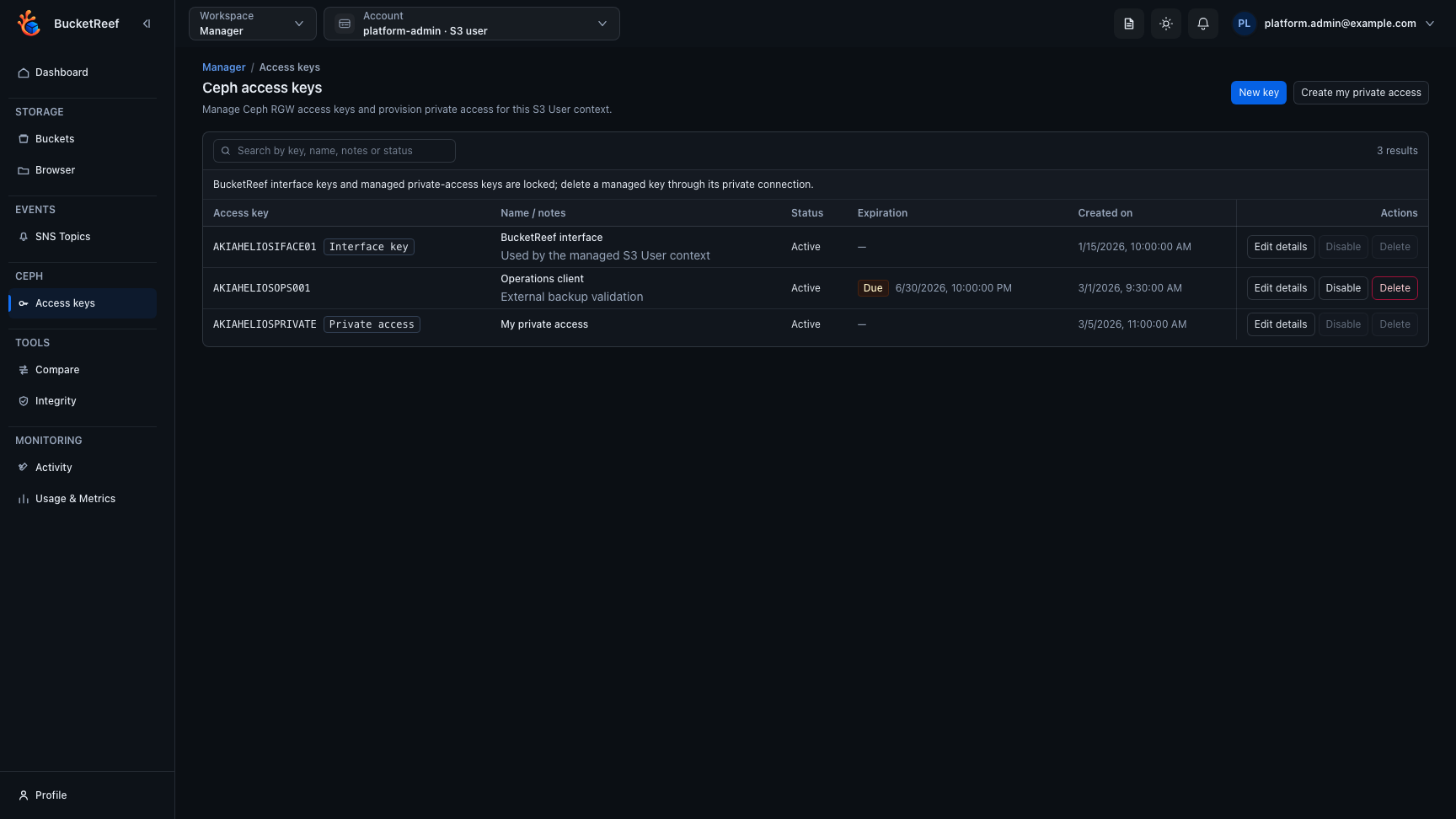
The key inventory distinguishes the locked BucketReef interface key, ordinary external-client keys, expiration state, and keys owned by private access.
Expected result
The S3 User access key inventory matches the intended external-client access state, and every mutating action is auditable from the Manager scope.
You are done when
The intended key is present, disabled, enabled, or deleted, and a separate S3 client check confirms the expected storage behavior.
If you do not see this action
Check the selected Manager context first. The page is available only for S3 User
contexts. Then check the global Manager setting, the effective S3 User context
assignment, the S3 User
allow_access_key_management flag, endpoint provider, and Ceph Admin Ops
credentials.
Limits / feature flags
Warning
This page manages RGW S3 User access keys. Treat generated secrets like production credentials. Do not paste them into tickets, screenshots, logs, or shared chat.
Note
The BucketReef Interface key is locked. It cannot be disabled or deleted from this page.
Note
A key marked Private access belongs to a server-managed private connection. It cannot be disabled or deleted from this key inventory. Open Profile > Private S3 connections and delete the linked connection so the server can clean up the remote key and keep durable remediation state if cleanup fails.
Note
This feature does not grant storage permission by itself. The resulting key still follows RGW/S3 permissions for the underlying S3 User.
Note
Access-key names and notes are local BucketReef metadata. They are not sent to Ceph RGW and do not alter the credential. The global feature is enabled by default on new deployments; the S3 User opt-in remains disabled by default, independently of key management. Turning either metadata gate off hides saved metadata but keeps it persisted so it becomes visible again if the feature is re-enabled.
Note
Access-key expiration is enabled globally by default on new deployments, but requires a separate resource opt-in because it changes provider state. BucketReef stores the schedule locally, then the scheduler disables the individual RGW key in Ceph when the time is reached. Under normal operation enforcement occurs within about one minute. The key list keeps the provider Active / Inactive state separate from the expiration state; an enforcement failure is shown as Retrying or Action required, not as a successful expiration.
Note
Turning the expiration feature or resource opt-in off prevents new changes but does not cancel expirations that were already scheduled. After a key has expired, remove or move its expiration first, then explicitly enable the key if access should be restored. Changing the expiration never re-enables a key automatically.
Note
BucketReef interface keys and keys owned by managed private access cannot receive an expiration from this inventory because their lifecycle is owned by their dedicated BucketReef workflows.