Feature: IAM
When to use
Use this guide for tenant IAM administration (users, groups, roles, policies).
Prerequisites
- Access to Manager IAM pages.
- Endpoint IAM capability enabled.
Before you start
Select the account or connection that owns the IAM resources. IAM changes should map to native IAM concepts and should not be used to compensate for missing UI access.
Ceph RGW S3 User keys are not IAM user keys. When you are working in a managed S3 User context, use Feature: Ceph access keys in Manager instead.
Steps
- Open
/manager/users,/manager/groups,/manager/roles, or/manager/iam/policies. - Create or edit IAM resources.
- Selecting a user, group, or role opens its resource workspace directly. Use the tabs to keep the resource in context while changing its related settings: General, Keys, Groups/Members, Trust policy, and Policies appear when they apply to that resource type.
- For native IAM users and groups, General shows the provider ARN and IAM path. You can rename the identity or change its path. After a rename, Manager follows the new provider name automatically and keeps the active resource tab when possible.
- BucketReef-managed identities used by Portal or managed private access
are read-only on the Details page and protected by the Manager API. Change
their keys, IAM policies and group memberships, or remove them, only through
the BucketReef workflow that owns them. Portal technical IAM groups
(
bkr-portal-managerandbkr-portal-user) also reject generic creation, deletion, membership and policy mutations in Manager. - For roles, edit the trust policy and Maximum session duration. Ceph RGW follows the IAM range of 3600 to 43200 seconds; BucketReef uses 3600 seconds when the provider omits the field.
- Role tags are native IAM tags. Ceph RGW can expose multiple values for the same tag key; Manager preserves those values. Removing a key removes all of its values, and editing one value replaces the complete set for that key.
- Attach/detach policies from the resource Policies tab.
- Manage user membership from Groups on a user or Members on a group.
- Manage IAM access keys from the user Keys tab. When Access-key names and notes is enabled globally and for the selected RGW Account, New key accepts an optional name and notes. Existing keys can be updated with Edit details. This metadata is stored only by BucketReef and does not change the IAM credential or its permissions.
- To create a personal private S3 connection without handling its secret,
select Create my private access on the Users page. The default creates a
dedicated IAM identity with
AmazonS3FullAccessand a Browser-enabled private connection. Open Advanced configuration to replace that policy, attach IAM groups or inline policies, or change Browser/Manager availability. BucketReef creates the key on the server and never displays its generated secret in this flow. - Verify resulting access with your standard IAM validation process.
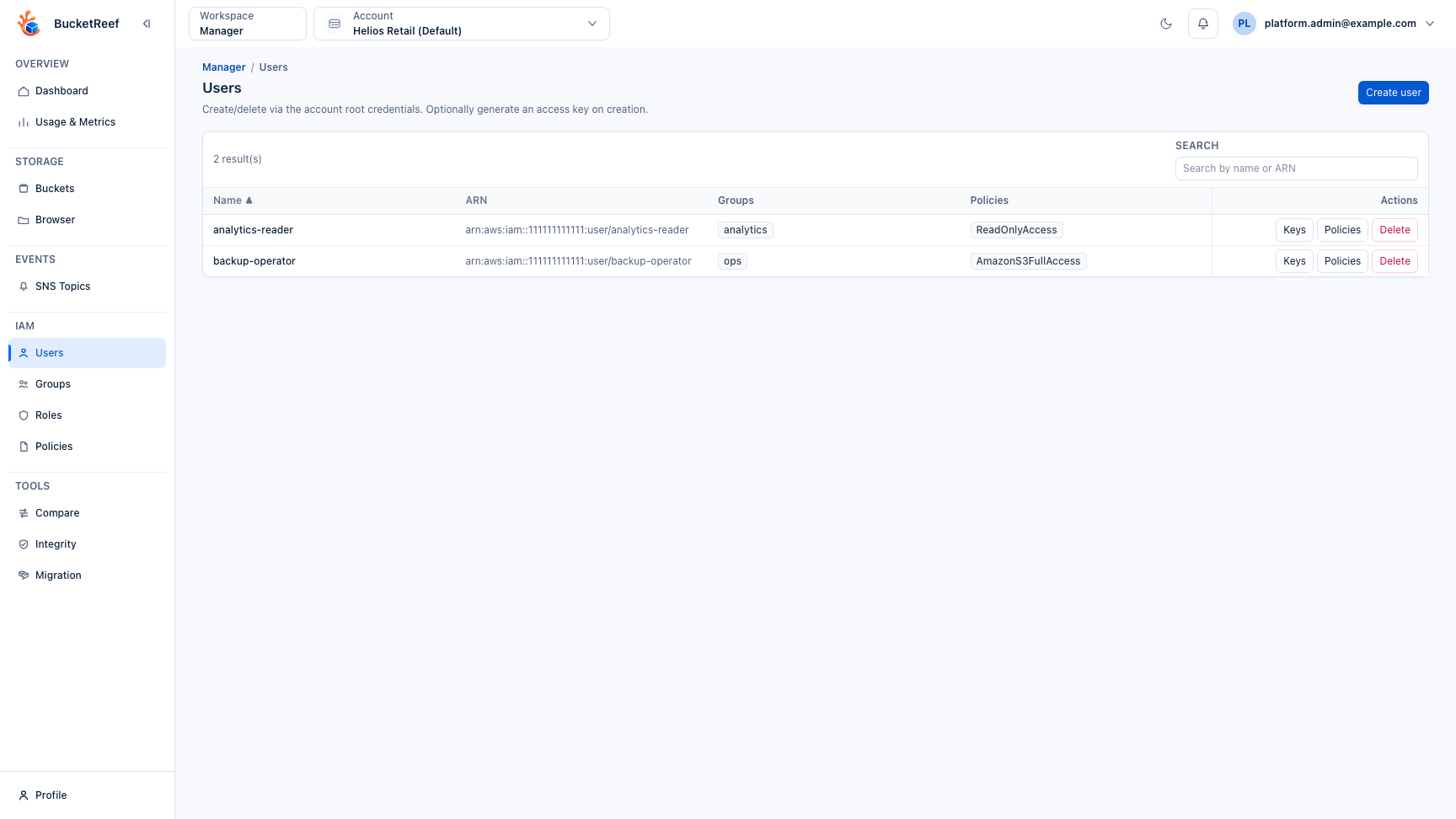
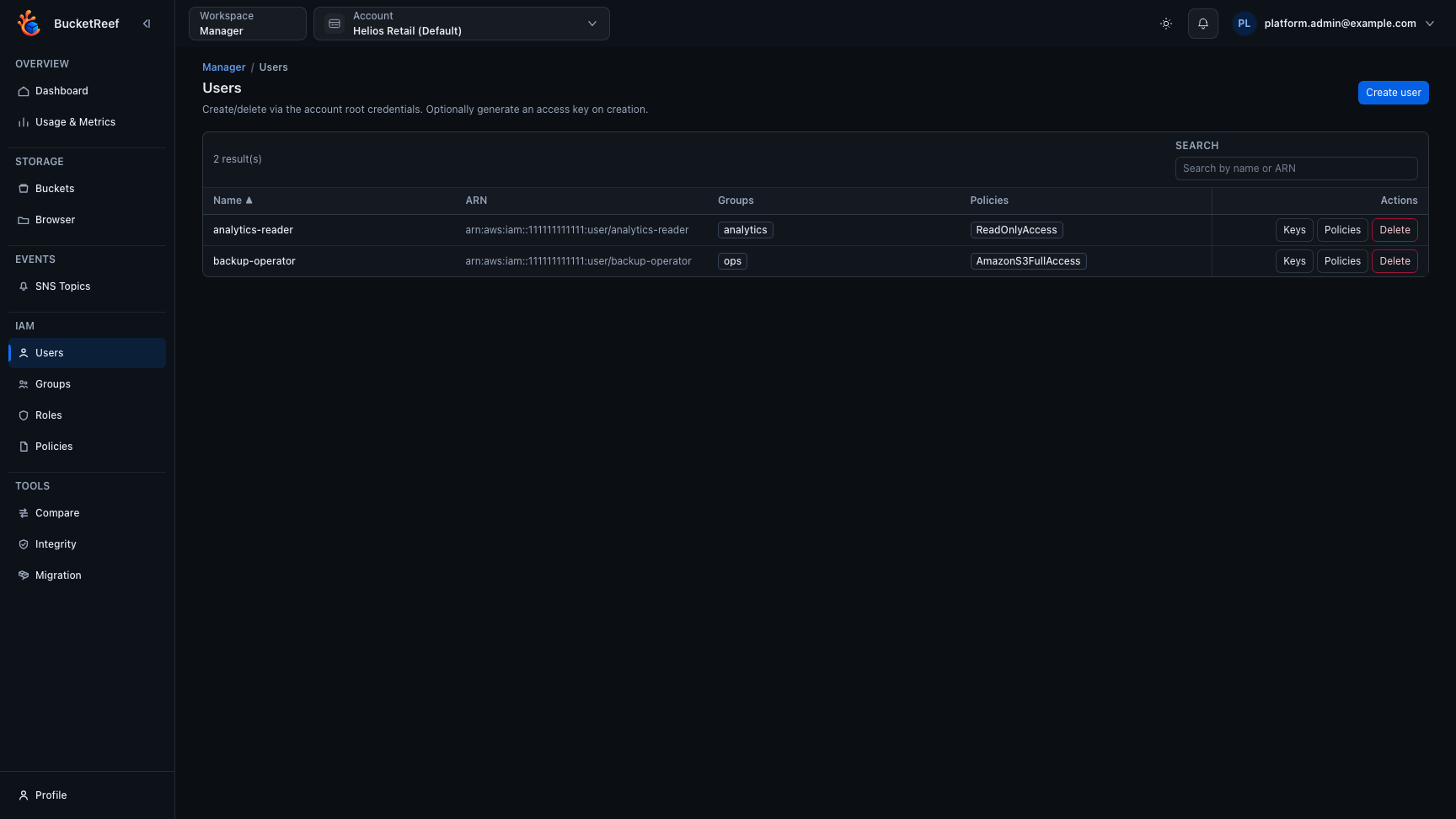
The Users view is the main IAM entry point and keeps the provider ARN, group and policy summary, and user-level actions visible together.
Expected result
IAM resources are managed with native IAM semantics.
After an IAM mutation, Manager reads the resource back from the provider and shows the provider state. If a multi-step role update fails after an earlier step succeeded, the editor reloads that provider state before you retry; it does not present an in-memory rollback that never happened in Ceph RGW.
You are done when
The intended user, group, role, policy, or access key appears in Manager and a separate access check confirms the expected storage permissions.
If you do not see this action
Check endpoint IAM capability, Manager access, and the selected execution context.
Limits / feature flags
Note
IAM UI is unavailable when selected context endpoint reports iam = false.
Note
IAM paths must be / or start and end with /, and are limited to 512
characters. User and group names keep the native IAM naming rules already
enforced by Manager.
Note
Create my private access is available only for an authorized RGW Account or S3 Connection that is executable in Manager and reports IAM capability. It does not reuse a Portal identity or the credentials of a shared connection. Ordinary Create user and New key actions still display a secret once for manual use, but no longer offer Add as S3 Connection in Manager.
Note
Access-key names and notes are an optional BucketReef extension. The global Manager setting and the selected RGW Account opt-in must both be enabled. Disabling either gate hides the metadata without deleting it; re-enabling both gates exposes the saved values again.
Note
Access-key expiration is independently opt-in and is available only when
BucketReef can disable the individual key in the storage provider. For Ceph
RGW IAM keys, BucketReef schedules a real provider-side Inactive change;
the UI does not treat a local expiration label as an access restriction.
Already scheduled expirations remain effective if the opt-in is later
disabled.