Feature: Buckets
When to use
Use this guide when creating, updating, or inspecting bucket configuration.
Prerequisites
- Access to the Manager bucket page for the intended execution context.
- Manager > Feature rule inventory access when using
/manager/feature-rules. - Effective storage permissions on target buckets.
Before you start
Confirm the Manager execution context first. Bucket names can repeat across accounts and connections, so the selected context is part of the target.
Steps
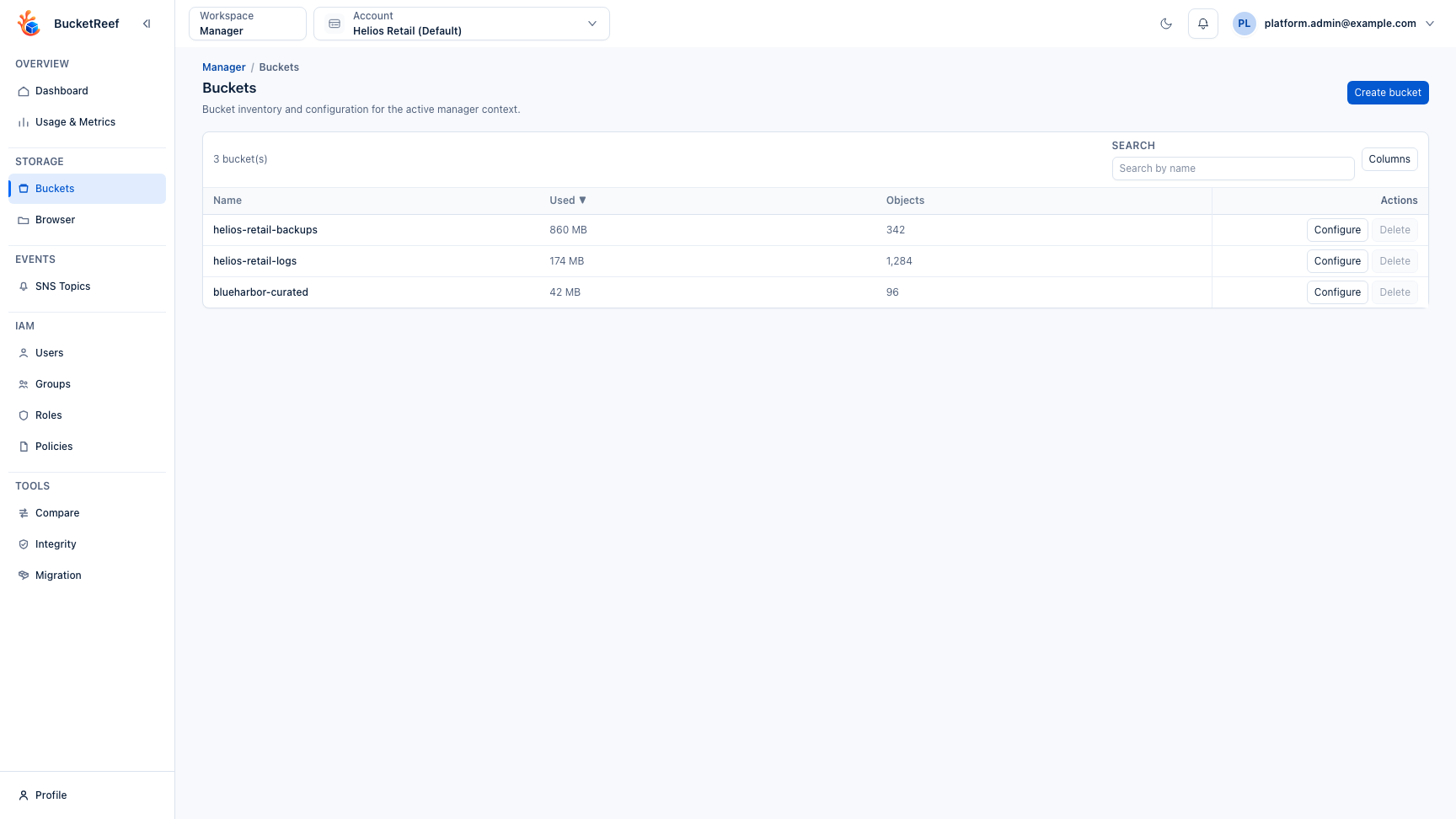
- Open Manager > Buckets (
/manager/buckets). - Create or select a bucket. In Manager, Create bucket opens one form with General and Protection settings. Check the displayed context, enter the bucket name, optionally enable Custom LocationConstraint for a region or placement, and choose Versioning before creating. Leaving a modified form asks whether to discard the draft; a failed request keeps the entered values.
- Configure relevant settings based on endpoint support:
- Versioning
- Object Lock
- Lifecycle
- Notifications
- CORS
- Policy and ACL options
- Public access controls
- Validate changes from the bucket detail view. Properties, Permissions and Advanced use compact settings sections. Each section saves independently: Unsaved changes marks its draft, and Configured describes a stored configuration, not service health. JSON examples populate the editor and still require Save. During a read or save, that section's controls are locked; failures remain visible beside the retained draft. Disabling or removing a configuration keeps its explicit impact confirmation. Bucket tag keys and values retain their exact spaces and characters. A tag with a value but no key is reported as an error rather than silently removed.
- In Manager, open Tools > Feature rules (
/manager/feature-rules) to audit lifecycle, bucket policy, CORS, notifications, or bucket tags across every bucket in the active context. Use JSON to inspect a rule in a read-only field. Long values wrap to fit the dialog; close it to return to the inventory without changing the rule. - When the purge tool is enabled, use Manager > Tools > Purge to empty selected buckets without deleting bucket configuration.
- From Manager > Buckets, empty buckets can be deleted from the normal confirmation dialog. Deleting a non-empty bucket requires bucket purge access and the guarded delete flow: review the impact, type the exact confirmation, and monitor progress. This flow deletes current objects, historical versions, delete markers, the bucket, and bucket configuration.
- Use the Usage stats tab in bucket detail pages to review the latest calculated snapshot, including logical bytes by current and noncurrent object versions when version listing is supported.
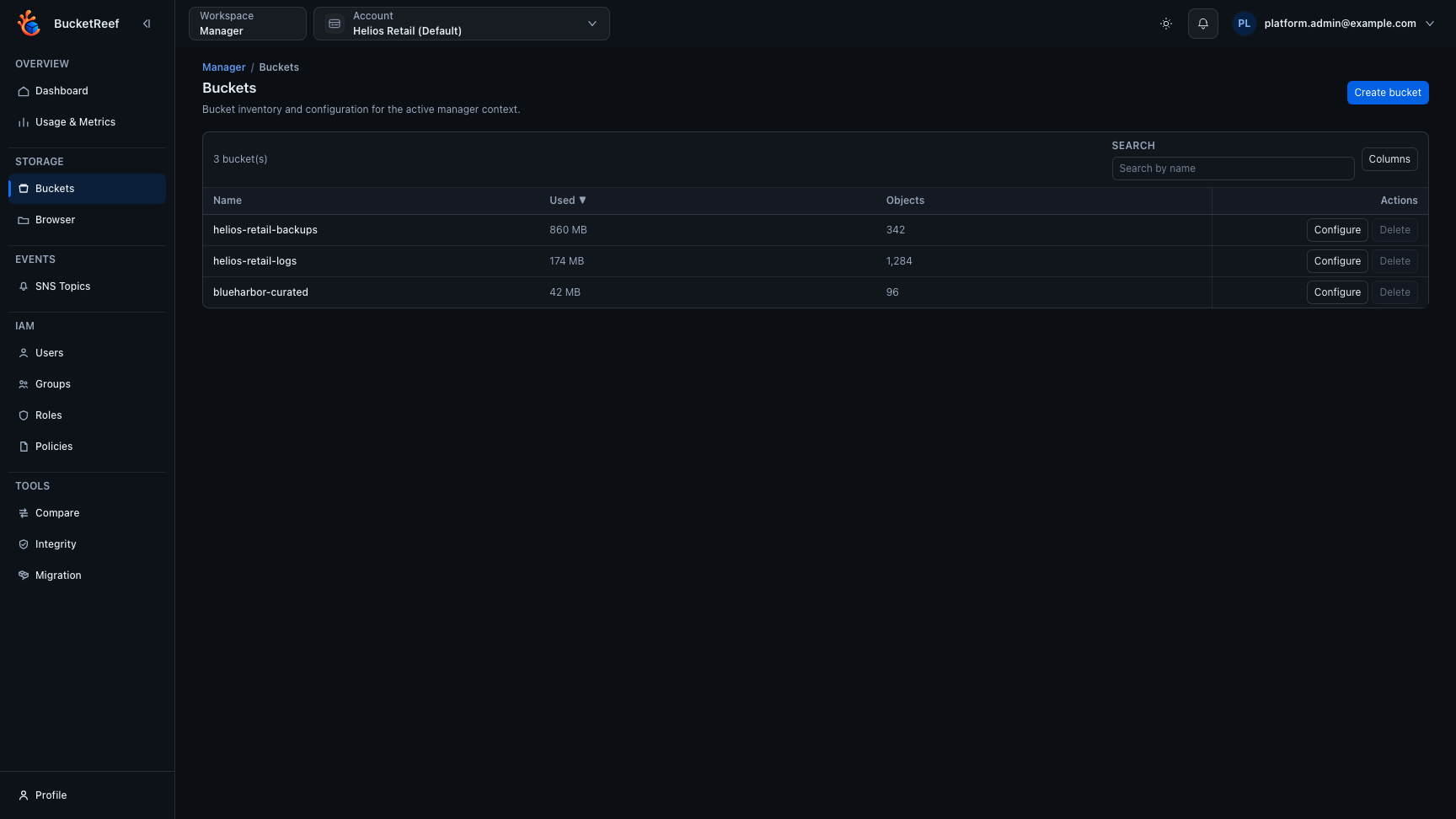
The bucket inventory keeps usage, object count, and the main bucket actions in one place before you open a bucket workspace.
Expected result
Bucket configuration is applied as native backend settings and visible in detail pages. Read-only rule inventories can be reviewed from Manager without editing bucket configuration. Usage snapshots are loaded from the database so bucket detail pages can display the latest successful calculation quickly.
You are done when
The bucket detail page shows the expected configuration state, and the embedded Browser can confirm object access when data access is enabled for the context.
If you do not see this action
Check Feature availability, endpoint capabilities, and Manager tool access before changing IAM policies.
Limits / feature flags
Note
Exposed controls depend on backend capabilities. Unsupported features are hidden or disabled. When the endpoint supports SNS, bucket lists can add a Notifications column and bucket detail pages show whether notification configuration is configured or not set. Bulk notification updates still depend on the target context supporting bucket notifications.
Warning
Manager bucket deletion with purge is destructive and can remove large buckets. Empty bucket deletion does not require purge access, but non-empty bucket deletion requires the guarded purge confirmation flow.