How-to: Configure a bucket from Manager
When to use
Use this guide when you need to adjust bucket behavior from the Manager workspace (versioning, lifecycle, policy, CORS, quotas, and access controls).
Prerequisites
- Access to
/manager/buckets. - A selected execution context (account/connection).
- Permissions to update bucket settings.
Before you start
Open the bucket from the account or connection that should own the configuration change. Do not rely on bucket name alone when multiple contexts may contain the same name.
Steps
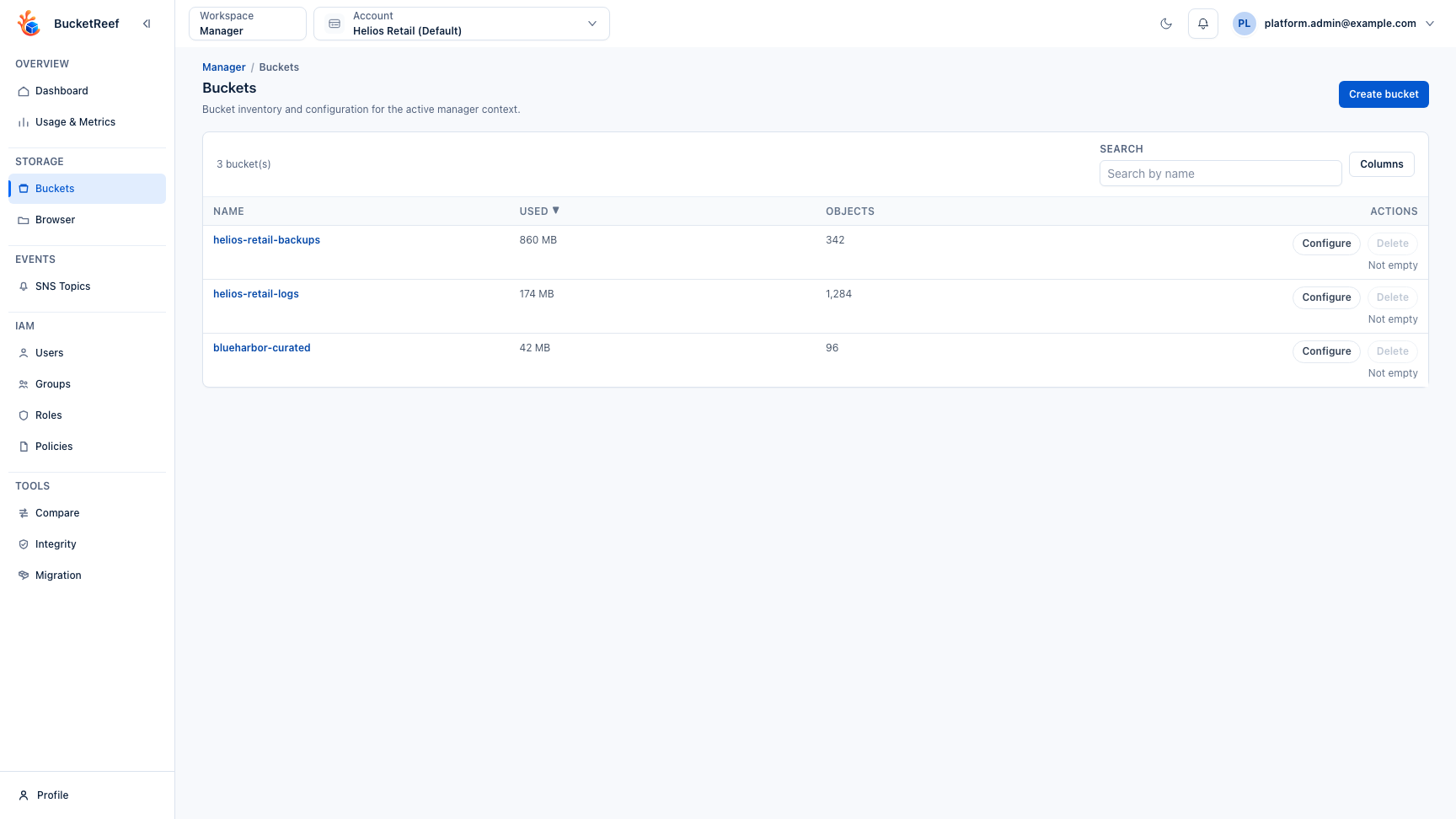
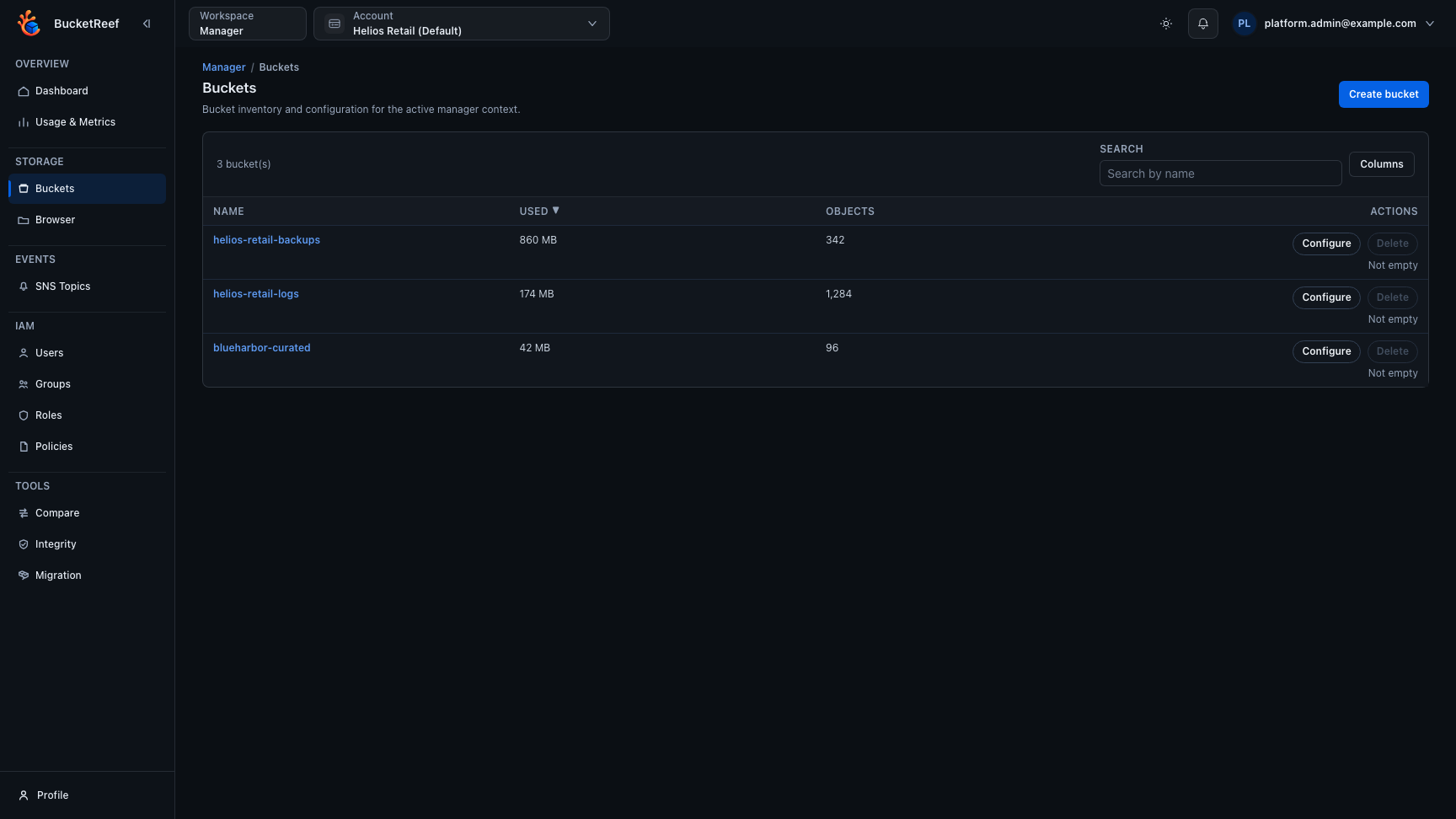
- Open Manager > Buckets (
/manager/buckets). - Locate the bucket to update.
- Click Configure on that bucket.
- In the bucket detail page, update the required sections:
- Properties (versioning, Object Lock, lifecycle, encryption, tags)
- Permissions (policy, ACL, public access block, CORS)
- Advanced (logging, notifications, replication, website)
- Privileged Ceph (quotas, when available)
- Save changes in each section.
- Use Refresh and the bucket summary to verify the expected state.
The bucket detail overview keeps the main configuration sections and their current states visible before you open an editor.
Configuration and draft states
Each section saves independently. Configured uses the theme accent to make an existing configuration easy to spot; it does not report endpoint health or guarantee that a policy is appropriate for your use case. Unsaved changes uses a warning badge while that section has a draft.
Save becomes available when that section has changes. It becomes disabled again after a successful save or after restoring the original values. Merely reformatting JSON does not count as a change; whitespace inside tag keys and values remains significant. Object Lock's Reset is available only while its draft differs from the loaded configuration. Save failures retain the draft for correction or retry.
Lifecycle Quick add actions save immediately and retain their own buttons.
Leaving a configuration draft
Navigating to another page, returning to the bucket list, using browser history, or changing the execution context prompts you to Keep editing or Discard changes while any section has unsaved changes. Reloading or closing the browser tab uses the browser's own warning. An in-progress save must finish before you can confirm an in-app departure.
Switching bucket tabs keeps your drafts. Refresh updates only sections without unsaved changes or an in-progress write; it does not discard your edits. Saving one section does not clear the warning for another section's draft. The warning disappears after the last draft is saved or restored to its original values.
Expected result
The target bucket reflects the new configuration and the updated status is visible in Manager.
You are done when
The relevant configuration section reports the expected state after refresh, and no warning or disabled control remains for the feature you changed.
If you do not see this action
Check the selected context, endpoint capability, and your effective Manager access for the specific setting.
Limits / feature flags
Note
Available controls depend on backend capabilities and account-level permissions.
Notification status and configuration are shown when the selected endpoint
capability sns is enabled.
Replication is available only when the selected endpoint capability
replication is enabled.