Feature: Object Versions in Browser
When to use
Use this guide when you need to inspect object history, restore a previous state, or review delete markers directly from Browser.
Prerequisites
- Access to
/browserand the intended Browser storage context. - Effective permissions for the target bucket and object.
- Versioning enabled on the bucket.
Before you start
Open the exact bucket and object key from the intended context. Version history belongs to the bucket, not to the display row alone.
Steps
- Open
/browserand navigate to the target bucket and object. - Open Versions from the item actions.
- On
/browser, you can use the itemMore actionsmenu, the context menu, or version-aware flows triggered from deleted objects. - Review the entries shown in the
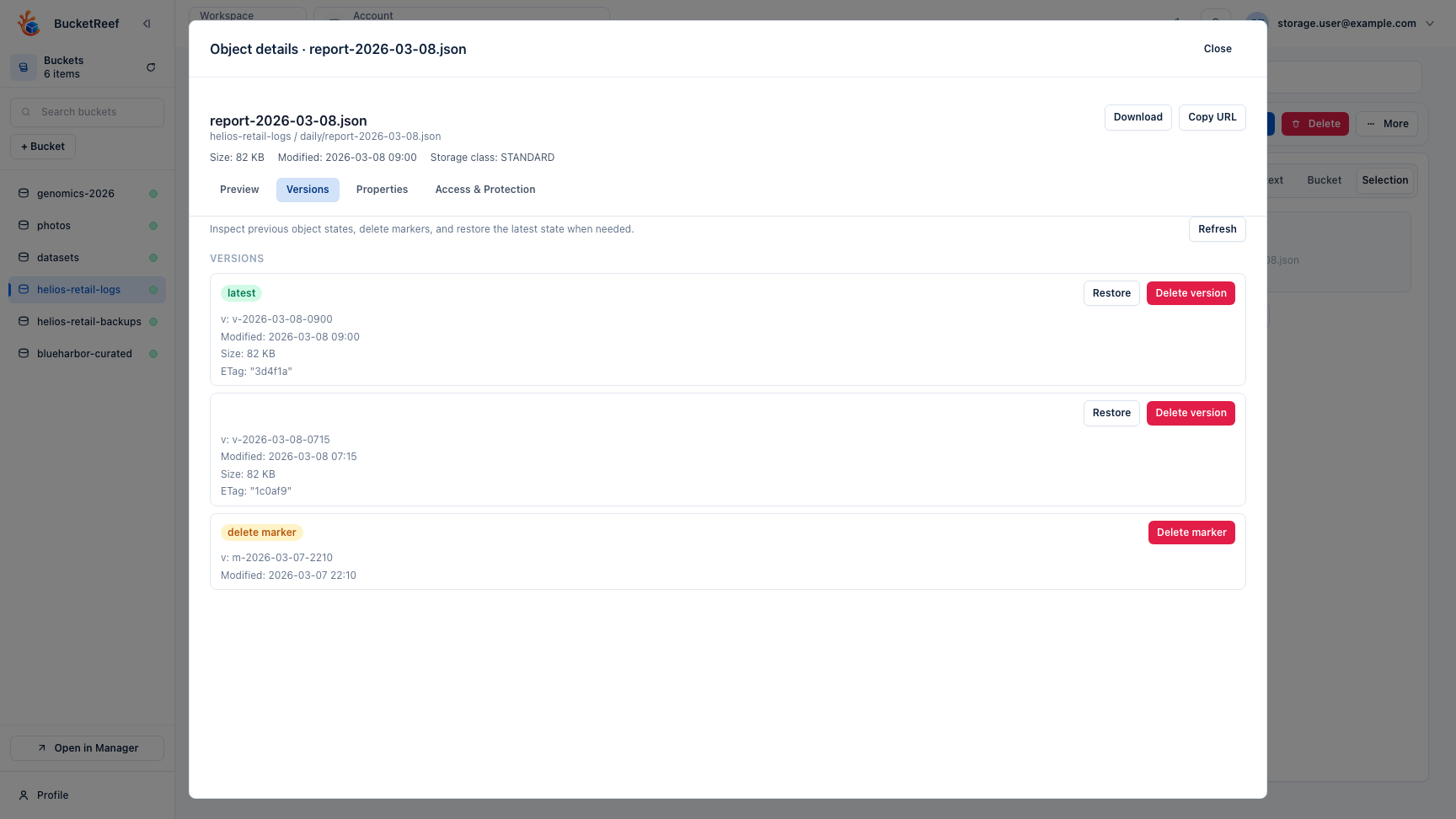
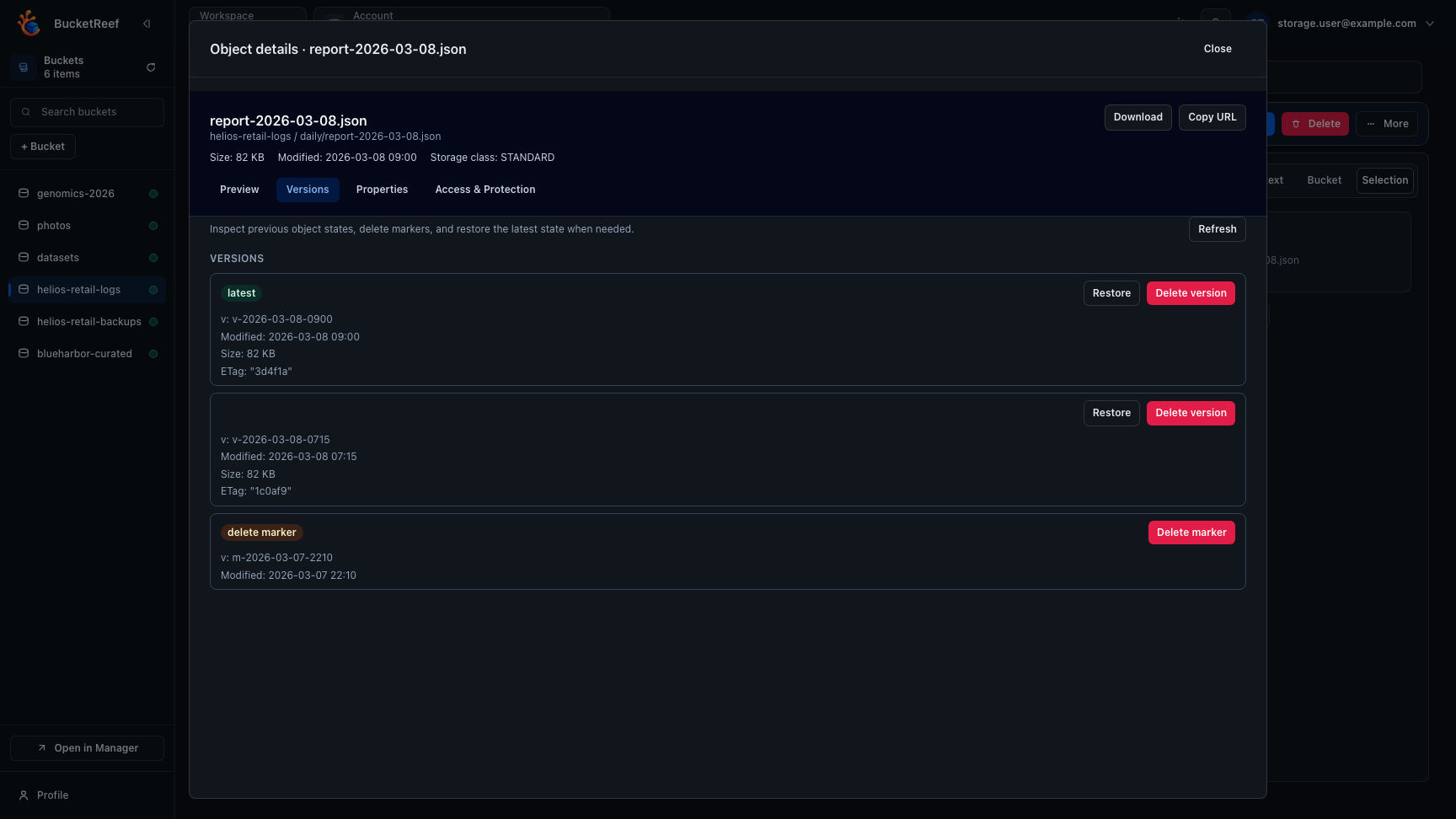
Versionstab of the file details drawer. - Latest versions and delete markers are clearly identified.
- Each row keeps restore and delete actions next to the corresponding version metadata.
- Download an available version, or restore or remove it using its row actions and the existing confirmation.
- If the current object state is deleted, Browser opens the details drawer directly on
Versions.
The focused drawer keeps the exact object key, current and previous versions, delete markers, and per-version actions together without the surrounding Browser chrome.
Expected result
You can inspect object history and act on previous versions without leaving Browser.
You are done when
The versions tab shows the expected latest version, older versions, and delete markers, or clearly explains that no version history is available.
If you do not see this action
Check bucket versioning, endpoint capability, the selected object state, and whether your credentials can list versions.
Limits / feature flags
Note
Browser availability depends on workspace browser flags and endpoint capabilities. The Versions tab is only useful when the target bucket has S3 versioning enabled.
Enriched previews apply to the current object only. Historical content comparison is not available. Version downloads and restores preserve the exact version identifier. A failed historical read does not fall back to the current object. Storage permissions continue to apply to every operation.